A QR code that starts a conversation
Publish a page for your assistant that anyone can reach by scanning a QR code — on a visiting card, a counter, a flyer — where they tap Talk to speak to it or Chat to type.
Your assistant answers your phone, your WhatsApp and the chat bubble on your website. All three wait for someone to come to you.
A connect page works the other way round. It is one page, on the web, that belongs to one assistant — and you hand out the way in. Someone points their camera at a QR code on your visiting card and lands on a page with your assistant’s name on it and two buttons: Talk, which starts a spoken conversation in their browser, and Chat, which opens a typed one. No app to install, no number to save, no sign-up.
That matters most in the minute after you have met someone. A card with a phone number gets called next week, if at all. A card with a code gets scanned in the car park, while they still remember what you talked about — and your assistant answers, at nine at night, in whatever language they open with.
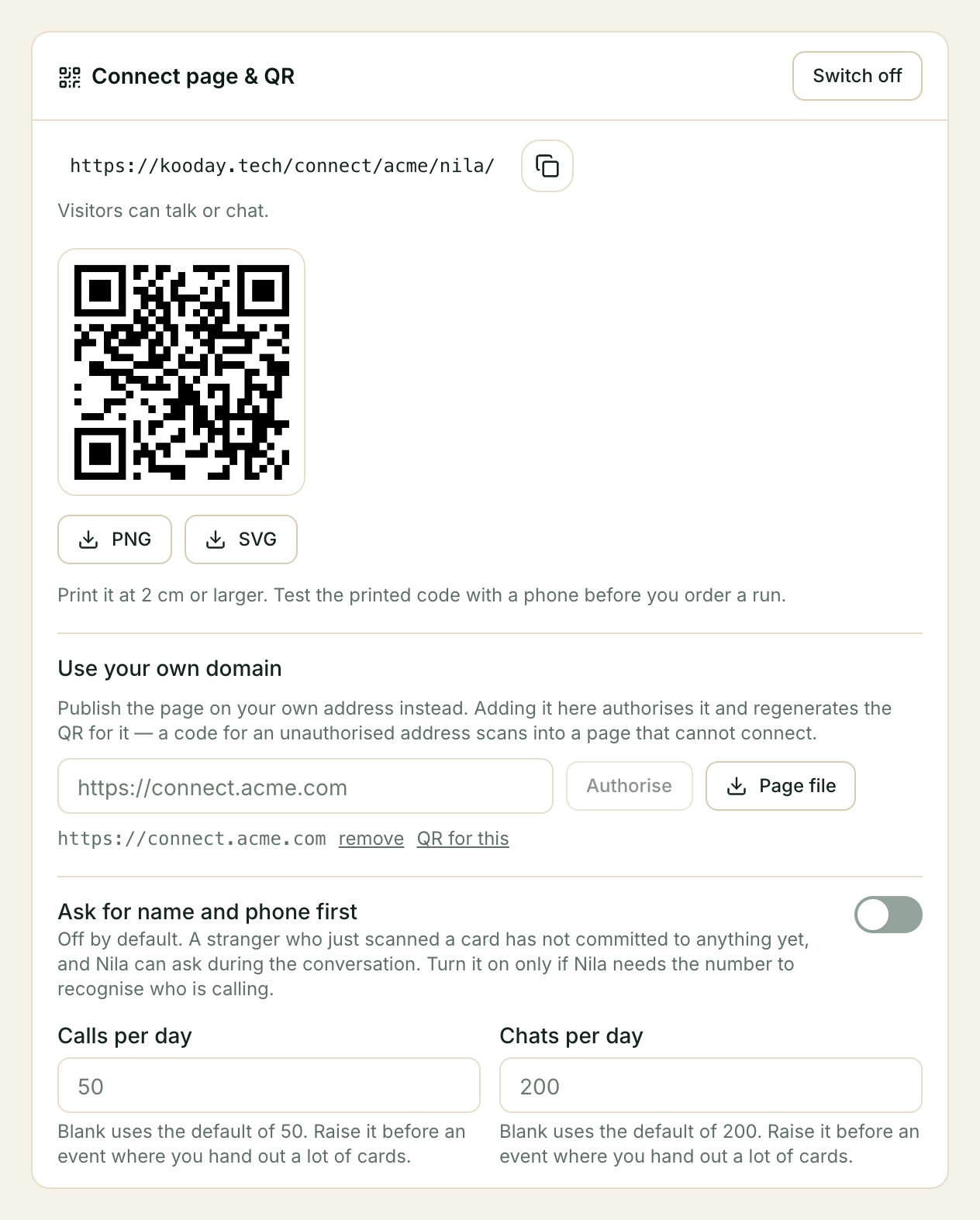
Where to find it: open Bots in your dashboard — under Assistants in the sidebar — choose the assistant, and look for Connect page & QR on the Configuration tab. Publishing it needs an admin; anyone on your team can see the link.
Five-minute setup
- Open the assistant you want people to reach.
- Press Publish the page.
- Copy the link, or download the QR code with PNG or SVG.
- Open the link on your own phone and try both buttons.
That is the whole thing. Everything below is refinement.
What a visitor sees
Your assistant’s name, a short line under it, and the two buttons. Nothing else — no form, no fields, nothing to fill in first.
That is deliberate, and it is the setting people ask to change first. Someone who has just scanned a code off a card has not committed to anything yet, and every box between them and the first tap loses some of them. Your assistant can ask who it is talking to during the conversation, which is a better moment to ask anyway.
A visitor who taps Talk is asked by their own browser for microphone permission — that prompt comes from the phone, not from us, and there is no way to skip it. Once they allow it, they are talking to the same assistant that answers your phone, running the same instructions.
Only the buttons your assistant can honour are drawn. If web chat is off for this assistant, there is no Chat button — not a button that fails when pressed. Turn the channels on under Channels on the same screen, and the page picks them up.
The QR code
The code is generated in your browser, from the link shown above it, so nothing about your page is sent anywhere to draw it. PNG is the one to send a printer; SVG is the one to hand a designer, because it stays sharp at any size.
⚠️ Print it at 2 cm or larger, and scan the printed proof before you order a run. A code that scans perfectly on a screen can fail on paper at business-card size, and you will not find out until the box arrives.
The link ends in a slash. Typing it without one works too, so nothing breaks if someone retypes it — but download the code from here rather than building it from the address by hand, because a code is printed once and cannot be corrected.
Using your own web address
If you would rather the page lived on your own domain — connect.acme.com
rather than a kooday.tech address — type the address into Use your own
domain and press Authorise.
That does two things at once, on purpose: it tells us to accept your page from that address, and it regenerates the QR code for it. They are one action because a code made for an address we have not been told about scans into a page that cannot connect — and you would find that out after the cards are printed.
Then press Page file to download a small HTML file and publish it at that address, the same way you would any other page on your site.
The file is fifteen lines and holds no settings of its own — it loads your page from us. That is the point: when we improve the page, your visitors get the improvement, without you downloading anything again. It also contains no key, so there is nothing in it to leak.
You can keep both addresses. Each one you have authorised gets a QR for this link, so you can print your own domain on the cards and still use the kooday.tech link in a message.
How many people can use it in a day
Two ceilings, one per kind of conversation, under Calls per day and Chats per day. They start at 50 calls and 200 chats.
They exist because the page is public by design: the address is on a card in someone’s wallet, and a conversation costs you real money. The ceiling is what stands between an address that got shared somewhere you did not expect and a bill you did not expect.
| If you are… | Consider |
|---|---|
| Handing out a few cards | Leave both alone |
| Speaking at an event with 200 badges | Raise calls well above the number of people in the room, before the day |
| Putting the code on a shop counter | Watch the first week, then set it above what you actually see |
Clear the box to go back to the default.
When a day’s ceiling is used up, nobody is shown a broken page: a visitor who taps Talk sees Back tomorrow, and one who is typing is told the assistant has had as many chats as it can today. The count resets overnight — shortly before six in the morning, Indian time.
Asking for a name and phone first
Ask for name and phone first adds two optional boxes to the page before the buttons. It is off, and it should usually stay off.
What someone types is passed to your assistant as context — it can use it in the conversation, and it lands in the transcript. It is not proof of who they are, and your assistant does not treat it as proof: this page is public, so anyone can type anything into those boxes.
That matters if you were expecting the number to identify a member from a list you keep. It does not, and deliberately — recognising someone from a public page would mean anyone who knows a member’s number could be greeted as that member. Turn the boxes on when it is useful to have the details in front of your assistant early, not as a way of verifying anybody.
Switching it off
Switch off stops the page. Your settings, your authorised addresses and your ceilings stay exactly as they were, so turning it back on restores the same page rather than making you set it up again.
Someone holding a card you printed last year is not shown an error. They see your assistant’s name and isn’t available here right now, which is the truth and leaves them able to reach you another way.
When something is wrong
The page says the assistant isn’t available
The page is switched off, or the assistant’s voice and web chat are both off. Check Connect page & QR first, then Channels on the same screen.
The Chat button is missing
Web chat is off for this assistant. Turn it on under Channels and reload the page.
The Talk button is missing
Voice is off for this assistant, in the same place. An assistant with neither voice nor web chat has no connect page at all — there would be nothing on it.
It says “Back tomorrow”, or that the assistant has had as many chats as it can today
The day’s ceiling is used up — the first message is what a caller sees, the second what someone typing sees. Raise Calls per day or Chats per day; the change applies to the very next visitor.
The code scans into a page that will not connect
Almost always a code made for an address that was never authorised — someone built the QR from a link by hand rather than downloading it here. Add the address under Use your own domain, then use the code this screen generates.
Nothing happens when a visitor taps Talk
They have not granted microphone permission, or they refused it earlier and their browser now remembers. On a phone this is in the browser’s site settings; the fastest fix is usually to open the page in a different browser to confirm that is what it is.
What it costs
Nothing to have. A conversation through the connect page is billed exactly like the same conversation anywhere else — a call is a call, a chat is a chat, at the rates on your plan. The ceilings above are the way to keep that predictable.
See also
- Putting Kooday on your website — the bubble and the “Talk to us” button for your own site, which is the same technology aimed at people already on your page.
- Connecting a channel — turning voice and web chat on for an assistant.
Still stuck? We answer support mail the same working day.
Email support