Segments — who a broadcast goes to
The six standing audiences a WhatsApp broadcast can be sent to, the three ways to build your own, and why the number a segment previews is never the number that gets messaged.
A broadcast needs an audience. Segments are how you describe one: a saved, named rule that says who matches — customers who were quoted and never bought, customers who have gone quiet for six months, customers who tapped a link in your last campaign and never wrote back.
You write the rule once and keep it. Every broadcast you create afterwards picks a segment by name.
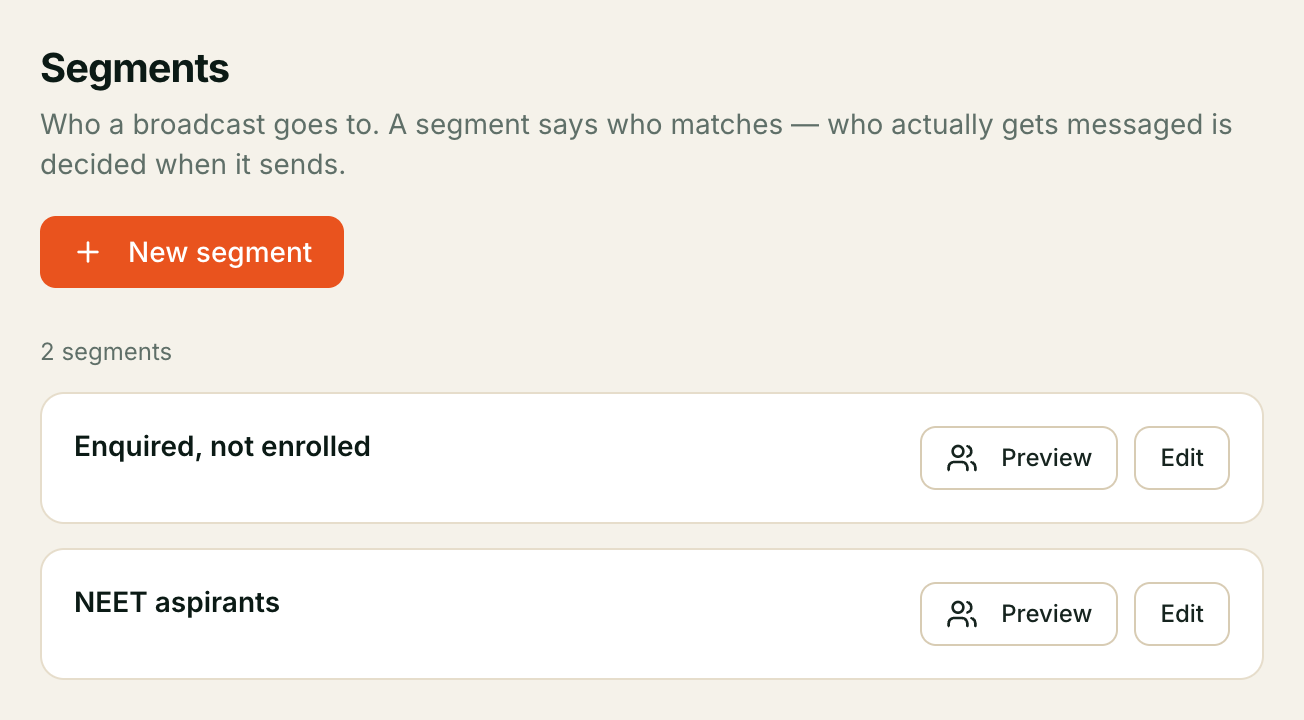
Where to find it: Segments in the left-hand menu. The page header reads “Who a broadcast goes to. A segment says who matches — who actually gets messaged is decided when it sends.”
That second sentence is the whole page in miniature, and the next section is about it.
A segment counts people, it does not send to them
A segment answers one question — who matches this description right now — and nothing else. It does not check whether anyone agreed to hear from you, and it is not supposed to.
Permission is applied at send time, in one place, on every single message. Anyone who has opted out, is on your do-not-call list, has no recorded consent, has already had a message inside the frequency cap, or has no usable phone number is dropped there — and the campaign report tells you how many and why.
This is deliberate. A count that quietly pre-filtered for consent would be a number you could not check against anything, and it would encourage writing permission into a filter where a mistake is invisible. Instead the segment gives you an honest “this many people match” and the report gives you an honest “this many were messaged, and here is everyone who was not.”
Every preview says so on its face:
“This is who matches the filter. Who actually gets messaged is decided when the broadcast sends — anyone who has opted out is left out then, and the broadcast report says how many and why.”
See When a customer asks you to stop for what makes someone suppressed.
⚠️ Expect the sent number to be lower than the segment number, sometimes a lot lower. That gap is the system working. Judge a campaign on the report, not on the preview count.
Segments do not choose who gets called
Kooday has two audience mechanisms and they are completely separate. This is the single most common wrong assumption about this screen, so it gets its own section.
| Segments (this page) | Voice campaign audience | |
|---|---|---|
| Chooses who gets | A WhatsApp broadcast message | A phone call |
| Where you build it | Segments in the menu | Inside the campaign itself, under Who to call |
| Saved and named? | Yes — reusable across broadcasts | No — the filter belongs to that campaign |
| When it is worked out | Once, when the broadcast is created | Freshly, every time the campaign runs |
| What it can filter on | Orders, quotes, bookings, deals, call outcomes, past broadcasts, contact and customer fields | Contact fields, custom attributes, deals |
A segment dials nobody, and a voice campaign’s filter messages nobody. There is no segment picker in a voice campaign, and there is no way to send a broadcast to a campaign’s filter. If you want the same group of people called and messaged, you describe them twice, once in each place.
For the calling side, the audience is built on the voice campaign itself, in its own filter — not here.
The six standing segments
Every account starts with six, created the first time the Segments page is opened. They carry a Standard chip.
| Segment | Who matches |
|---|---|
| Stalled deals | ”An open deal on a stage the assistant is working, with nothing heard back for 7 days.” |
| Quoted, not bought | ”A quote went out and no order ever followed.” |
| Dormant customers | ”Bought at least once and silent for 6 months.” |
| Missed us | ”Tried to reach us, or we them, in the last 30 days and the call never connected.” |
| Clicked, didn’t reply | ”Tapped a link in a previous broadcast and never wrote back — the highest-intent list you have.” |
| Recent buyers | ”Bought in the last 30 days — the audience a feedback campaign is about.” |
Five of them are worth a sentence more than their description gives you.
Stalled deals requires all four things to be true of the same deal: it is open, its column is one your assistant works, and its follow-up has not been halted. Deals where the customer said no — and follow-up was stopped for that reason — are left out on purpose. Chasing them with a promotion is exactly what you do not want.
Quoted, not bought counts a quote that was actually proposed or accepted, so a draft quote sitting in your account does not qualify anyone. An order that was placed and later cancelled still counts as not bought.
Missed us is calls only. A missed appointment is not included — nothing in Kooday records a no-show, so this cannot detect one. The screen says so on the card. Do not read the name as broader than that.
Clicked, didn’t reply is empty until you have sent a broadcast containing a tracked link. On a new account it correctly matches nobody.
Dormant customers and Recent buyers both look at real orders, so they are only useful if orders are recorded in Kooday.
⚠️ On a brand-new account, all six match nobody — and that is correct. Every one of them describes something a customer did: a deal, an order, a quote, a call, a click on a previous broadcast. A list you imported this morning has none of that history yet, so the six will size at zero until it accumulates. Build your own list, or upload one, and use that for your first send.
Retuning a standard segment
You can change what a standard segment matches — press Edit and rewrite the filter. Six months is not the right dormancy window for every business.
You cannot rename or delete one. Renaming is refused with “a standard segment cannot be renamed — features reference it by name. Copy it under a new name instead.” This is because campaign types look them up by name: a reactivation broadcast defaults to Dormant customers, an offer to Quoted, not bought, an appointment campaign to Stalled deals, and a feedback campaign to Recent buyers. Rename it and that default breaks.
Once you have changed one, the card shows a Customised chip, prefixes its original description with “Ships as: ”, and adds the line “You have changed this one, so it may no longer match the description above.” Nothing quietly pretends the description still holds.
Building your own
There are three ways in, and they all end up at the same editor and the same kind of saved list:
- Segments → New segment.
- Contacts → Create audience list. Opens the editor straight away. It does not carry your contacts search across — the search box matches text anywhere on a contact, including inside your custom fields, while a segment asks a precise question about a named field. Carrying it over would promise a list that did not match what you were looking at.
- Inside a broadcast, on the Audience step — see Building a list while you send.
Give it a Name — it has to be unique in your account — and build the filter.
How conditions combine
One dropdown at the top, labelled Match, with three options:
- all of these — everyone who satisfies every condition
- any of these — everyone who satisfies at least one
- none of these — everyone who satisfies none
Then a flat list of conditions, added with Add a condition. There are no nested groups in the visual builder; one level is all it offers.
⚠️ “none of these” takes exactly one condition. The builder will let you add a second one under it, and saving then fails with ‘not’ takes exactly one node. It is a real limit rather than a mistake in your filter. For a single exclusion it is exactly right. To exclude two things at once, either use all of these with each condition’s own negative operator where it has one — is not, is not one of, is not empty — or write it in JSON mode, where a
notcan wrap a wholeandgroup.
What you can filter on
Eight kinds of condition, each with its own inputs:
| Condition | What it looks at |
|---|---|
| Bought / quoted / booked | An order, quote or booking on the customer’s record — pick which, which statuses count, and optionally in the last N days |
| How long since we heard from them | Chat and calls together, in either direction |
| Deal | Several tests that all apply to the same deal — open, column, who works it, value, temperature, age |
| Contact detail | Anything on the contact record, including your own custom fields |
| Customer detail | Anything on the customer profile, including custom fields |
| Call outcome | How a call ended — answered, no answer, busy, failed, voicemail |
| What they did with a past broadcast | Delivered, read, clicked, replied, failed, suppressed |
| Consent record | Optional, and never required — see below |
To filter on your own data — a loyalty tier, a branch, a pincode — choose Contact detail, then A custom contact field…. The field-name box suggests the names your own contacts actually carry, with how many records have each. Start typing and pick one.
You can still type a name that is not in the list — the suggestions come from a sample of your contacts, not from a rule about what is allowed, and a field you are about to import will not be there yet. But if you type something no contact carries, the box says so underneath. That line is worth reading: before it existed, one misspelling produced a segment matching nobody, which looks exactly like “I have no such customers”.
A worked example — “Trivandrum customers”. If your import had a district
column:
- Contacts → Create audience list
- Match: all of these
- Condition 1 → Contact detail → A custom contact field… → pick
districtfrom the suggestions - Comparison is, value
Trivandrum - Check the preview count, name it, save.
It is a saved rule, not a snapshot: a Trivandrum contact you import next month joins it without you touching it again.
The Deal condition groups its tests under the line “All of these apply to the same deal.” That matters: open AND worth more than ₹50,000 as one deal condition finds a single deal that is both, not a customer with one open deal and a separate large one.
⚠️ “More than N days ago” includes people you have never heard from. The hint under the control says so. A segment of heard nothing for 90 days will include a contact you imported yesterday and have never spoken to. Pair it with a Bought / quoted / booked condition if you only want people with history — which is exactly what Dormant customers does.
The Consent record condition
It is offered, and you almost never want it. Suppression is applied when the broadcast sends, so adding a consent condition here does not turn a match count into a send count — it just makes the count smaller and no more accurate. The hint on the control says it outright: “Optional, and never required: suppression is applied when the broadcast sends, not here.”
The preview
Audience preview updates as you build, with a Refresh button to force it. It gives you:
- a headline count with the words people match underneath
- a sample of up to 25 — name, the last ten digits of the phone number, and a Reachable column reading yes or no usable number. It is described on the screen as “A sanity check, not an export.”
- the standing reminder that this is who matches, not who gets messaged
Two limits are shown honestly rather than hidden:
- Counting stops at 5,000. Past that the number renders as
5,000+with the line “We stop counting at 5,000. The real number is at least this — treat it as a floor, not a total.” - Previews are cut off after 3 seconds. A filter that takes longer says “That filter took too long” and asks you to narrow it — fewer conditions, or a shorter time window.
If some sample rows say no usable number, a footnote appears: they are counted here and will be skipped at send time.
Saving
Create segment (or Save changes). Names are unique, so a clash comes back as “That didn’t work” with the line “Segment names are unique within your account.”
Your own segments can be deleted — Delete, then confirm on “Delete this segment?”. Deleting one does not delete the broadcasts that used it; their history and reports stay intact.
The JSON mode
Two buttons at the top of the editor, Builder and JSON. JSON mode is for filters the visual builder cannot draw — anything with a nested group, which includes the shipped Quoted, not bought (it needs has a quote AND does not have an order).
Opening such a segment forces JSON mode with an explanation: “It uses a shape the visual builder cannot draw (a nested group, for example). It is shown exactly as saved so that opening it here cannot change what it means.” That is a safety property — the builder will never silently flatten a filter into something that means something else.
Whatever you type is posted exactly as written, and any refusal is shown to you unedited under “That filter didn’t compile”.
Building a list while you send
You do not have to leave the wizard to make an audience. The Audience step asks where this one comes from:
- Pick a saved list — the dropdown, as before.
- Upload a CSV — choose the file, tick the consent box, pick where they agreed, and name the list. Kooday imports the contacts and saves a list of exactly the people in that upload, then selects it.
- Filter my contacts — the same builder described above, saved under a name.
Whichever you use, the result is an ordinary saved list, sitting with the rest on the Segments page and reusable next time.
Two things worth knowing about the upload path:
- The consent box is the same attestation the import screen asks for, and it is not optional. It is a record of your claim that these people agreed to hear from you — Kooday does not verify it, and it never overrides someone who has opted out.
- The list points at the upload, not at the phone numbers in it. So it stays right if a contact is renamed later, and it does not quietly grow when you import a different file.
If any rows could not be read, the step lists them with the reason — the row number and what was wrong with it. Those rows never became contacts, so they are in no list and no broadcast.
Using a segment in a broadcast
In the broadcast wizard, step one is Who this goes to — a dropdown listing your campaign type’s usual segment first, then every segment you have by name.
Two things the wizard tells you, both worth repeating:
- The audience is fixed when the broadcast is created and cannot be changed afterwards — a different audience is a different broadcast. Editing the segment later does not change a broadcast already created from it.
- You cannot paste a list of numbers. A pasted number carries no record of the person agreeing to hear from you, so the request is refused outright rather than accepted and quietly suppressed. Import them as contacts with a consent attestation first, then broadcast to a segment.
A broadcast audience is capped at 50,000 people; a larger one is refused with “this audience is larger than 50000 people — narrow the segment, or split the send”.
See Sending a WhatsApp campaign for the rest of the wizard.
Troubleshooting
The page says “This feature is not available”
Broadcast is not enabled on your account, and Segments come with it. There is nothing to switch on yourself — talk to us.
”No segments yet”
The six standard segments are created the first time the page loads. Reload the page. If you are creating a broadcast and it refuses with “the standard segment ’…’ is missing for this tenant — open the segments list once to provision it”, that is the same thing: open Segments once and try again.
Nobody matches, and they should
Work down this list:
- Is Match set to all of these when you meant any of these? One unsatisfiable condition empties an all filter completely.
- Is a Deal condition asking for several things on the same deal that no single deal has?
- Does the condition rely on data Kooday holds? Bought needs orders recorded here; Clicked needs a previous broadcast with a tracked link.
- Is a custom field name spelled exactly as it was imported? It is matched character for character. The field-name box suggests the names your contacts really carry — if what you typed is not among them, it tells you so.
The count is far higher than I expected
Check any more than N days ago condition — it includes everyone you have never heard from at all, which on a freshly imported list is most of it.
The count and the number actually sent are very different
Expected. Everyone suppressed at send — opted out, no consent on record, inside the frequency cap, no usable number — is counted by the segment and dropped at send. The campaign report lists every one of them with its reason.
”That filter didn’t compile”
The message underneath is the exact reason and is worth reading literally — unknown field, group ‘and’ needs at least one node, a call_outcome leaf needs at least one of connection_status, call_completed or within_days. In the visual builder this usually means a condition is half-filled.
Still stuck? We answer support mail the same working day.
Email support