Setting up your assistant by chat
Set up by chat interviews you about your business and drafts a whole assistant from the conversation — what it says, what it sells, what it knows — and nothing it writes is live until you publish it.
Most people know their business perfectly well and have no idea what a “business rule” or a “prompt” is. Set up by chat is the door for that: you answer five short questions, then have a conversation about what you do, and at the end Kooday drafts the whole assistant from what you said — its description, the things it must never do, your products and prices, and answers to the questions customers actually ask.
It is a conversation with a review at the end, not an assistant that builds itself. Everything it produces is written as a draft, the assistant it creates is switched off, and it answers nobody until you read what was written and publish it. That last step is deliberately yours.
⚠️ It will keep asking. “We sell furniture” is not enough to build an assistant that can answer a real customer, so the interview probes — prices, opening hours, what you refuse to quote over chat. That is the point of it, and the Progress checklist tells you when there is finally enough.
Where to find it: Bots, under Assistants in the left-hand menu — the Set up by chat button beside Create assistant. On an account with no assistants yet it is the main button on the page, and it is also offered inside the Create assistant dialog as “Set up by chat (recommended)”.
On a brand-new account it also starts from the welcome page you land on after signing in. Type your website into the box there and press Build my assistant, or press Start with the chat if you have no website. Both open the same interview described below, with the website already attached if you gave one. See Your first 30 minutes for what that page is.
The five-minute version
- Click Set up by chat. If you have a website, type its address in the box before you start — that is the only moment it can be attached.
- Answer the five questions at the top. They save as you type.
- Talk to the interview in the chat pane. Answer in your own words.
- When Review & create turns on, click it.
- Read the report, click Review & publish instructions, and publish.
Steps 1–4 can be spread over days. Nothing is lost between visits.
Step 1 — The basics
Five boxes, all of them short. They exist to give the interview a running start rather than a blank page.
| Question | What it wants |
|---|---|
| What is the business called? | The name customers know you by. |
| What kind of business is it? | A few words — “Dental clinic” is plenty. |
| Where are you? | The area a customer would recognise. |
| Website | Optional, and see below. |
| When are you open? | Include the days you are closed — customers ask. |
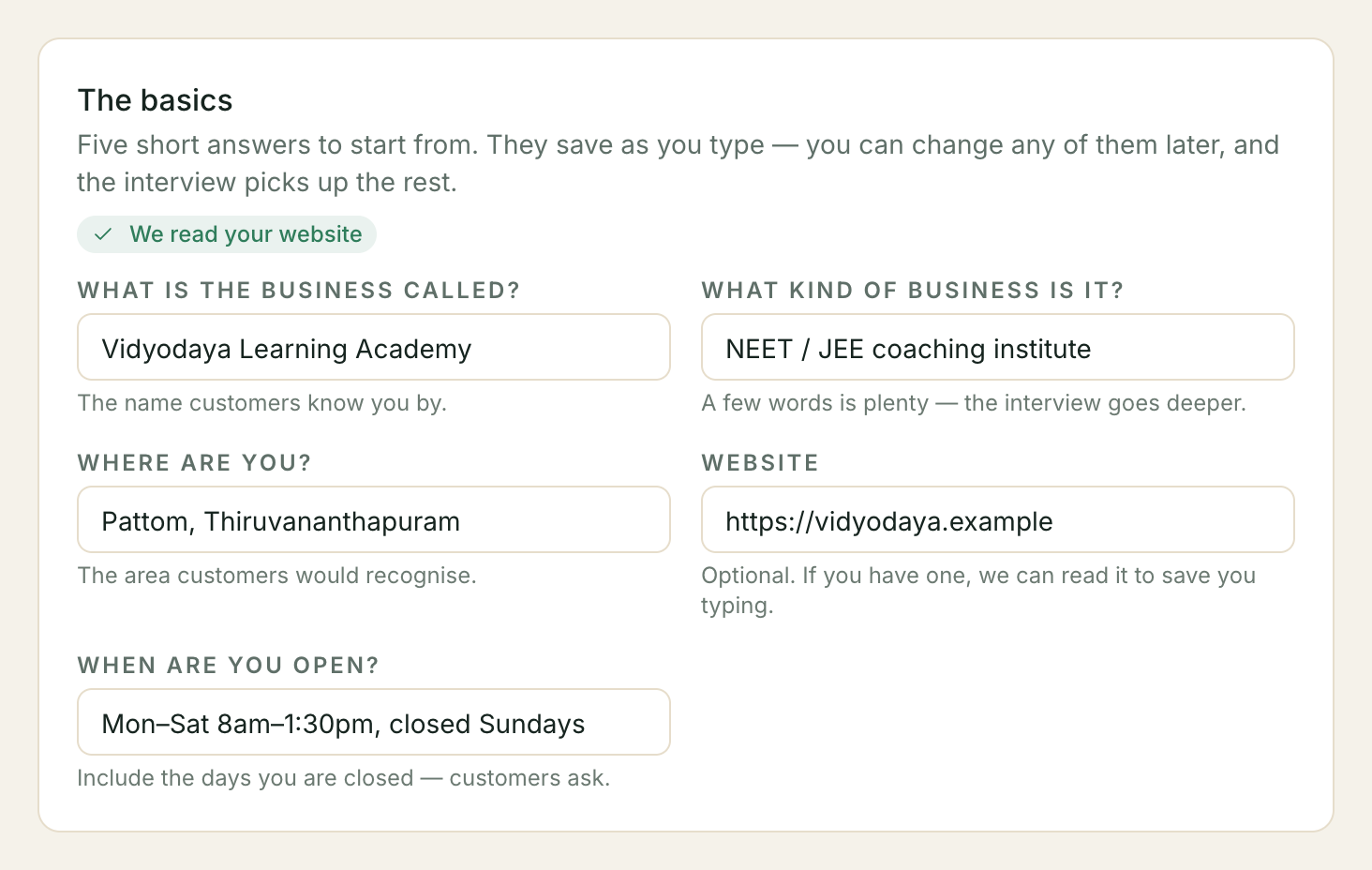
They save about a second after you stop typing, and again when you click out of a box or leave the page. There is no save button and you do not need one: if an answer fails to reach us you get “That answer wasn’t saved” with a Try again button, and what you typed stays in the box.
Your website
If you give an address when you start, Kooday reads that one page and uses it to ask better questions — you type less because it already saw your services.
What to know about it:
- It can only be attached when the session starts. Typing an address into the Website box later records your answer, but there is nothing to read: the field then says so plainly. If you want the site read, start a fresh setup.
- Failing is normal and harmless. Sites block robots, sites are slow, sites are built entirely out of images. When that happens the chip reads “We couldn’t read your site — let’s do it by chat” with a Try again beside it, and the interview asks you instead. Nothing is blocked — the chat is already open behind it.
- Type the whole address, including
https://. “example.com” on its own is refused — “website_url must be an absolute http:// or https:// URL” — and so is an address with a username and password in it. - Redirects are fine. If
http://example.comsends visitors on tohttps://www.example.com, the read follows it — up to five hops, each one checked as carefully as the address you typed. - What it reads is treated as a lead, not as fact. The page is handed to the interview as untrusted material it may ask you about — the intent being that a three-year-old price still on your homepage gets questioned rather than copied into your assistant. Read what the interview tells you it learned and correct it there; your answer is what the assistant is built from.
Step 2 — The interview
This is the part that does the work. Answer in ordinary sentences; it asks one thing at a time and follows up when an answer is too thin to build on.
- Nothing here is live. The pane says so: “Nothing here is live — everything you say becomes a draft you review before anything is built.” No assistant is created, nothing is published, and no customer sees any of it while you talk.
- Every message is saved the moment you send it. Close the tab, lose your connection, come back tomorrow — your side of the conversation is already stored. If a reply is interrupted you may lose that one reply; you never lose what you typed.
- One setup at a time. Starting a second while one is in progress is refused with “A wizard session is already in progress. Resume it or abandon it before starting a new one.” Returning to Set up by chat shows “You have a setup already in progress” with Resume and Start fresh. Starting fresh puts the old one aside — it is kept, never deleted.
- It has a name for the assistant. The interview will offer suggestions and ask you to settle on one. Whatever you agree on in the chat is the name the assistant is created with.
Pasting a link to what you sell
If your products or services are listed on a page, paste the address into the chat and a small card appears under your message offering to read it.
- Paste the whole address, starting with
https://— that is what your browser shows in its address bar, and a bareyoursite.com/servicesis not recognised as a link. - It asks how deep to read. A link with a section in it — say
https://yoursite.com/services— offers Just /services and The whole site. A link to your home page offers only Read this site, because there is no section to narrow to. Pick the narrow one when the page you pasted is the list — that page itself is always read — and the whole site when your products each have their own page somewhere. - You stay in the interview. Reading happens in the background and the card turns into a link — “Review what we found” — so you can carry on answering questions and open it when you are done talking. Nothing is added to your catalogue until you review it and confirm.
- The interview still asks you directly. A link is not an answer it can record, so it will keep asking for the three or four things that matter most in your own words. Answer those; let the import fill in the long list.
- If nothing comes back, the card says so and the interview carries on. Some sites are built in a way we cannot read, and a page of pictures with no text has nothing to take.
You may not see this card. Reading a website into your catalogue is part of What you sell, which not every plan includes. The card also does not appear on an interview that is already closed, or if your account cannot make changes. If it never appears, tell the interview what you sell instead — it is the same draft either way.
The Progress checklist
Beside the chat — below it on a phone — the Progress panel is not decoration. It is the same gate the server applies, and Review & create stays off until all five required items are done:
| Required | Done when |
|---|---|
| About the business | The description reaches 80 characters. |
| Opening hours | The hours are recorded, including the closed days. |
| Products & services | At least one named product or service exists. |
| Assistant name | A name has been settled on. |
| Things it must never do | At least one rule — a price it must not quote, a promise it must not make. |
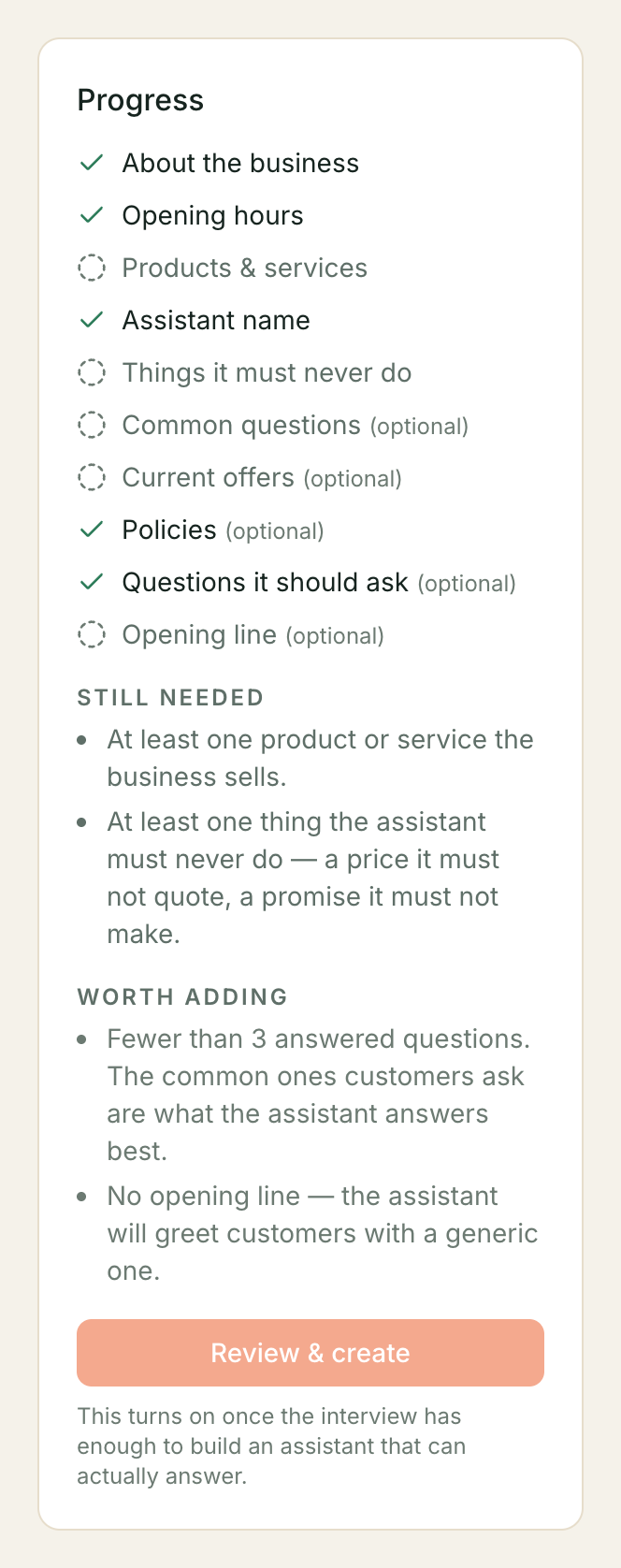
Below those, Common questions, Current offers, Policies, Questions it should ask and Opening line are marked (optional). They are optional for building, not for quality: a Worth adding list appears when, say, three of your five services have no price — “The assistant will have to say it does not know.” Fix those in the chat before you build, not after.
While the button is off it explains itself: “This turns on once the interview has enough to build an assistant that can actually answer.”
Step 3 — Review & create
One click builds everything, in a single step that either completes or leaves nothing behind. Then you get a report headed ”… is built — and nothing is live yet”, listing what was written where:
| Where it went | What lands there |
|---|---|
| Business details | The description (with your opening hours folded into it), the rules, the offers, the questions it asks customers |
| Catalogue | Your products and services, with prices where you gave them |
| Knowledge base | The FAQs and policies from the interview |
| The assistant itself | Its name and opening line |
Everything in that list is a draft, and the new assistant is switched off. To bring it live, click Review & publish instructions, read what was written, and publish — the assistant comes live by itself once it passes its readiness checks. If it does not, see Why isn’t my assistant live yet?.
What it will and will not overwrite
The business description, rules, offers, opening hours and the questions your assistants ask belong to the business, not to one assistant. Every assistant reads that same profile.
If this is the first assistant on an empty account, the first build writes that profile from the conversation.
If the profile already has something in it — you filled it in on the Business profile page, you published it, or an earlier assistant’s setup wrote it — a new setup does not replace it. The interview does not ask for those facts, and the result says “Not applied: your Business profile is shared by all your assistants” with a link to the Business profile page. The new assistant’s name, opening line, catalogue and knowledge base are still written.
Building again from the same conversation is a refine: you see a comparison first, and applying is refused if anything moved while you were reading it. Confirming updates the shared profile only when this conversation is the one that filled it in. A setup that left an existing profile alone keeps leaving it alone, including when you reopen that same conversation.
From then on:
- Nothing in a refine changes without being shown to you first. The comparison lists every difference — including your own hand-edits. See Changing things afterwards below.
- When this conversation filled in the Business profile, a refine rewrites the description, rules, offers and the questions it asks, along with the assistant’s name and opening line, once you confirm. You will have seen each one on the comparison screen first. A setup that found a profile already there does not rewrite it, on the first build or on a later one.
- It never deletes a catalogue entry. Your products are mirrored into your knowledge base and onto your shopfront, so removing one is a decision with consequences elsewhere — it is always yours to make, on the Catalogue screen.
- It does tidy up its own knowledge base entries. A FAQ or policy that this same setup conversation wrote earlier, and that the interview no longer holds, is removed when you apply again. Entries from anywhere else are not touched.
- It leaves alone anything it did not write. A catalogue entry or knowledge base entry created by you — or by a different setup conversation — is skipped, and the report says so under “Some of it was already yours”. That version stays in force; if you prefer the interview’s wording, edit it yourself.
Changing things afterwards
Once a setup has built an assistant, that conversation stops accepting messages and is kept as the record of where the assistant came from. The screen says so — “This session already built an assistant” — and offers three ways on:
- Reopen to make changes. This opens the interview back up so you can keep talking. As it does, it re-reads your assistant as it stands today — including anything you changed on its own screens — and carries on from that, so an edit you made elsewhere is never quietly undone. The banner that replaces it is headed “Picking up where your assistant stands today” and reassures you that “Nothing has changed yet, so you can stop here and leave the assistant exactly as it is.” Changed your mind? Stop making changes closes it again, having written nothing.
- Review the changes. This compares what the interview holds against your assistant as it stands now and shows you two lists before anything is written. Will be applied is what the button does. You’ll need to do these yourself is what it will not — a catalogue entry it would have removed, or something you created that it will not overwrite. Applying again writes drafts, exactly as the first build did.
- Edit the assistant directly. Business details, Catalogue, Knowledge base and the Studio are all normal screens, and after a build they are the fastest route to a small change.
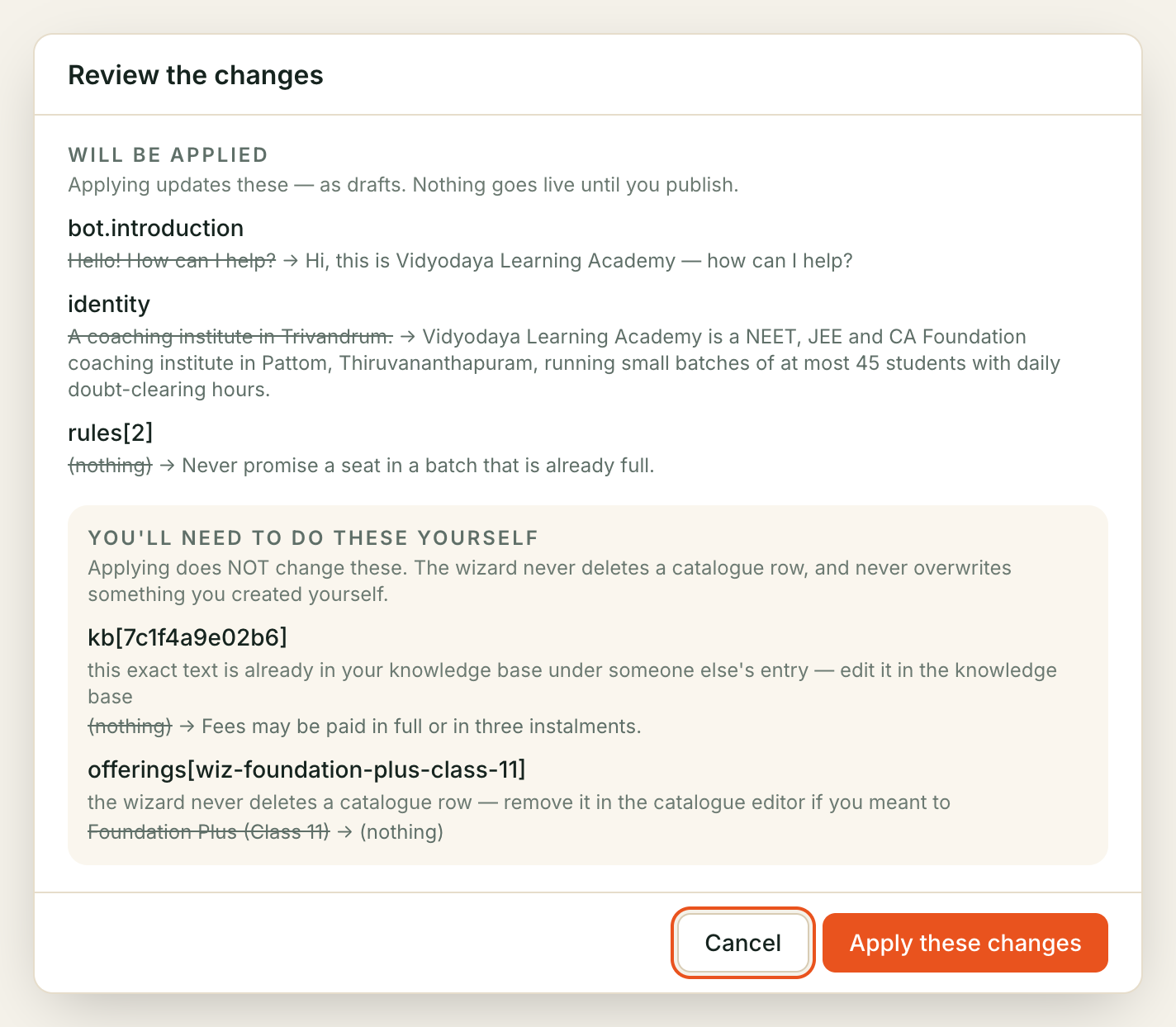
If someone edits the assistant in another tab while you have the comparison open, applying is refused with “This assistant changed while you looked” and the list is reloaded. Look again before you apply — that refusal is the reason nothing gets quietly overwritten.
What your trial includes
On a trial, setting up by chat is capped:
| Included in a trial | |
|---|---|
| Setup conversations | 3 |
| Messages per conversation | 60 |
Those are the current allowances rather than a permanent entitlement — we can raise them, and this page is where the number lives. Paid plans are not capped this way; if you ever see a limit message on a plan you are paying for, tell us — that is not what is meant to happen.
Two details that matter more than the numbers:
- A conversation you never typed in does not count. Start one, change your mind, click Start fresh, and the slot comes back. Once you have sent a single message, it has been used.
- Hitting 60 messages never traps your work. The cap stops the conversation, not the build: “You can still create the assistant from what you have described so far.” Review & create keeps working.
Both refusals name a way forward rather than a dead end, under the heading “Your plan’s limit is reached”, with a link to your plan and add-ons.
Troubleshooting
”A wizard session is already in progress”
You have an unfinished setup. Go to Set up by chat and choose Resume to carry on, or Start fresh to put it aside and begin again. Setting one aside never deletes it.
”You have used all 3 setup conversations included in your trial”
The trial allowance above. If one of the three is still unfinished, resume that one — it costs nothing extra. Otherwise the link in the message goes to your plan.
The button says “Review & create” but it is greyed out
Something required is missing, and the Still needed list under the checklist says exactly what — “At least one product or service the business sells”, “At least one thing the assistant must never do — a price it must not quote, a promise it must not make”, and so on. Answer it in the chat and the button turns on by itself.
The checklist has disappeared
You see “We can’t show a checklist right now” instead. Carry on — the button still works, and anything missing is listed when you press it.
It says it couldn’t read my site, and the site is fine
Three things account for most of it, in order:
- The page is built entirely in the browser. A site whose text only appears after its scripts run has nothing to read in the page itself.
- The site blocks robots, or it is behind a protection service.
- The address redirects too many times, in a loop, or to somewhere we will not read (a private network address, or a non-web link). Type the address the site finally settles on.
None of it matters much: click Try again if you have a better address, or carry on in the chat, which asks for the same things.
It has been “Reading your website…” for ages
A read that is working finishes inside about a minute. A read that has died — a dropped connection at our end, say — leaves the chip saying “Reading your website…” with nothing behind it, and Try again starts working about three minutes after it began. So: give it a minute, then try again a couple of minutes later, or ignore it and carry on in the chat, which covers the same ground.
I can’t find the report from my build any more
It is kept for the browser tab you built in — reloading that tab keeps it, a new tab or another device does not. Nothing is lost — everything it listed is on the Business details, Catalogue, Knowledge base and Studio screens, which are the real record. Use Review the changes to see the current state of your assistant against the interview.
By chat, or doing it yourself?
Both doors build the same thing and neither is better; they suit different starting points.
| Set up by chat | Creating it yourself | |
|---|---|---|
| Best when | You are starting from nothing and would rather talk than fill in forms | You know what you want to change, or you are adding a second assistant like the first |
| You get | A whole draft assistant — description, rules, catalogue, knowledge base | An empty assistant to fill in |
| Time | As long as it takes to describe the business, spread over as many sittings as you like | Minutes to create, then as long as writing the instructions takes |
| Goes live | Only when you publish | Only when you publish |
Whichever you use, the assistant is a draft until you publish it, and the publishing step is the same one.
Still stuck? We answer support mail the same working day.
Email support