Prompt Studio
The dedicated screen for one assistant's instructions, persona, knowledge access, and a live preview of exactly what the model is told — reached from Bots via Open studio.
Prompt Studio is one assistant’s own screen for its instructions, its persona, and a preview of what it is actually told. It used to be two tabs (“Instructions” and “Persona”) on the Bots page; they moved out into their own screen because a draft/publish/history editor buried in a tab was easy to miss, and there is now enough in it — three panes — to be worth its own address.
Where to find it: open Bots (under Assistants), pick an assistant, and click Open studio. There is no separate menu item for it — it is reached per-assistant, from the assistant you are looking at, rather than guessed at from a static link.
Six panes, along the top: Instructions, Persona, Tools, Custom Bot Actions, Knowledge access, Preview.
Instructions
This is where a draft becomes an assistant. It carries the subtitle “How this assistant should behave, on every channel — identity, greeting style, do’s and don’ts.”
Who this assistant is
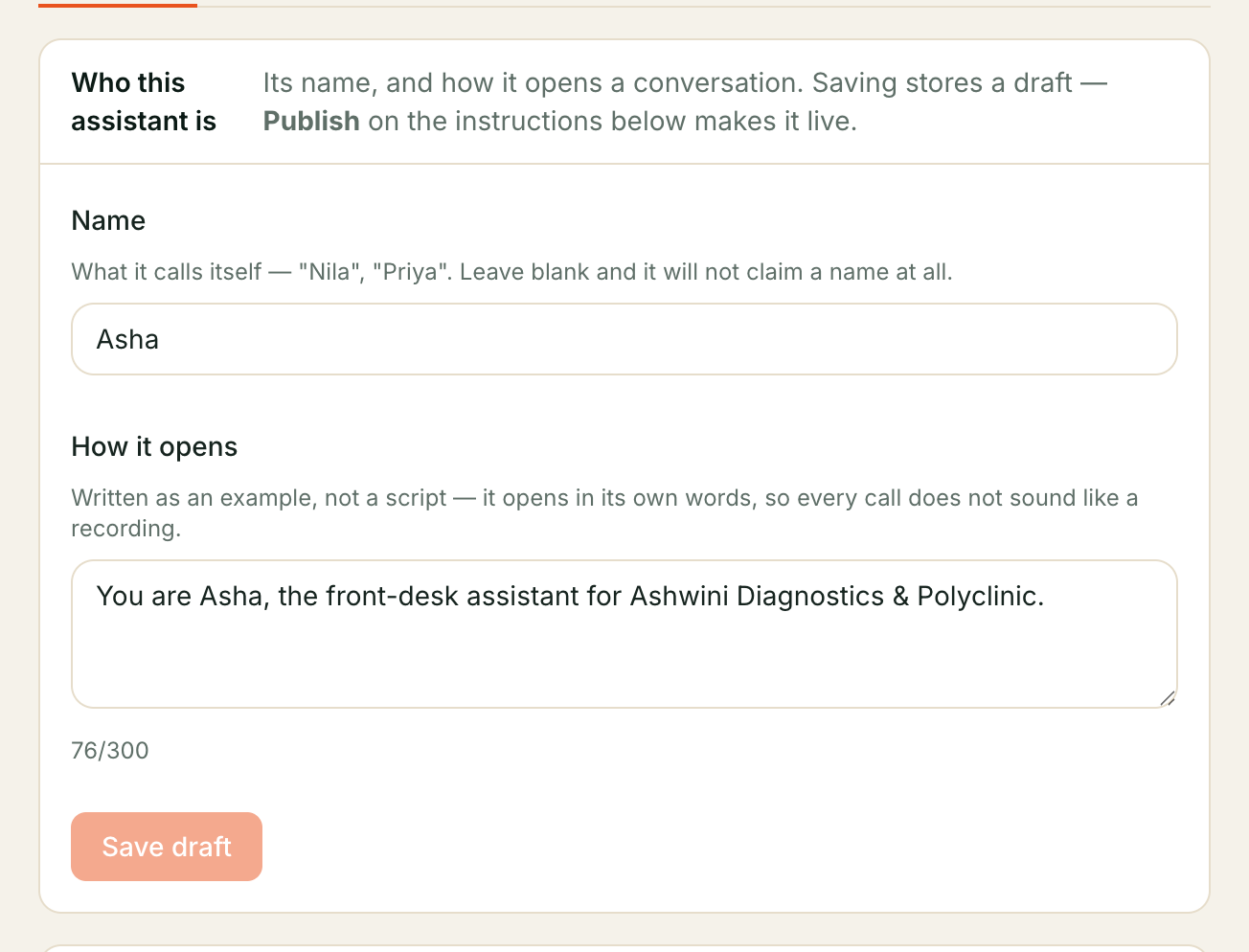
Above the editor is a card with two fields, and they belong to this assistant alone — not to your business:
- Name — what it calls itself: “Nila”, “Priya”. Leave it blank and it will not claim a name at all.
- How it opens — for example “Hello, I’m Nila from Acme Dental — how can I help you today?” An example, not a script — the assistant opens in its own words, so every call does not sound like the same recording played back.
Both fields save as a draft and reach customers when you Publish. They are compiled into the instructions below, in a block marked as generated — your own text is never touched.
Questions it asks
Questions it asks is on this card too, once your workspace has moved them off the shared Business profile. They belong to this assistant: a website guide and a sales assistant do not have to ask the same things. Up to five, asked one at a time, and never before the caller’s own question is answered.
How it sells
A How it sells card appears when this assistant’s persona is a selling one, or when it already has a playbook. Otherwise the card stays behind Add a sales playbook. The playbook is who it is for, when to say no, what it may cite, the next step it closes for, what it may concede, and when to hand over. Leaving it empty means this assistant does not volunteer your current offers; filling any of it adds one line telling it to mention an offer when that is relevant.
Save draft vs. Publish
The same two-button pattern as the business profile:
| Button | What it does |
|---|---|
| Save draft | Stores your text. Changes nothing a customer hears. |
| Publish | Makes it what the assistant actually says, from that moment. |
Publishing is what brings a new assistant to life. There is no separate “activate” button — Kooday re-runs the setup check the moment you publish, and if it passes, the assistant flips from draft to live on its own. If the check does not pass, your text is still published, but the assistant stays a draft until the problems are fixed — the Readiness tab on Bots tells you what they are.
History, Restore, and Unpublish work exactly as they do on the business prompt.
Persona
The persona sets how this assistant carries itself — how it opens, how hard it pushes, how it closes, what it does when it cannot help. Its knowledge of your business comes from the Instructions pane and your knowledge base, not from here.
Full walkthrough, including making your own copy of a standard persona: Choosing how your assistant sounds.
Preview
“What your assistant is told” — the complete, assembled instructions: platform rules, your business profile, this assistant’s own instructions, exactly as the model receives them.
The tab opens on Prompts in use — every prompt this assistant is running, at which version, and underneath them the ones that did not apply, each with the reason (usually the wrong channel or language). Switch between the Voice and Chat tracks to see each list: they can differ, since a phone call and a text conversation are genuinely different jobs.
Every row in Prompts in use carries a scope badge and an edit link for editable layers:
- Shared (N) — the business profile, shared across N assistants. Links directly to the Business profile. If an assistant’s name was accidentally written into this shared layer, a warning badge flags it here.
- This assistant — instructions written for this assistant alone, linking to the Instructions tab.
- Lessons: this assistant (a) + tenant-wide (b) — learned behaviours, showing how many are scoped to this assistant versus shared tenant-wide, with a link to Teaching.
- Platform — platform guardrails, channel rules, and persona defaults that cannot be edited directly (persona rows link to the Persona tab).
The instructions themselves run to tens of thousands of characters, so they wait behind Show full prompt — beside the character and token count, which is on screen either way. Open it when you are hunting a particular sentence.
It answers “why does it say that?” without a round of live-test archaeology, and it shows the same validation the Readiness tab does:
- Needs your attention — something in your own instructions the assistant
will refuse to say until it is fixed, e.g. an unrecognised
{{TOKEN}}. - Blocked by a platform-side problem — not something you need to fix yourself. Sanitised detail plus a one-click Report to Kooday if you want to flag it.
- Your business profile isn’t applying — the tenant-wide layer named above is missing from THIS preview specifically (rather than merely unpublished tenant-wide). A link takes you straight to Business profile to fix it. When it is applying, the same spot carries a quiet link there instead — a reminder of where the shared facts live, not a warning.
The preview refetches after any publish/rollback/unpublish, so it never shows a stale assembly — no need to reload the page.
Knowledge access
“Which knowledge drawers can my assistant open?” — the access scopes that control which parts of your knowledge base this assistant can search.
Your knowledge base is divided into drawers — labelled groups whose names appear here as toggles. Every document you upload belongs to exactly one drawer. This pane lets you choose which drawers this assistant holds a key to. An unchecked drawer is invisible to this assistant, even if it holds relevant content — the content stays in your knowledge base for other assistants that still hold the key.
To grant or revoke access:
- Check or uncheck the drawer you want to change.
- Click Save access to apply the change.
The change takes effect on the next conversation turn — there is no restart
and no TTL to wait for. Audit rows (bot.kb_scope.granted and
bot.kb_scope.revoked) are written automatically, one per changed scope, so the
access history is in your audit log.
What if knowledge search is off? The toggles are still shown, because the scopes are stored even when the tool is disabled. They will apply as soon as you turn the knowledge search tool back on.
To create a new drawer or re-label an existing one, go to the Knowledge Base page and manage your scopes from there.
Tools
“What tools does my assistant actually have?” — every tool it would get on the next call, where each one comes from, and whether it checks with the customer before using it. Full walkthrough: What your assistant can do.
Still stuck? We answer support mail the same working day.
Email support