Briefing your assistant on one deal
A note that applies to a single deal only, not your whole fleet — how it differs from a Teaching lesson, why it stays private by default, and how it turns itself off.
A lesson changes how your assistant sells to everyone. Sometimes what you know applies to exactly one deal — you agreed a discount on a call, or you know this particular customer’s manager needs to sign off before anything moves. That does not belong in a lesson, and it should not sit in your notes app either, unread by the one thing actually talking to the customer.
Open any deal’s detail panel and Brief your assistant does this: one note, scoped to that deal alone, with an optional expiry date and a switch that decides whether your assistant ever sees it.
It is private by default. Writing a note here does not tell your assistant anything until you explicitly turn on Visible to AI. Until you do, it is exactly what it looks like — a note to yourself, kept next to the deal for whoever looks at it next.
Where to find it: open any deal’s detail panel on the Pipeline board.
Check who you are briefing about
The detail panel opens with the customer: their name (or Unnamed customer if nobody has given one yet) and every phone number, WhatsApp number and email you have for them. If they have told your assistant the name of their business, it shows alongside — nothing appears there if they have not. Read that before you write a note; a briefing is only as good as your memory of what was actually said.
A few ways to reach them or see more, each showing only when there is somewhere to send you:
- Call and Email dial or draft to this customer directly.
- Open chat jumps to your most recent conversation with them in your inbox — it needs no extra access beyond the inbox itself.
- Open call jumps to your most recent call with them and its recording and transcript.
- Open customer profile takes you to their full history. That one link needs Customer 360; without it, everything else on this panel still shows — the name, the contact details, Call, Email, Open chat (which needs your inbox, not Customer 360) and Open call — just not this one link.
On the board itself, a card whose customer has no name yet shows a phone number or email under the title, so two new enquiries are never indistinguishable.
The one thing to know before you write anything
A guidance note is not a smaller Teaching lesson. They are two different mechanisms, read by different code at different moments, and mixing them up costs you either way:
| A Teaching lesson | A guidance note | |
|---|---|---|
| Scope | One assistant, or your whole fleet | This one deal, only |
| Where you write it | Teaching → Lessons | The deal’s detail panel |
| When your assistant sees it | Every sales conversation that assistant has | Only conversations with this deal’s customer |
| Shared with the AI by default? | Yes — that is the whole point of a lesson | No — you switch it on per note |
| Stops applying | You stop it, or a sixth lesson retires it | The date you set, or the deal closes |
If what you know is a general sales instruction — “mention the weekend slot before offering a discount” — teach it as a lesson. If it is a fact about this conversation with this customer, it belongs here instead.
Writing one
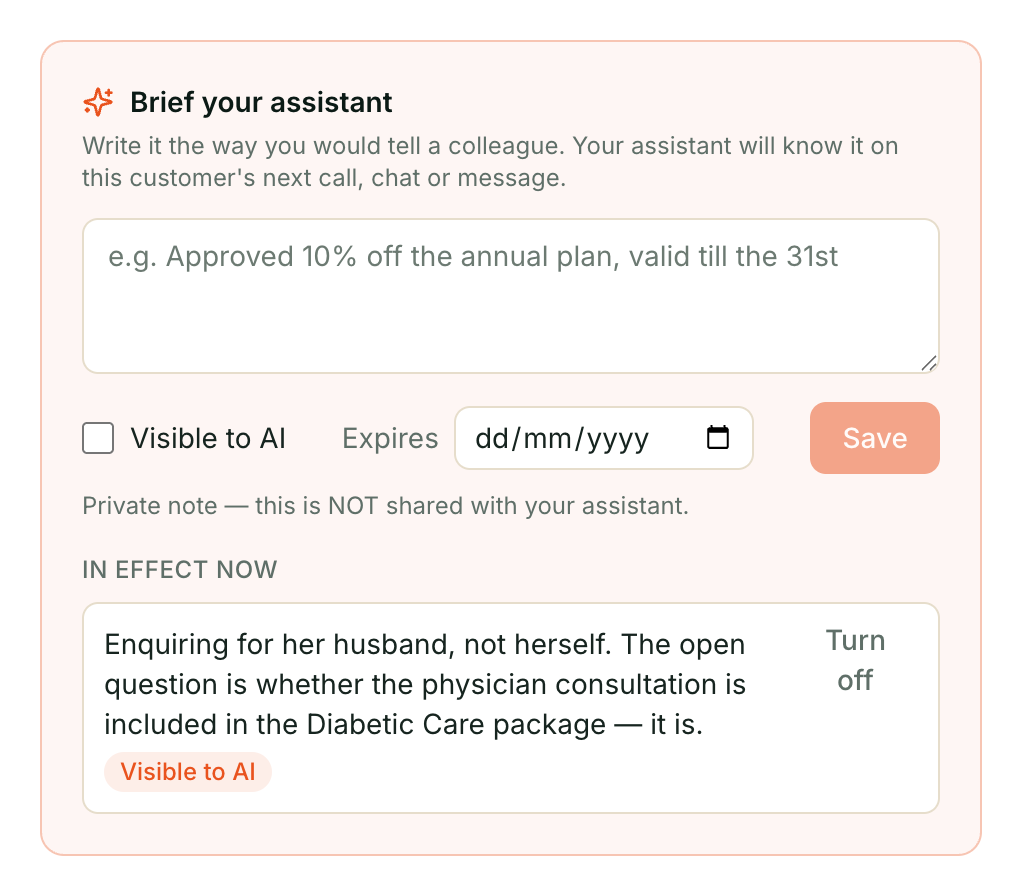
Fill in the box and choose two things.
Visible to AI or a private note. The switch is off by default, and the words next to it tell you exactly what you are choosing:
- Off — “Private note — this is NOT shared with your assistant.” A record for your team. Your assistant behaves exactly as it would if you had written nothing.
- On — “Your assistant will follow this in conversations with this customer.” Your assistant is briefed on it the moment you save, and acts on it from that customer’s next call, chat or message.
Expires, optionally. Leave it blank and the note holds until you turn it off by hand. Set a date and it stops applying on its own — nothing to remember, nothing to come back and clear. A row with an expiry shows it plainly: until 12 Sep 2026.
A note can run to 2,000 characters. Write it the way the box asks you to: the way you would tell a colleague — not a script, a brief.
Approved 10% off the annual plan, valid till the 31st.
Turning one off
Turn off, on the note itself. One click.
This is a soft switch, not a delete — the note stays visible, greyed out under Turned off, rather than disappearing. That is deliberate: if a customer later says “but you told your assistant I could have 10% off”, you can still see exactly what was briefed and when, instead of the record vanishing along with the discount.
What ends it without you doing anything
The deal closing. A guidance note that is scoped to a deal stops being read into any conversation the moment that deal is marked Won or Lost — there is no extra step, and nothing needs turning off. The note itself is not deleted, so the history stays on the closed deal if you need to check it later; it simply never reaches another conversation.
An expiry date passing. Same effect as the deal closing: once the date is behind you, your assistant stops being told it. You do not need to turn it off by hand for this to take hold.
Who can do this
Setting a note, and turning one off, both need admin access — the same level the Stages & intake panel needs. A team member without admin access can read the deal but will not see the composer.
Things that can go wrong
I wrote a note and my assistant didn’t act on it
Check the switch. Visible to AI is off by default — a note you save without turning it on is deliberately private, and your assistant knows nothing about it. Open the note and confirm it says “Your assistant will follow this”, not “Private note”.
I turned it off but it’s still on the deal
That is correct. Turning off a note keeps the record — under Turned off — so you can see what was briefed and when. It stops applying immediately even though it stays visible.
The deal closed and I still need my assistant to know this
A closed deal is not chased or worked further, so nothing is meant to read guidance on it. If you reopen work with this customer, brief the new deal directly — the old note does not carry across, on purpose: a note tied to a deal that is finished should not silently reach into whatever comes next.
Related: Teaching your assistant · Setting up your sales pipeline · Your inbox, and taking over
Still stuck? We answer support mail the same working day.
Email support