Offers and discounts
How to create a promotion your assistant is allowed to mention, what the budget and end date actually enforce, and what happens when you withdraw one.
Your assistant will not invent a discount. It cannot decide that a customer deserves 10% off, and it cannot pick an amount. The only discounts it can mention are the ones you have created — and even then, only the ones that are running today and still have budget left.
This page is about creating those, and about the two limits you set on each one. Both are real limits, enforced by the system at the moment a customer accepts. Neither is a warning you can override by accident.
Where to find it: open What you sell in your dashboard, then the Promotions tab.
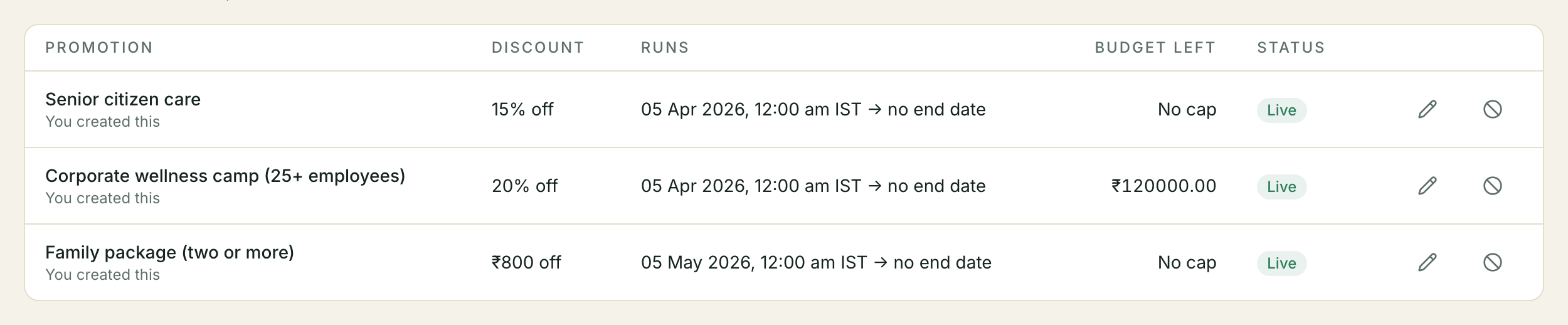
Creating a promotion
A promotion has a name, a discount, and two limits.
The name is said out loud. Your assistant reads it to customers, so “Monsoon offer” works and “PROMO-2026-Q3” does not.
The discount is either a percentage or a fixed amount. “10% off” or “₹500 off”. Nothing else — if you need something more complicated (buy two get one, different amounts for different products), it is not supported yet, and the system refuses to save a rule it could not apply rather than saving one that quietly discounts nothing.
Applies to is the list of SKUs the discount covers. Leave it blank on a promotion you create yourself and it covers everything you sell.
Runs until is the last day the assistant may offer it. Leave it blank and it runs indefinitely.
Total budget is the most you are willing to give away across every customer put together. Each time a customer accepts a quote carrying this promotion, the discount they got comes off the budget. When it reaches zero the promotion stops — your assistant stops mentioning it and no new quote can use it. You do not have to remember to switch it off.
The budget counts money given, not quotes sent. A promotion quoted to fifty people who all ignore it has spent nothing. The same promotion accepted by three people has spent three discounts.
One caveat worth knowing: the budget is counted when a customer accepts, not when the quote goes out. If several customers are holding quotes with the same promotion on them and they all accept, the total can land slightly over the budget you set — by at most the value of the quotes that were already outstanding. Set the budget as the amount you are comfortable giving away, not as a figure that must never be exceeded by a rupee.
Ask me before it’s given
Tick Ask me before it’s given and the promotion works differently: when your assistant applies it, the quote stops and waits for you.
The customer is not given a price. The quote sits in your Inbox with an Approve and a Reject button, and we email you so you know it is there — so a customer is not left waiting because nobody happened to have the dashboard open.
Approve it and the quote goes out with the discount. Reject it and the quote goes out without.
Use this for a promotion you want available but not automatic — a deeper discount you are willing to give, one customer at a time, with a look first.
Withdrawing a promotion
Withdraw stops a promotion immediately. Your assistant stops mentioning it, and no new quote can use it.
It does not take back a price you have already given. A customer who already has a quote with this discount on it keeps that price. They can still accept it, and when they do, the discount still comes off this promotion’s budget.
That is deliberate. A quote is a promise made to a named person. Withdrawing a promotion changes what happens next; it does not reach back and change what somebody was already told. If you need to take back a specific quote, reject that quote — that is a different action about a different thing.
Withdrawing cannot be undone, and a withdrawn promotion cannot be edited. Create a new one instead. This is on purpose: the date a promotion stopped being offered is a fact about your business, and editing it later would make your own records wrong.
Suggested offers
If you have the sales pipeline, your assistant can go one step further: when a deal stalls, it can suggest a closing offer and show you the numbers behind the suggestion.
You will find these under What you sell → Suggestions.
A suggestion is not a discount. Nothing suggested has reached a customer, and nothing suggested can reach one until you approve it — a suggestion is not in your promotions list at all.
It suggests nothing until you set a maximum
There is one setting that turns this on: the most your assistant may ever suggest, as a percentage off your list price. Until you set it, your assistant suggests nothing at all.
You set it under Pipeline → Stages & intake → The most your assistant may discount. Enter a whole number between 1 and 99, and save. To turn suggestions back off, clear the box and save again — an empty box means your assistant never drafts an offer.
That is deliberate, and it is the default for every account. Nobody’s assistant starts proposing discounts against their margin because of a software update.
The maximum does two things. It bounds what your assistant may suggest and what it may later be allowed to offer on its own — and it is also a ceiling on any single quote: however many promotions happen to apply to one customer, the total cannot take them past it.
That second half matters. Two promotions at 20% each are 40% off when they land on the same quote, and without the ceiling your maximum would be a limit on each discount rather than on what you actually give away.
Creating a deeper promotion is still your call. You can set one at any percentage on the Promotions tab — it is your money. The quote ceiling still applies when it is used, so a 40% promotion under a 20% maximum simply cannot be applied. If you mean to give 40%, raise the maximum.
Offers are the last lever
Your assistant does not open with a discount and it does not reach for one quickly. A suggestion only appears after a quote has sat unanswered for over a week, and only when there are enough comparable conversations to say something meaningful about them. If it cannot cite a real number, it does not suggest.
Reviewing a suggestion
Each suggestion shows you three things: what it proposes, why — in plain words — and the numbers that motivated it, with the sample size next to each one. A suggestion that could not cite a number cannot exist; the system refuses to store one.
You can approve it, approve it with a different amount, or reject it.
If you change the amount, we keep both: what the assistant proposed and what you actually granted. That difference is the most useful thing on the screen.
”Use this decision to improve future suggestions?”
Every approval asks you this, and there is no default. You have to pick one.
Yes means this decision becomes part of a picture of what you approve, used to make later suggestions better. It stays inside your account. It is never shared with another business, and no other business’s decisions are used to suggest anything to you.
No means nothing is recorded about this decision beyond the approval itself. Not kept-and-ignored — not kept. There is nothing for a future feature to find.
We ask rather than assuming because both defaults are wrong. Assuming yes opts you into something you were never shown. Assuming no means the feature never improves and never tells you why.
Making a suggestion into a standing offer
Once you have approved the same kind of offer several times and those deals have actually been won, the suggestion screen offers to make it standing.
The screen shows you exactly where you are — how many approvals, how many wins, and how many of each are needed. If you are not there yet, it says so rather than showing a button that does nothing.
Granting it creates an ordinary promotion, exactly like one you typed in yourself. It appears on the Promotions tab, marked as granted from a suggestion. From that point your assistant can offer it without asking, inside the limits you set at the moment you granted it.
You have to supply the products it covers, an end date and a total budget. None of the three can be left blank, and that is the whole point: those three limits are what makes it a promotion rather than an open-ended permission to discount. Your assistant is never given one of those.
The product list is pre-filled with what was on the quote that stalled, because that is what the suggestion was about. You can widen or narrow it — but you cannot empty it. An empty list would mean everything you sell, and that is not something your assistant is ever granted. (You can still create a catalogue-wide sale yourself on the Promotions tab; that is your decision to make, with no machine in the loop.)
If it stops working
We watch how granted promotions perform. If the win rate falls off, the promotion is marked Needs review on the Promotions tab and we email you.
We do not withdraw it. A machine taking back your promotion without asking is the same problem in reverse — so we tell you, and you decide. The budget you set is what stops it automatically, as it always was.
What this needs
The Promotions tab comes with your catalogue, so every account with What you sell has it.
The Suggestions tab needs the sales pipeline add-on, which itself requires WhatsApp — so an account without a WhatsApp channel cannot use the suggestion side of this. The Promotions tab is unaffected.
Common questions
Can my assistant give a discount I did not create? No. It can only name a promotion that exists in your list, and it never chooses the amount — the amount comes from the promotion itself.
Can it create a promotion during a conversation? No. There is no way for your assistant to add to this list, by design. Creating a promotion is something a person does in the dashboard.
Why did a customer get a discount from a promotion I withdrew? Because they were quoted it before you withdrew it. See Withdrawing a promotion above — a quote already given keeps its price.
Why is my assistant not mentioning a promotion I created? Check three things: it is inside its dates, it still has budget left, and — if you set applies to — the customer is actually asking about something it covers.
Can I delete a promotion? No, only withdraw it. Quotes you have sent point at it, and deleting it would make your own records unreadable.
Still stuck? We answer support mail the same working day.
Email support