Selling from your catalogue
How to enter what you sell so your assistant quotes real prices, shows products as cards on WhatsApp and website chat, and links customers straight to your site.
Your assistant can already answer questions from your knowledge base. Ask it “how much is the ceramic coating?” and it will answer from whatever prose you uploaded — a price list from March, a paragraph in a brochure, a line in an old FAQ.
That is the problem. Prose does not know what is current, what is out of stock, or what you have stopped selling. A price written down six months ago reads exactly like today’s.
Your catalogue fixes that. Enter what you sell as structured entries — a name, a price, whether it is available — and your assistant stops recalling prices and starts looking them up, at the moment the customer asks. On WhatsApp and website chat it can also show the thing as a card: a photo, the name, the live price, and a link to that product on your site.
Nothing switches itself on. Entering offerings changes no answer your assistant already gives. Searching your catalogue is a switch on your own screen; showing cards is set up for you. This page says which is which.
Where to find it: open What you sell in your dashboard.
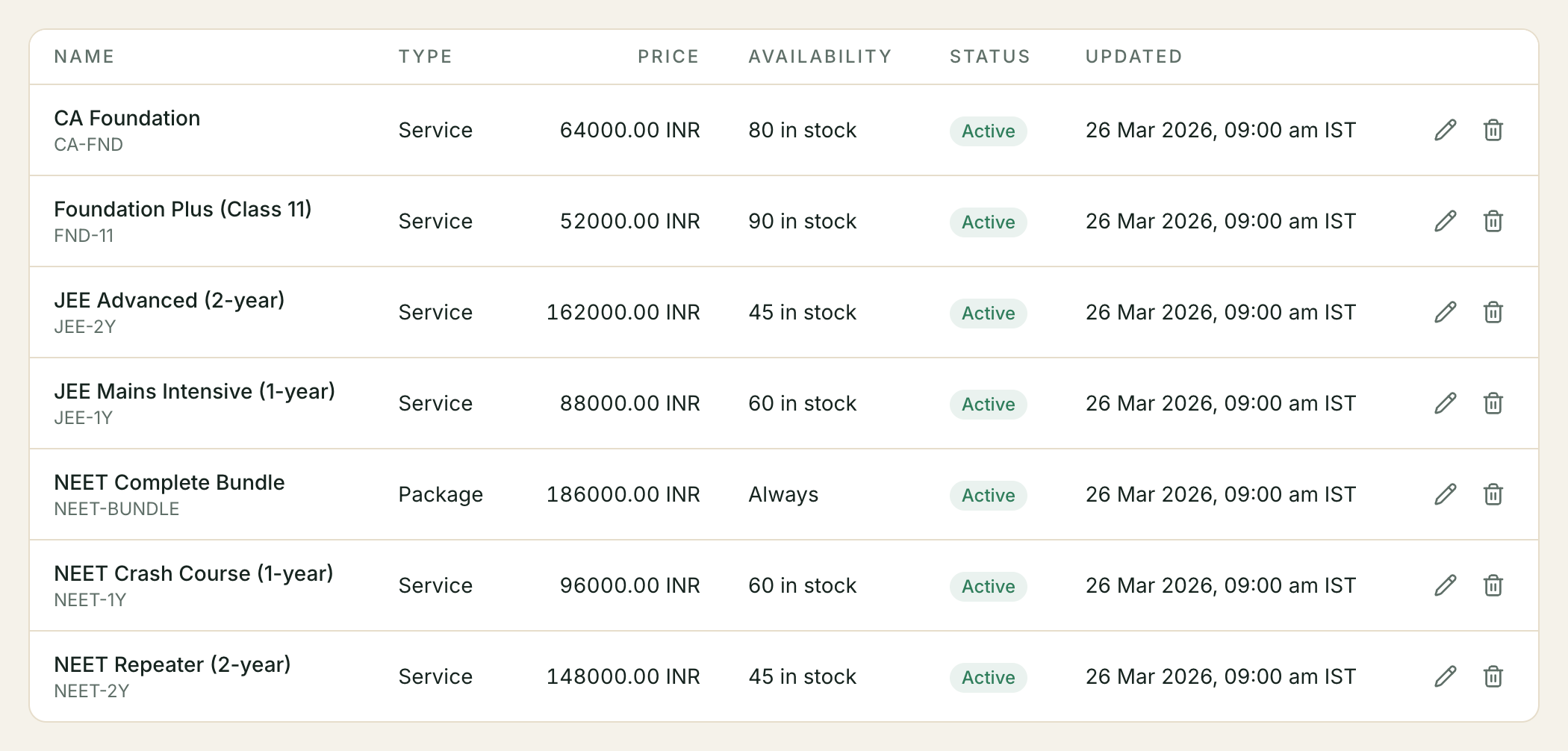
The five-minute setup
- What you sell → Add offering. Enter a name, a SKU, and a price.
- Repeat for everything you actively sell. Ten entries beats forty stale ones. Have an existing website? Import can pull the rows in instead of typing them.
- Switch on Let your assistant search your catalogue, under the list. Everything already in your catalogue joins the search on its own (Step 2).
That is enough for your assistant to quote real prices. Cards and product links are the next two sections, and both are optional.
Five catalogue words that are easy to mix up
The catalogue uses five words that sound interchangeable and are not. They behave differently, so it is worth reading the table once. Every other page in the help centre means exactly this when it uses one of them.
| Term | What it is | Price | How your assistant treats it |
|---|---|---|---|
| Variant | One offering, several prices, chosen by a named dimension (size, brand, how long) | One per option, yours to set | Asks which one the customer wants; the “from” price is the usual one |
| Package | An umbrella offering that contains other offerings | Set by you, never added up | Offers it only when every item in it is available; never changes what was chosen |
| Related | Two separate offerings you linked (upgrade / refill / sold alongside) | Each keeps its own | Suggests it only when you said the two go together |
| Duplicate | Two rows that are the same real thing | One price — the canonical’s | Offers the canonical one, never the other |
| Custom field | A label and value on one entry | Not a price | Reads it only when you ticked that it may |
Each has its own page, and the rest of this one points at them where they apply:
- Pricing by size, brand or duration — variants
- Packages — an umbrella offering
- Related — Step 5 below on this page
- When the same product appears twice — duplicates
- Custom fields — your own labels and values
- Import your catalogue from your website — getting rows in without typing
Step 1 — Enter what you sell
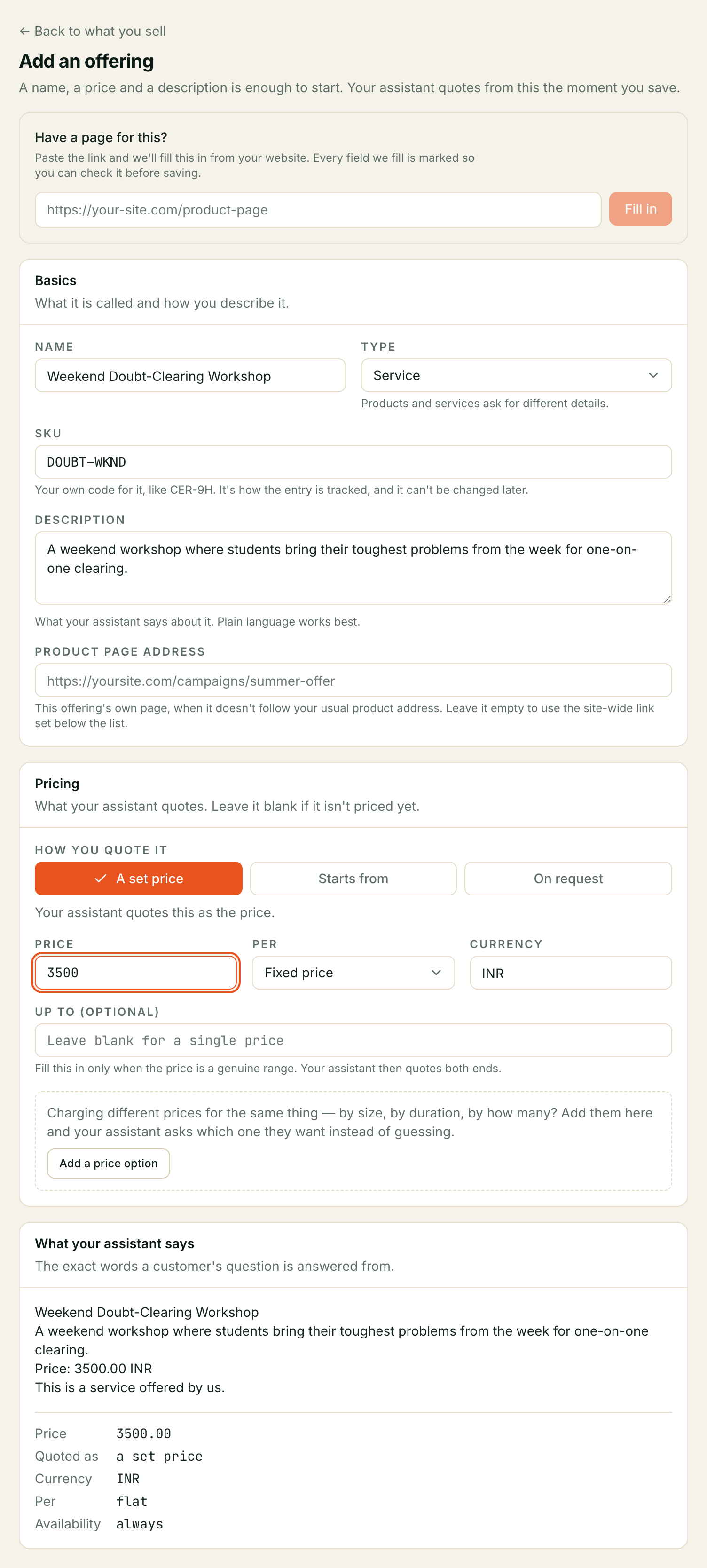
Each entry has a few fields. Only Name and SKU are required.
| Field | What it does |
|---|---|
| Name | What the customer hears and sees. Write it the way you would say it aloud. |
| SKU | Your own code for it, e.g. CERAMIC-9H. It is how the entry is tracked, and it builds the product link later. |
| Description | What your assistant says about it. Plain language works best. |
| Type | Product, service, or package. Each asks for a few different details further down. A package is an umbrella offering — see Packages. |
| How you quote it | A set price, starts from, or on request. This changes what your assistant says — see below. |
| Price / Per / Currency | The amount, and whether it is a flat price or per hour, session, person, day, month or unit. |
| Up to | Only for a genuine range. Leave it blank for a single price. |
| Price options | Small, medium, large — one entry, several prices. See below. |
| Availability | Whether it is always available, or tracked by stock count. |
| Service details / Product details | How long it takes and where you do it, or brand, condition and minimum order. |
| Your fields | Anything else worth recording — and whether your assistant may mention it. See below. |
| Status | Three buttons — Active, Hidden, Discontinued — with the consequence written beneath. Active entries are the ones your assistant uses. |
A blank price means “not priced yet” — not free. Leave it empty for anything quoted case by case, and your assistant will say it needs to check rather than quoting zero.
How you quote it
This is the most useful field on the page, and it is easy to skip past.
Without it, every number you enter is treated as the price. A ballpark call-out fee and a fixed product price look identical to your assistant, and it states both with exactly the same confidence — which is how a customer ends up holding you to a figure you meant as a guide.
| Choice | What your assistant says |
|---|---|
| A set price | ”Interior Deep Clean is ₹3,500.” |
| Starts from | ”Interior Deep Clean starts from ₹3,500.” |
| On request | ”I’d need to quote that one — let me take a few details.” |
On request keeps your number private. Anything you type in the price box stays your own reference: your assistant never says it, never hints at it, and never uses it in a quote. So there is no need to delete a figure to keep it to yourself — put it in, and it is there when you need it.
Use “Up to” only for a real range. Filled in, your assistant quotes both ends — “between ₹2,000 and ₹3,500”. Left blank, it quotes the one number.
One thing, several prices
Plenty of things cost different amounts depending on the size, the duration, or how many people. A car wash is ₹400 for a hatchback and ₹700 for an SUV. That is one entry with price options, not three separate entries.
Under the price, tell us what changes the price — “size”, “how long”, “how many people” — and then add each option with its own price:
| What changes the price | Options |
|---|---|
| size | Small ₹400 · Medium ₹600 · Large ₹700 |
The question matters more than the list. Naming what changes the price is what lets your assistant ask, instead of reciting numbers:
❌ “Car wash is ₹400, ₹600 or ₹700.” ✅ “Car wash starts at ₹400 — what size is your car?”
A few things worth knowing:
- The usual price comes first. The price box above is what your assistant quotes when nobody has said which option they want, so fill it in before adding options.
- The order is yours. Use the ↑ and ↓ buttons to put them in the order you would say them — small to large, not cheapest first. That is the order your customers hear.
- Your assistant reads out the first eight and says how many more there are, so a long list is never silently cut short.
- Removing an option removes it. It is gone from what your assistant knows the moment you save — no stale prices linger behind.
- On request covers the options too. Choose it and no number is said aloud, for the options any more than for the main price.
There is a full page for this: Pricing by size, brand or duration.
Your own fields, and keeping some of them private
Under Your fields you can record anything the standard boxes do not cover — weight, warranty, what’s included, who supplies it, your cost. Each one is just a name and what it says:
| Field | What it says | Your assistant can mention this |
|---|---|---|
| Warranty | 2 years | ✅ |
| What’s included | Wash, wax, interior vacuum | ✅ |
| Supplier | Acme Ltd | ❌ |
The tick box is the important part. Leave it ticked and your assistant can use that fact when it answers. Untick it and the field is kept to yourself: your assistant never sees it, cannot mention it, and cannot be talked into it — the field is simply not there as far as it is concerned. That is how a supplier name or your own cost price can live on the same screen as everything else.
The preview panel shows you exactly this before you save. Untick a field and watch it disappear from what your assistant says — that is the check, on your own data, rather than a promise.
A few practical limits: up to 20 fields per entry, and the ones your assistant can see are capped in total length. If you hit that, shorten a few or untick the ones it does not need — the private ones cost nothing.
There is a full page for this: Custom fields.
Service and product details
These are optional, and they are the answers to the questions customers ask before they book.
For a service: how long it takes, how much notice you need, whether you work at your premises or come to them, the area you cover, and your cancellation terms. Enter 0 for notice if you can do it same day; leave it blank to say nothing about it either way.
For a product: brand, category, condition, minimum order, and a barcode. Condition is mentioned only when it is not new — nobody needs telling that a new item is new. The barcode is used when listing on Meta and is never read out in a conversation.
⚠️ A SKU cannot be changed after saving. It is how the entry is tracked and how its product link is built. To use a different one, remove the entry and add it again.
Availability is what your assistant is told before it answers. Set it to In stock with a count, and once that count reaches zero your assistant knows the item is unavailable and will say so rather than taking the booking. Set it to always available and it treats the item as sellable whatever happens — right for a service you can always schedule, wrong for anything you can run out of.
Leaving the count empty is not the same as zero. An empty box means you track stock but have not counted yet, and your assistant keeps selling — the same as your Meta listing, which stays in stock. Type 0 when you actually have none left; that is what stops it being sold.
Unlike Status, this does not hide the entry: your assistant can still discuss an out-of-stock item and tell the customer it is unavailable, which is usually what you want it to do.
Status is how you retire something. An entry that is not active is invisible to your assistant — it cannot describe it, price it, or recommend it. That is the right way to stop selling something, and it is reversible; removing the entry is not.
Hidden and Discontinued are not the same thing, and the difference only shows up if you sync a Meta catalogue. Both stop your assistant offering it. But a hidden entry stays listed on Meta, marked out of stock, so bringing it back is one click. A discontinued one is deleted from your Meta catalogue on the next sync, and the link between your entry and that listing is forgotten — list it again later and it is a brand-new listing, with none of the old reviews or engagement. Choose Hidden for a seasonal pause, and Discontinued only for something you have genuinely stopped selling.
Connecting a Meta catalogue is something you do yourself. On the Integrations page, open the card headed Connect your Meta channels and run Connect with Facebook — the popup’s Catalog tile (“Your products”) links the catalogue you share there. Once it is linked, the Sync to your Meta catalogue panel appears under your offerings list — preview the batch first, then sync. Nothing is entered for you and nothing is sent until you sync; your catalogue here stays the original, and a sync only ever overwrites Meta, never the other way round. See Connecting your channels for the signup itself.
A worked example — a car detailing business
| Name | SKU | How you quote it | Price | Per | Availability |
|---|---|---|---|---|---|
| Ceramic Coating 9H | CERAMIC-9H | A set price | 18000 | flat | Always |
| Interior Deep Clean | INT-DEEP | Starts from | 3500 | flat | Always |
| Paint Correction | PAINT-CORR | A set price | 2200 | per hour | Always |
| Alloy Wheel Refurb | WHEEL-REF | A set price | 1200 | per unit | 8 in stock |
| Full Detailing | DETAIL-1 | On request | 9000 | flat | Always |
Two of these are doing something worth copying. Interior Deep Clean starts from ₹3,500 because a badly soiled car costs more — so your assistant quotes it as a starting point and a higher final figure surprises nobody. Full Detailing is on request: the ₹9,000 is your own reference, your assistant never says it, and it offers to quote after seeing the car instead.
An entry with no price at all is a third thing again — “we have not decided what to charge” — and your assistant says it needs to check.
Step 2 — Making your catalogue searchable
Entering offerings does not, by itself, change what your assistant says. There are two separate ways it can reach your catalogue, and they are worth telling apart because they behave differently.
Looking up one thing (always on). When your assistant knows which item the customer means, it reads that entry directly — the price, whether it is available, right now. This needs no switch. It is also what stops a stale price from being quoted: the answer comes from the entry as it stands at that moment, never from what was said earlier in the conversation.
Searching the catalogue in conversation (you turn this on). This folds your catalogue into the same search your assistant already uses for your uploaded documents, so it can find things from a vague question — “do you do anything for scratched paint?” — rather than needing the exact name. The switch is Let your assistant search your catalogue, under your offerings list.
From 10 August 2026 every assistant searches your uploaded documents as standard, so this switch is the whole of what decides whether your catalogue is searched with them. Nothing else has to be arranged for it to take effect. See Your knowledge base for what else that search reaches.
⚠️ It is off until you turn it on. That is deliberate: switching it on changes the answers your assistant gives from your existing documents, so it happens when you decide your catalogue is ready, not the moment you add a row. Turning it back off is instant.
Order does not matter. Enter your catalogue first and switch it on afterwards, or the other way round — either works. When you switch it on, everything already in your catalogue joins the search by itself; there is nothing to re-save. A large catalogue can take a minute or two to finish, so give it a moment before testing. Switching it back off removes your catalogue from the search straight away.
Until it is on, your assistant answers from your uploaded documents as it always has, and looks up individual prices accurately when it knows which item is meant.
Switching it on does not reach back over what you already entered. An entry joins the search when it is saved with the switch already on. So if you entered your catalogue first — which is the order this page recommends — open each entry and save it again once the switch is on. After that, every entry you add or edit is searchable within moments of saving.
Step 3 — Showing a product as a card
On WhatsApp and your website chat, your assistant can show one offering as a card — the photo, the name, and the price, instead of a paragraph describing it.
A card is for the moment a customer is deciding on one specific thing. It is not for listing options; a list of choices is better as tappable replies. Your assistant is told when a card is appropriate and when it is not.
What the customer gets, by channel:
| Where | What arrives |
|---|---|
| The photo, with your assistant’s reply, the price and the link underneath it | |
| Website chat | A card in the conversation — photo, name, description, price |
| Phone call | There is no screen, so your assistant describes the item and says the price aloud instead |
The picture comes from the entry. Add an image address to an offering and cards will use it. Without one, the customer still gets the words, the price and the link — only the photo is missing. An entry can carry up to eight pictures, and there is a full page for them: Pictures of your products.
⚠️ Cards are switched on per assistant, and that part is done for you. Unlike catalogue search above, this is not a setting on your screen — it changes what your assistant is able to do, so it is set up for you. Ask your account manager if you have entered a catalogue and are not seeing cards.
Step 4 — Linking cards to your website
If you sell online, a card can carry a link straight to that product’s page.
Find Link cards to your website under your offerings list. Paste the address
of any product page on your site and replace the part that identifies the product
with {sku}:
https://shop.example.com/p/{sku}Your assistant fills in the right SKU each time, so the Ceramic Coating 9H card
links to https://shop.example.com/p/CERAMIC-9H. You will see exactly what your
customer will receive, using one of your own SKUs, before you save.
Requirements, both enforced when you save:
- it must start with
https://— a plainhttp://address is refused, because a link taking a customer toward a payment must not be downgradable; - it must contain
{sku}— without it every product would link to the same page, which is almost always a mistake rather than an intention.
Leave it empty if you do not sell online. Cards then show the photo, name and price with no link, which is the right result for a business that takes bookings by phone. Clearing the box later removes the link from future cards.
When one product lives somewhere else
Some things do not follow your usual product address — a campaign landing page, a page whose web address does not contain the SKU, a service described on your homepage. Those get their own address, on the entry itself.
Open the entry (the pencil beside it) and fill in Product page address. It is
the full address of that one page, with no {sku} in it:
https://shop.example.com/campaigns/monsoon-detailingThat address is used for this entry’s cards instead of the site-wide one. Every other entry carries on using the site-wide address, so you do not have to choose between one wrong link and no links at all.
Leave it empty to use the site-wide address — which is what every entry does until you fill it in, so nothing changes for entries you never touch. Emptying it again puts the entry back on the site-wide address.
The same two rules as above apply, minus one: it must start with https://, and
it must not contain {sku} — this is one page’s address, not a pattern.
⚠️ Your assistant never invents a link. It cannot supply a web address of its own — only the addresses you set are ever used: the entry’s own address if it has one, otherwise this template with the SKU filled in. This is why a wrong or missing SKU shows no link rather than a guessed one.
Step 5 — Telling it what goes with what
Your assistant never guesses what pairs with what. It suggests an add-on, an upgrade or a refill only when you have said the two go together — which is what Goes with on an offering’s page is for.
Open any saved offering, scroll to Goes with, and you will find three kinds of link. They are not three words for the same thing, and your assistant treats them differently:
| The kind | What it means | How your assistant uses it |
|---|---|---|
| Upgrades to | The better version of this | Offers it when someone is weighing up, never as the cheaper option |
| Sold alongside | Bought together with this | Suggests it once the first item is settled |
| Bought again after | The repeat purchase | Brings it up at the right interval, not in the same breath |
Press + Add under a kind, pick the other item, and — if it helps — add a short note (“fits 2019 onwards”). The note is for that direction only: written on the wash, it describes the wax.
“Sold alongside” works both ways. Link the wash to the wax and your assistant will also offer the wash to someone looking at the wax — you only have to say it once. That link shows on both pages; on the one where you did not create it, it is marked added there, and you remove it from the page you made it on. Upgrades to and bought again after point one way only, on purpose: an upgrade in reverse is a downgrade.
Nothing here is guessed and nothing is inferred from what other businesses do. If you link nothing, your assistant suggests nothing — which is the right answer when you have not said otherwise.
What this changes for your customers
| Before | After |
|---|---|
| ”It’s around ₹18,000 I think” — from a document | ”Ceramic Coating 9H is ₹18,000” — read from your catalogue as they ask |
| Offers something you stopped selling | Cannot mention an entry you marked inactive |
| Describes a product in a paragraph | Shows the photo, price, and a link to buy |
| Quotes a price from earlier in the chat | Re-reads the price at the moment of answering |
Troubleshooting
My assistant still quotes an old price
It is answering from your uploaded documents, not your catalogue. Two things to check: the offering is Active, and Let your assistant search your catalogue is on (Step 2). Until it is, only a direct lookup of a specific item uses your catalogue.
Also worth doing: find and remove the old price from whatever document it came from. While that document exists, it remains something your assistant can read.
I entered my catalogue and nothing changed
Two things to check, in order.
Is Let your assistant search your catalogue switched on? Until it is, only a direct lookup of a specific item uses your catalogue — see Step 2.
Did you switch it on in the last minute or two? Everything already in your catalogue joins the search on its own when you turn the switch on, but a large catalogue takes a little while to work through. Wait a moment and try again.
If answers still do not reflect your catalogue after that, the entry itself may be excluded: only entries marked Active are searched, and one whose status you changed is removed from the search rather than left behind. Failing that, the old wording is coming from a document rather than your catalogue — your assistant searches your knowledge base too, and a price written in a brochure stays quotable until you remove it there.
No cards are appearing on WhatsApp
Three possibilities, in the order worth checking: cards have not been switched on for your assistant (Step 3); the offering has no image address, so it degrades to text; or the conversation is outside WhatsApp’s 24-hour window, where WhatsApp only permits an approved template and no card can be attached. In the last case the customer still receives a message.
The card shows no link
Either the template is empty (and the entry has no address of its own), or the offering’s SKU does not match the page address you set. Compare the preview under Link cards to your website with a real product page in your browser — the preview shows exactly what your customer would get.
It says my product page address cannot be saved
The site-wide address must start with https:// and contain {sku}; the message
under the box names which rule it failed. An entry’s own address must also start
with https://, and must not contain {sku}.
A card links to the wrong page for one product
Check that entry’s own Product page address first — when it is filled in, it wins over the site-wide address, so a stale value there is the likeliest cause. Empty it to go back to the site-wide link.
A price shows without a currency, or not at all
A price is only shown when it has a currency, because a bare number is not something a customer can act on. Check the Currency field on the entry.
A sensible first configuration
For a business with a website and a dozen services:
What you sell
  10–15 active offerings — the things you actually sell today
  A price on each one you can quote without seeing the job
  A blank price on anything quoted case by case
  An image address on your best sellers
  Availability = In stock only where you genuinely track a count

Link cards to your website
  https://yoursite.com/products/{sku}
  (leave empty if you do not sell online)

Let your assistant search your catalogue
  On, once the entries above are right

Ask your account manager to switch on
  Product cards (set up for you, per assistant)
Start with the offerings you are asked about most. A short, current catalogue is worth more than a complete one that goes stale.
Still stuck? We answer support mail the same working day.
Email support