Managing your team
Who can sign in to your dashboard — inviting an admin, deactivating or removing one, and why the last admin on the account can never be removed.
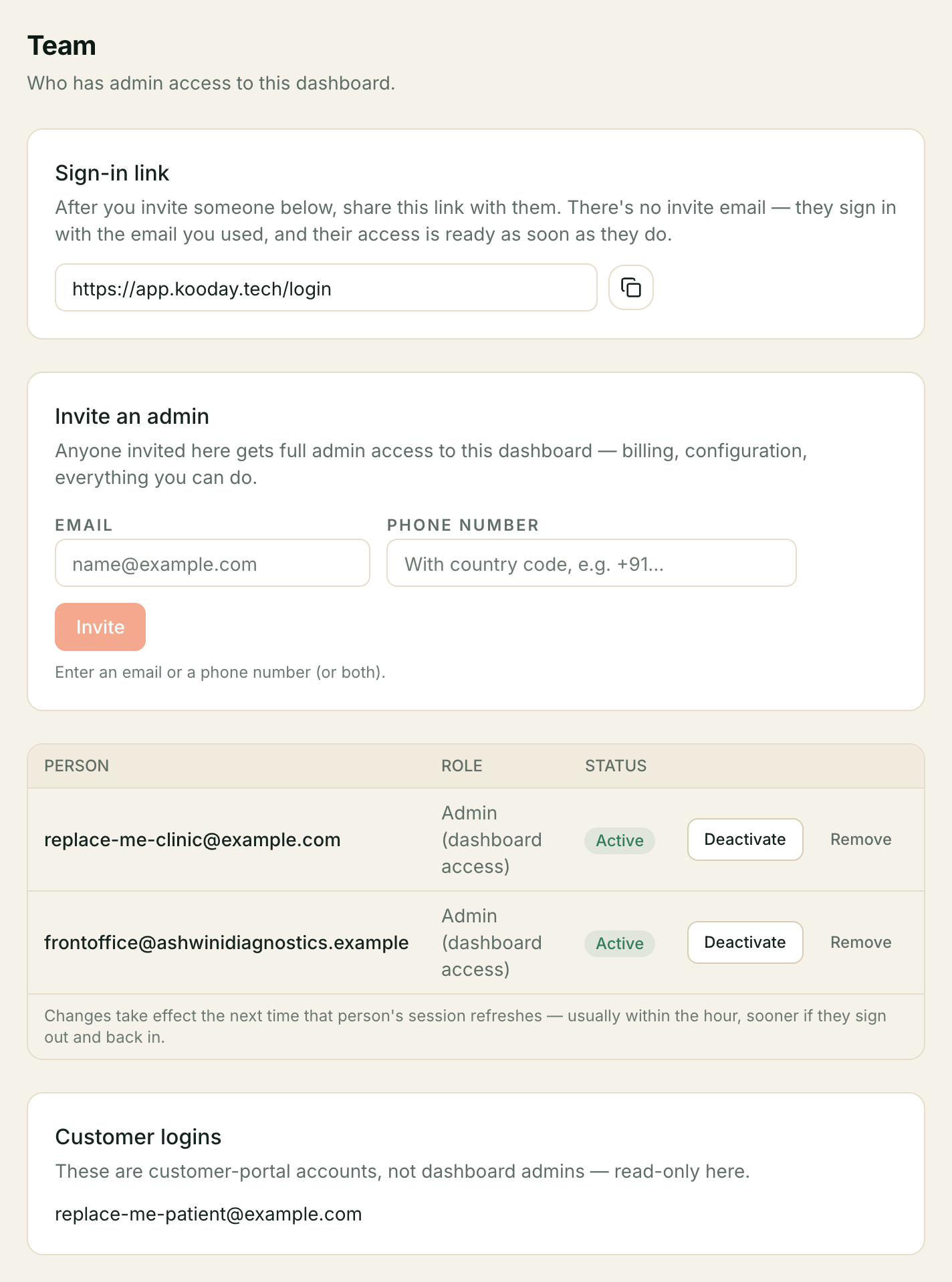
Team controls who can sign in to your Kooday dashboard — not your customers, your own staff. Everyone you add here gets full admin access: billing, configuration, every assistant.
Where to find it: Team, and also from a pointer on Config → Team (“Invite team members, change roles, and manage who can sign in to this dashboard from the Team page”).
The five-minute setup
- Open Team.
- Under Invite an admin, type the person’s email or phone number (either is enough, and you can give both).
- Click Invite.
- Copy the sign-in link at the top of the page and send it to them — there is no invite email.
That’s it. The next time they sign in at that link with the email or phone you entered, their access is ready.
Inviting someone
Invite an admin takes an email, a phone number, or both — the form only requires one. Whatever you enter is the person’s sign-in identity: they claim the grant the next time they sign in with it, the same way anyone signs in to Kooday today.
There is no invite email. Inviting someone here only creates the grant — it does not notify them. The Sign-in link card above the form exists for exactly this: copy it and send it yourself, over WhatsApp, Slack, email, however you’d reach them anyway.
Everyone invited here is a full admin. The invite form does not offer a choice of role — there is currently no way to give someone narrower access (read-only, or scoped to one assistant) from this screen. If that matters for who you’re adding, wait before inviting them.
Your roster
The table below the invite form lists every admin: who they are, whether they’re Active or Deactivated, and two actions per row.
Each row names both sign-in identities the grant has. The email is on the
first line and the phone number, if there is one, on the second — shown as the
last ten digits (…9876543210), because that is all a login stores; the
country code is not kept. That matters when one person appears twice: an
email-only grant and a grant carrying their number look identical without it,
and you would have no way to tell which row to act on.
- Deactivate / Reactivate — turns their sign-in access off or back on without losing the grant itself. A deactivated admin cannot sign in, but reactivating them needs no re-invite.
- Remove — asks you to Confirm, then deletes the grant outright. This also signs them out of any session they currently have open.
Changes take effect the next time that person’s session refreshes — usually within the hour, sooner if they sign out and back in.
⚠️ You cannot deactivate or remove your own login from this screen. Both actions are disabled on the row marked You, whatever your admin count — someone else on your team has to do it. This is a client-side safety rail on top of the last-admin rule below, not a substitute for it: without it, a second admin deactivating themselves would pass the last-admin check (there’s still one other active admin at that instant) and then immediately sign both of you out.
The last admin is protected
Kooday refuses any deactivate, remove, or demote that would leave the tenant with zero active admins:
This is the last active admin in your team. Promote someone else to admin before removing or demoting this one.
There is no override. If you’re down to one admin and need to step away from the account, invite a second admin first.
Customer logins
If any of your contacts have their own customer-portal sign-in (a separate, much narrower kind of access, unrelated to the dashboard), they appear in a read-only Customer logins list below your admin roster — so you can see they exist, but you cannot promote or edit them from here.
Troubleshooting
I invited someone and they still can’t sign in
Check that the email or phone number they’re using to sign in matches exactly what you typed when inviting them (case and whitespace are trimmed for email, but the underlying value still has to match). Also check their row isn’t Deactivated.
The Deactivate/Remove buttons are greyed out on my own row
That’s deliberate — see the warning above. Ask another admin to do it, or invite one first if you’re currently the only one.
I tried to remove someone and got “This is the last active admin”
Invite or reactivate a second admin before removing this one. Kooday will not leave an account with nobody able to sign in.
”That phone number already has an active grant in this tenant”
Each phone number can back only one active login per account. Find the row whose second line shows those last ten digits — Deactivate it, then invite again, or leave it as it is if it already does what you wanted. Deactivating a grant releases its number for reuse.
⚠️ If that row is marked You, you cannot do it yourself. Deactivate and Remove are disabled on your own rows (see the warning further up), and that includes a second grant under your own email — which is the common way to hit this message in the first place. Ask another admin to deactivate it. If you are the only admin, invite a second one first.
I need someone with narrower access than full admin
Not available from this screen today — every invite here is a full
tenant_admin grant. Contact support if you need a more limited role.
Where to go next
- The Config screen — where the pointer to this page lives, alongside your other tenant-wide settings.
- Closing your account — a different, much bigger action than removing one admin.
Still stuck? We answer support mail the same working day.
Email support