Packages
How to sell an umbrella offering — a bundle, a kit, a combo — with a price you set, contents your assistant reads out, and a suggestion that never changes what the customer already chose.
A package is an umbrella offering that contains other offerings — a bundle, a kit, a combo. Its price is set by you, never added up from what is inside. Your assistant offers it only when every item in it is available, and never changes what the customer has already chosen.
Think of a detailing bundle: Full Detail + Ceramic Coating + Interior Clean, sold as one thing for one price. Each part is still a normal offering in your catalogue, with its own price — and the package is an offering too, with its own price and its own picture. It is not a rule that fires when someone buys the parts; it is a thing you sell, and the customer sees a single card for it.
Where to find it: open What you sell → Add offering, and choose Type → Package. This is the deep dive for the package mention on Selling from your catalogue.
The five-minute setup
- What you sell → Add offering → Type → Package.
- Give it a name, a SKU and a price. The price is yours — see below.
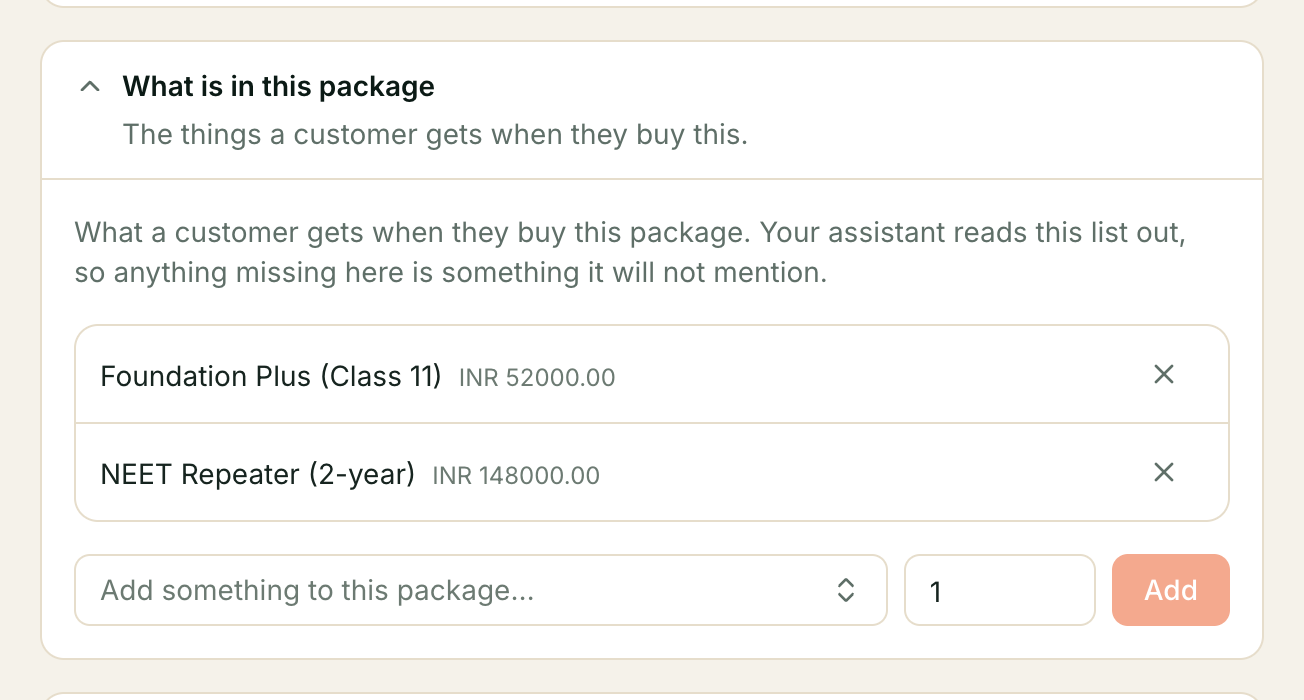
- Scroll to the contents picker, search your other offerings, and add the items that belong in the bundle, with a quantity each.
- Add a picture and a status like any other offering.
- Save.
Your assistant can now describe the package, name what is in it, and quote its price. The rest of this page is about the two things people get wrong: the price, and what happens when something inside is out of stock.
Step 1 — The price is set, not added up
This is the fact that surprises people. A package’s price is whatever you type, the same way any offering has a price. It is never computed from the contents — Kooday does not add up the parts and call the sum the bundle price.
That matters for two reasons. First, a bundle usually costs less than the parts — that is the point of the bundle — and only you can say what it should be. Second, it means your assistant never quotes a total your business did not set. When it describes the package it lists what is inside by name — “Includes: Ceramic Coating 9H, Alloy Wheel Refurb” — and says the package’s price. It does not show each part’s price beside it, because that would invite adding them up.
Where a saving figure is shown, it is a real comparison, not an estimate: Kooday compares the package price against the prices of the items the customer actually selected, and only when every one of those has a set price it can compare. If any selected item is priced on request, from, or as a variant, or the package is not cheaper, no saving is claimed at all.
Step 2 — Building the contents
In the package’s editor, the contents picker lets you search your other offerings and add each one with a quantity (from 1 to 999). A few rules:
- A package cannot contain a package. The contents are products and services only — the picker does not offer other packages, and the server refuses one. This keeps “what is in this package” a simple list rather than a chain of packages within packages.
- An item appears once. If you add something already in the package, its quantity updates rather than the item listing twice.
- Anything missing is something your assistant will not mention. Your assistant reads this list out, so if an item belongs in the bundle it has to be here.
Step 3 — Availability rolls up
A package is only worth offering when it can be delivered whole. Kooday checks every item in it, at the moment a customer asks:
- If every item is available, the package is offered.
- If any item is out of stock, your assistant says the package is not available today — it does not sell a bundle it cannot fulfil, and it does not silently swap a missing part for something else.
- If an item is discontinued or hidden, the package is not offered at all — a bundle you no longer sell every part of is not a bundle.
Because availability is checked when the customer asks, the answer is always current: the moment a part sells out, the package stops being offered, and the moment it comes back, the package is offerable again.
Step 4 — The package suggestion
When a customer is choosing items, your assistant may suggest a package that contains what they have picked — “You have the Ceramic Coating in your quote — the Ceramic & Wheel Bundle covers it and the wheel refurb, and it works out cheaper.” Two rules govern when this happens:
- It only suggests a package that covers at least two of the customer’s items and a solid majority of the selection. One item alone never triggers it.
- It never changes what the customer already chose. The suggestion is an addition — a card with the bundle on it, nothing more. If the customer ignores it, their quote is exactly as it was. This is the one promise on this page that cannot be broken by accident.
A package suggestion never fires on an empty quote, and a package with a part out of stock is never sold — if the suggestion does surface, your assistant says plainly that the package is not available today, rather than offering it.
A worked example — a car detailing business
| Package | Contents | Price |
|---|---|---|
| Ceramic & Wheel Bundle | Ceramic Coating 9H (1) · Alloy Wheel Refurb (1) | ₹18,500 |
The parts would cost ₹18,000 + ₹1,200 = ₹19,200 bought separately. The bundle is priced at ₹18,500 — cheaper, which is what makes it a bundle. A customer who has the Ceramic Coating in their quote gets a suggestion for the bundle, with the saving shown because every selected item has a set price it can compare against. The customer’s existing items stay untouched either way.
The parts are deliberately two things with a set price. If the bundle’s second item were priced on request or from, no saving would be shown at all — Kooday only claims a saving it can actually compute, and never estimates one.
Troubleshooting
My assistant does not describe what is in the package
Check the contents picker on the package. Your assistant reads this list out, so an empty list means it has nothing to name. Add the items and save; the package’s description updates.
The package price looks too low when customers compare it
That is the bundle working — a package usually costs less than the parts, and that is the saving. But check the parts’ prices are the prices you intend: Kooday compares the package against the current prices of the selected items, so a stale part price makes the saving look larger than it is.
My assistant says the package is not available, but I have stock
Check every item inside. One out-of-stock item makes the whole package unavailable — that is the roll-up working as intended. If an item should not stop the bundle, it should not be in the bundle, or it needs its stock count fixed.
The package does not appear as a suggestion
Suggestions fire only when the customer has already chosen at least two items the package covers. A single item, or a package that covers only one of several, does not trigger one — that is deliberate, to keep suggestions useful rather than pushy.
A sensible first configuration
A first package
  Type            = Package
  Price           = set by you, deliberately under the sum of the parts
  Contents        = 2–4 of your best sellers, each with its own stock and price
  Picture         = one strong main picture, like any other offering
  Status          = Active
Start with the combination your customers already buy together — you know which one because they ask for it. Price it under the parts, keep the contents simple, and let your assistant do the suggesting once the customer has made their own first choice.
For how packages differ from variants, related products, duplicates and custom fields, see the comparison table.
Still stuck? We answer support mail the same working day.
Email support