Custom fields
How to record extra facts about one catalogue entry — weight, warranty, what's included — and choose, per field, whether your assistant may mention it.
A custom field is a label and a value you add to one entry — weight, warranty, what’s included. Unlike the typed product and service details, which Kooday reads and uses, a custom field is yours: you choose, per field, whether your assistant may mention it.
The standard boxes on an offering cover the questions customers ask before they buy — how long a service takes, what a product’s brand and condition are. But every business keeps a few facts of its own that no standard box has room for: “warranty: 2 years”, “what’s included: wash, wax, interior vacuum”, “supplier: Acme Ltd”. Custom fields are that space. Nothing about the shape of the catalogue has to change to fit them.
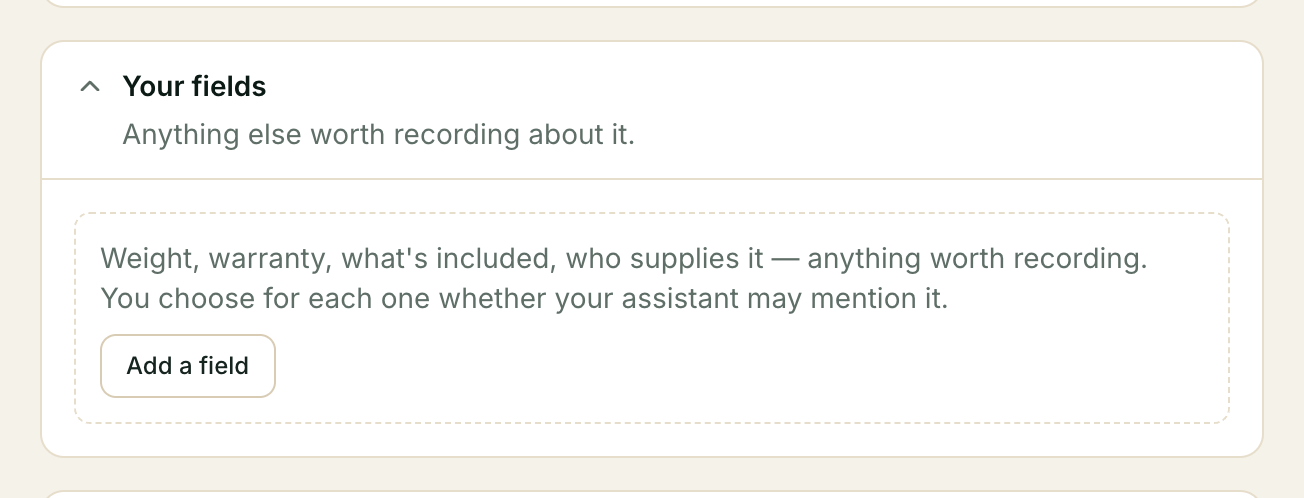
Where to find it: the Your fields section of an offering in What you sell. This is the deep dive for the summary on Selling from your catalogue.
The five-minute setup
- Open the offering in What you sell.
- Scroll to Your fields and press Add.
- Give the field a name and type what it says — e.g. Warranty, 2 years.
- Decide the tick box: leave it ticked for “Your assistant can mention this.”, untick it for “Kept to yourself — your assistant never sees it.”
- Save, and watch the preview panel: untick a field and it disappears from what your assistant says, right in front of you.
That is all there is. The rest of this page is about getting the privacy boundary right, because that is where this feature is easiest to get wrong.
Step 1 — What a field is
A field is just two short pieces of text: a name (up to 40 characters) and a value (up to 200 characters). The name is what your assistant reads as the label, so write it the way you would say it — Warranty, not warranty period in months since purchase.
There is no type system and no units engine. “500 g” is exactly the text you typed; your assistant reads it as you wrote it. If you want the assistant to do something with the value, say it in the value itself.
Step 2 — The tick box, and why it is the whole point
The tick box is the part that makes custom fields worth having. It is a confidentiality boundary, not a display toggle:
- Ticked — “Your assistant can mention this.” The field reaches your assistant: it can use the fact in an answer, unprompted.
- Unticked — “Kept to yourself — your assistant never sees it.” The field is not there as far as your assistant is concerned. It cannot mention it, cannot be talked into it, and cannot be told about it by a customer fishing for the answer. A supplier name or your own cost price lives on the same screen as everything else, invisible to every conversation.
The preview panel is the honest check. Untick a field and watch it vanish from what your assistant would say — on your own data, before you save, rather than as a promise.
Step 3 — The limits
- 20 fields per entry. Past that, your assistant is reading a spec sheet rather than answering a question — shorten a few, or untick the ones it does not need.
- Visible fields are capped in total length. The fields your assistant can see add up to a budget, because every one of them costs a little of what your assistant can keep in view at once. Private fields cost nothing — they are not counted — so the way out of the cap is exactly what you would hope: untick the fields it does not need.
- A field is either entirely visible or entirely private. There is no middle state where the assistant knows a fact but promises not to say it. That middle state does not exist anywhere in the product.
Step 4 — How custom fields differ from the typed details
The service and product details on an offering — duration, notice, location, brand, condition, barcode — are typed: Kooday reads them and uses them (brand, condition and barcode feed your Meta listing). They have a fixed shape and cannot be hidden per-field.
Custom fields are the opposite: only you interpret them. Kooday stores them as labels and values and never branches on their content — it simply passes them to your assistant when you have ticked that it may. If you are wondering whether something belongs in a typed box or a custom field, ask: does Kooday use this fact, or only my assistant? Standard boxes for Kooday, custom fields for you.
A worked example — a car detailing business
| Field | What it says | Your assistant can mention this |
|---|---|---|
| Warranty | 2 years | ✅ |
| What’s included | Wash, wax, interior vacuum | ✅ |
| Supplier | Acme Ltd | ❌ |
Warranty and what’s included are the facts that close a sale — a customer comparing two detailing options hears them at the moment of deciding. Supplier is your own business: it identifies where you buy from, it has no bearing on the customer, and you would not want it repeated in a chat. One screen, two intentions, and the tick box is what keeps them apart.
Troubleshooting
My assistant never mentions the fact I entered
Check the tick box on the field. Unticked, the field is invisible to your assistant by design — that is the setting working, not a fault. Tick it and save again, and the fact joins what your assistant can say.
My assistant says something about a field I meant to keep private
Re-read the tick box on that field and untick it. There is no state where your assistant knows a fact and merely promises not to say it — if it mentioned the value, the field is visible. Unticking and saving is the fix, and it is instant.
The entry says I have used up my fields
You have hit 20 fields, or the visible ones have hit the length budget. The cheap fix is to untick fields your assistant does not need — private fields cost nothing. If you genuinely need more visible facts, shorten the values, or ask whether some belong in the typed details instead.
A sensible first configuration
Your fields on one offering
  Warranty            2 years                     ✅ can mention
  What's included     Wash, wax, interior vacuum  ✅ can mention
  Supplier            Acme Ltd                    ❌ kept to yourself
Record the facts that help a customer decide as can mention, and keep the facts that are yours alone as kept to yourself. If you are unsure whether a fact reaches your assistant, untick it — the private ones cost nothing, and you can always tick it back.
For how custom fields fit with the rest of your catalogue — and how they differ from variants, packages, related products and duplicates — see the comparison table.
Still stuck? We answer support mail the same working day.
Email support