Import your catalogue from your website
How to pull what you sell into your catalogue from your own website, review what was found, and approve it — and what we can and cannot read.
If you sell online, most of your catalogue already exists — on your own website, one page per product. Typing it all into What you sell by hand is busywork, and it is the kind of busywork that goes stale. Importing reads the pages you already wrote, turns them into rows, and puts them in front of you to approve before anything joins your catalogue.
Two things are true from the start, and they shape everything on this page:
- Nothing is added until you press the button. Import finds things, stages them, and shows them to you. Your assistant cannot see a single one until you review and import it. Extraction proposes; you dispose.
- Everything is read from what your website publishes. We read the pages themselves — their product data, their descriptions, their pictures. We do not guess, and we do not invent rows a page did not publish.
Where to find it: What you sell → Import. The deep dive for the import mention on Selling from your catalogue.
If your prices live in a billing or inventory system, you do not have to re-import by hand each time they move — that system can push them to Kooday whenever they change. Same review screen, same approval, no crawling. See syncing your catalogue from your POS.
The five-minute setup
- What you sell → Import.
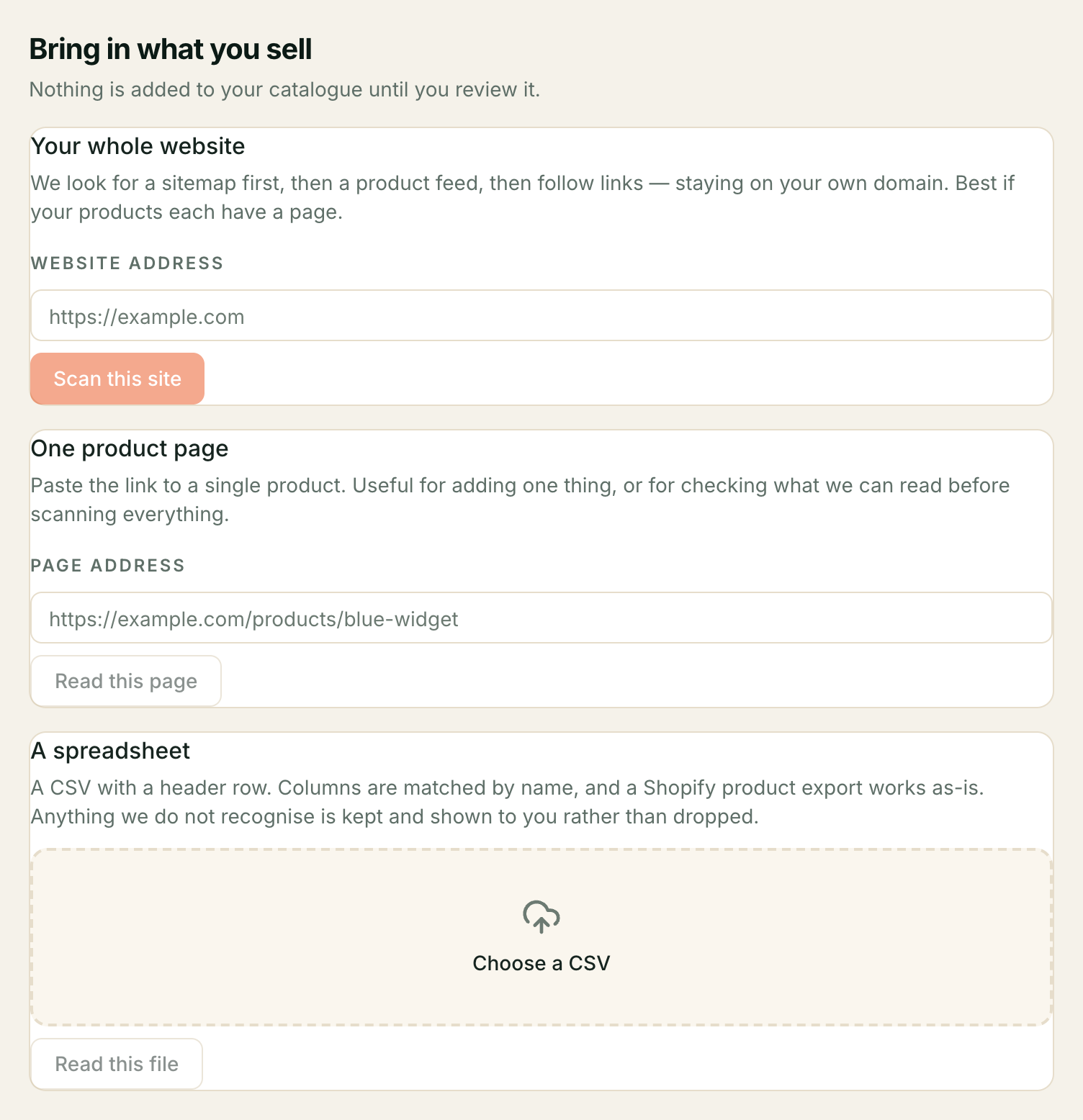
- Paste the address of one product page — or the address of your site to find everything on it.
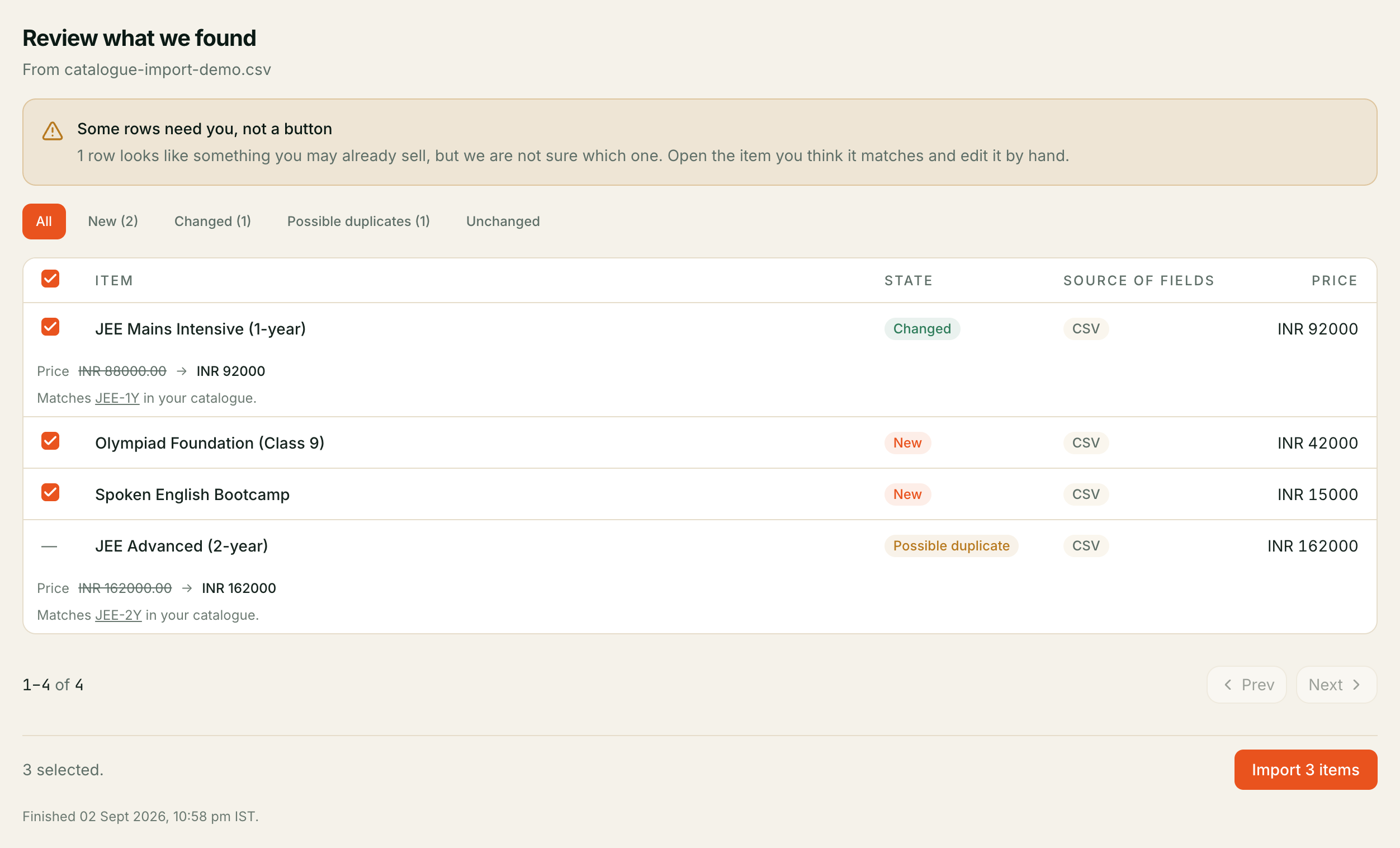
- Wait for the review screen. Rows appear as New, Changed, or Possible duplicates.
- Tick the rows you want — rows read straight from product data can be selected together; read-off-the-page rows are ticked one at a time.
- Press Import N items.
That is a perfectly good place to live. The rest of this page is about what we can and cannot read, what the review screen is really asking, and what happens to your catalogue after the first import.
Step 1 — What you can import
There are two starting points, and you can use both:
One product page. Paste the address of a single product and Kooday fills a new offering in from it. This is the lightest option — right for adding one thing, or for trying the feature out before letting it loose on your whole site.
Your whole site. Paste your site’s address and Kooday finds your products itself. It looks for a sitemap first, then a product list your shop publishes, then follows links from page to page — staying on your own domain and within sensible bounds. You will see how many pages it found before you do anything with them.
Step 2 — What we can read, and what we cannot
This is the honest part, and it is the part most people get wrong about imports.
What we read. Kooday reads what your website publishes about each product: the structured product data on the page, its description, its picture, its price. The more your pages publish proper product data, the better the rows it stages.
What we cannot read. If a page builds its content with JavaScript — meaning the text and prices are drawn in by the browser after the page loads, rather than sent in the page itself — there is nothing to read. The page looks perfect to a visitor and empty to us. A shop that renders everything client-side yields little or nothing, and no amount of retrying changes that: we can only read what the page publishes.
How the URL was found does not decide how the row is read. Whether a page came from a sitemap, a product list, or a link on another page, we read the page the same way — from its own markup. If the page itself does not publish usable product data, nothing is claimed from it. A row is described on the review screen by what the page published, not by how we found the page.
Step 3 — What happens when a row matches something you already sell
Import does not assume everything it finds is new. When a staged row looks like an entry you already have, the review screen tells you rather than creating a second one. It matches by what the two have in common — in rough order, the same external identity, the same barcode, the same product page address, the same SKU, and finally the same name with the same price.
The screen sorts what it finds into three states, and each means something different:
| State | What it means | What you do |
|---|---|---|
| New | Not in your catalogue | Tick it to add it |
| Changed | Matches an entry you already have, and the page says something different | Review the two versions side by side and tick it to update the entry |
| Possible duplicates | Looks like something you may already sell, but we cannot tell which | These need you, not a button — see below |
A change never silently overwrites. When you approve a changed row, only the fields the page genuinely published are updated — the name, description, picture, brand and barcode — and the price if the page says one. Things the page did not say are left alone, and a SKU is never changed by an import; it is how your entry is tracked, and imports respect that. You see the difference before you apply it.
Possible duplicates are the one state that cannot be automated. A possible duplicate means the import found a row that looks like something you already sell but could not tell which one it is — the names and prices do not quite line up. Importing it blindly would either duplicate something you already have or overwrite the wrong row, so the screen does not offer a tick box for it at all. It says it plainly: “open the item you think it matches and edit it by hand.” See When the same product appears twice for what to do with a duplicate once you have found one.
Step 4 — The review screen
The review screen is where import earns its keep, and it is worth reading what it is asking. Every row shows the source page, what the page said, and which of the states above it landed in. A changed row opens a side-by-side diff — what the page says versus what you have — so you approve a difference you can see, not a summary of one.
Two things to know about ticking rows:
- Rows read straight from product data can be selected together. The Select all box covers these — the rows the page published as structured product data. That is the safe bulk action.
- Rows pieced together from the page’s wording are ticked one at a time. When a page did not publish proper product data and we read the wording off it instead, the screen shows you that wording first, in its own block, and ticks each row individually. The point is that you see the wording before you approve it — your assistant will repeat it to customers as your own, so you get to read it first. This is the screen doing its job, not a hurdle to work around; do not select-all your way past a check that exists for your customers’ benefit.
Nothing is added until you import it. Every row you have not ticked is left out, and the screen says so on both sides of the journey.
Step 5 — After the first import
Once you have imported from your website, Kooday keeps checking it — daily. Here is exactly what that does, and does not, mean:
- We check your site daily and leave what we find on the import review screen. New things you have put up appear as rows to review. Things whose price or description changed appear as changed rows with the difference shown.
- Nothing is emailed to you. The finding waits on the review screen for when you look. There is no notification, and no automatic update.
- Nothing is applied without you. A change your website makes is a row for you to approve, exactly like the first import. Your catalogue never changes on its own.
A worked example — a car detailing business
A detailing shop imports https://detailing.example. We find the sitemap,
read it, and stage rows for Ceramic Coating 9H, Interior Deep Clean, and
the rest — each read from that product’s own page. The review screen shows
five New rows and one Changed: the shop changed the Alloy Wheel
Refurb price on its site last week, so the staged row shows “₹1,200 → ₹1,400”
side by side. The owner ticks the five new rows, reviews the price change, ticks
it, and presses Import 6 items. The shop’s catalogue matches its website.
A week later the owner edits a price on the site; the next daily check stages
it as a changed row, and it waits on the review screen.
Troubleshooting
Import found nothing, but my site clearly has products
The pages are probably built with JavaScript, so there is nothing for us to read. Try a single product page you know has the price written in the page itself. If that works but the site-wide import does not, the shop renders its pages client-side and this is a genuine limitation of reading what a page publishes.
Import stopped early and says some links pointed elsewhere
Kooday stays on your own website — links to your CDN, your marketplace, or a different domain are skipped and counted, and the screen tells you how many. That is the safety boundary working. Products on those other domains are not imported.
A row looks like something I already sell
It is a possible duplicate, and the screen will not tick it for you. Open the entry you think it matches and edit it by hand — see When the same product appears twice.
I imported and my assistant still quotes an old price
The changed row may not have been approved — or the price is coming from an uploaded document, not your catalogue. Check the review screen for unimported rows, and check why your assistant might still be answering from your documents.
I imported by mistake and want to undo it
Rows you import become entries like any other — open them in What you sell and remove or deactivate them. The import itself does not keep a copy of your catalogue before it runs; it applies only the rows you ticked.
A sensible first configuration
Import your catalogue from your website
  Start with ONE product page      → learn what your site yields
  Then your whole site             → stage everything, review what came back
  New rows                         → tick and import
  Changed rows                     → read the diff, then tick
  Possible duplicates              → resolve by hand
  Daily re-checks                  → review them when you look; nothing is emailed
Start small with a single product page so you see what your site yields before letting the import loose on the whole catalogue. Then run the full site import, review it once, and treat the daily re-check the same way — as a review screen that waits for you, never a change that happens on its own.
For how imported rows fit with the rest of your catalogue, and how a duplicate, variant, package, related product and custom field differ, see the comparison table.
Still stuck? We answer support mail the same working day.
Email support