Pricing by size, brand or duration
How to enter several prices on one catalogue entry, name the thing that changes them, and let your assistant ask which one the customer wants instead of guessing.
A variant is one offering, several prices, chosen by a named dimension — size, brand, how long. It is the same thing, priced differently by spec: the small, medium and large car wash are the same car wash, not three products. Your assistant asks which one the customer wants rather than guessing.
That last bit is the point of the whole page. If you enter three prices without naming what changes them, your assistant has no way to choose — so it recites all three numbers and lets the customer pick blindly. Name the dimension and it can ask, which is how a real counterperson sells:
❌ “Car wash is ₹400, ₹600 or ₹700.” ✅ “Car wash starts at ₹400 — what size is your car?”
Where to find it: the Pricing section of an offering in What you sell, under the price. This page is the deep dive for the “one thing, several prices” summary on Selling from your catalogue.
The five-minute setup
- Open the offering in What you sell.
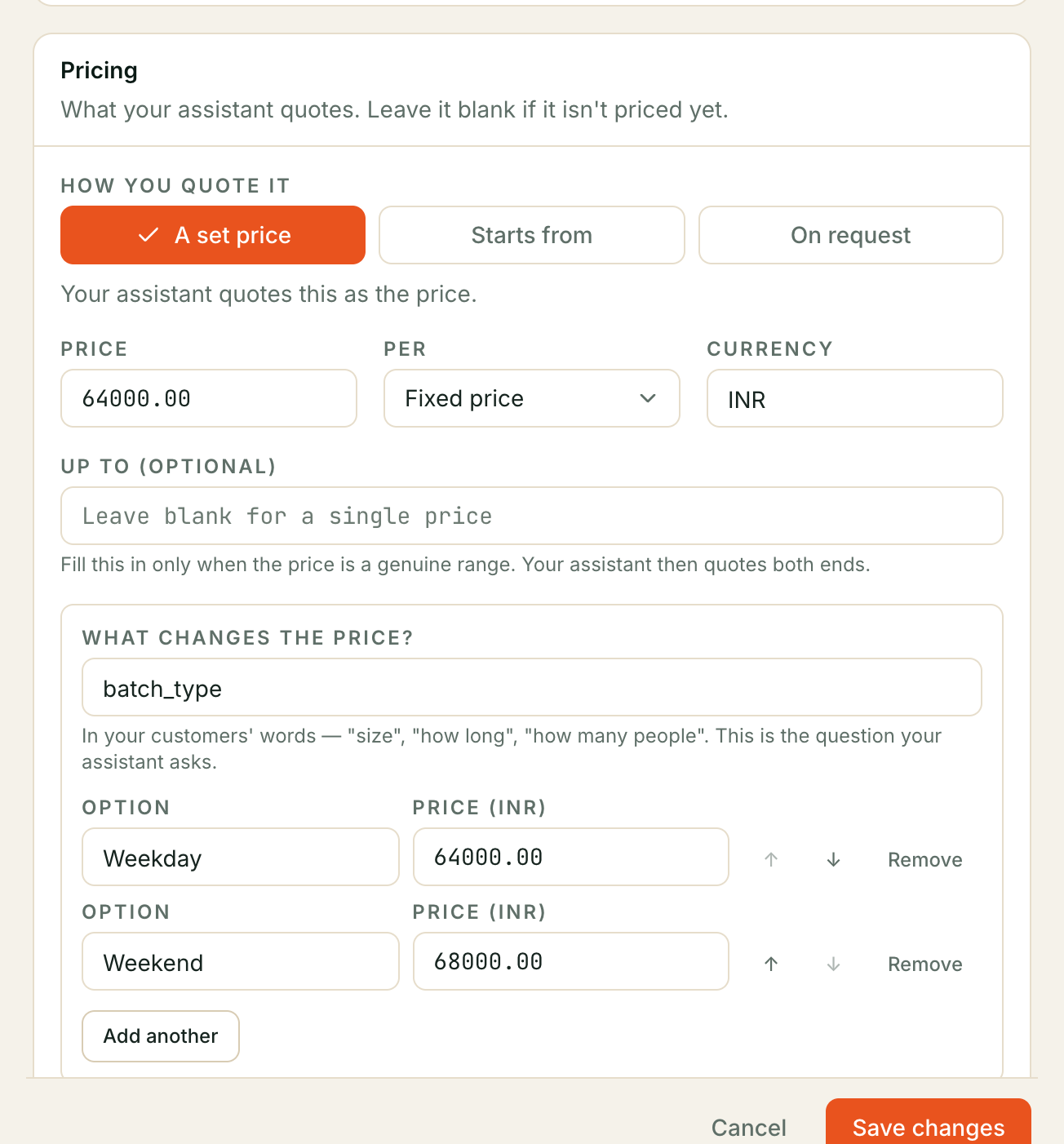
- Enter the usual price in the price box — this is the from price, what your assistant quotes when nobody has chosen an option yet.
- Under it, type what changes the price — “size”, “brand”, “how long”, “how many people”. This is the question your assistant asks.
- Add each option with its own price: Small ₹400, Medium ₹600, Large ₹700.
- Save.
That is enough for your assistant to ask which one the customer wants. The rest of this page is for getting the details right.
Step 1 — Name what changes the price
This is the field that turns a price list into a conversation. Type the question in your customers’ words: “size”, “how long”, “how many people”. Your assistant reads it back to itself as “Price varies by size:” — so if the customers say “what size is your car?”, write size.
The dimension matters more than the list itself. It is the difference between “the price varies” and “the price varies because of X, so ask which X”. Leave it empty and your assistant falls back to a bare list — workable, but it is the weaker answer, so name it when you can.
Step 2 — Add the options
Each option is a name and a price. A few rules:
- The price box above is the from price. It is what your assistant quotes when nobody has said which option they want, so fill it in with the cheapest — the entry point — before adding options. The design assumes the from price is the cheapest rung; keep it that way and quoting stays honest.
- The order is yours. Use the ↑ and ↓ buttons to put the options in the order you would say them — small to large, not cheapest first. That is the order your customers hear.
- A name must be unique. Two options cannot share a name — the customer has to be able to tell them apart.
- Options carry the same unit and qualifier as the offering. If the entry is priced per hour, the options are per hour too; if it is on request, no number is said aloud for the options any more than for the main price.
- Removing an option removes it. It is gone from what your assistant knows the moment you save — no stale prices linger behind.
Step 3 — How your assistant reads the list out
Your assistant reads the first 8 options in your order and then says how many more there are — a long list is never silently cut short, and it never pretends the list is complete when it is not. Keep your most common options first: they are the ones read out in full.
There is a practical ceiling of around fifty price rows on one entry. That is not a reason to squeeze the whole catalogue into one offering — it is a sign the dimension you picked is doing too much, and splitting the offering is usually the cleaner answer.
A worked example — a car detailing business
| What changes the price | Options |
|---|---|
| size | Small ₹400 · Medium ₹600 · Large ₹700 |
The price box holds ₹400, the cheapest. A customer asking about a car wash gets “Car wash starts at ₹400 — what size is your car?”, and once they say large, your assistant quotes ₹700 and — if the customer is ready to book — adds large to the quote, so the price quoted is the one they chose, not the entry price. That is the detail that matters: the chosen option is carried onto the quote, never silently swapped for the cheapest one.
Troubleshooting
My assistant quotes the cheapest price no matter which option I mean
Check what is in the price box, not the options. That box is the from price — the one quoted before anyone has chosen. If it is not the cheapest, or if you meant it to be hidden, either move the correct entry price into the box or set the offering to on request, which keeps every number private.
My assistant reads a list of numbers instead of asking
The dimension is empty. Name it — size, how long, how many people — and your assistant will ask that question instead of reciting prices.
The customer chose a size but the quote shows a different amount
A quote carries the chosen option by name. If the amount is wrong, check the option’s own price: the assistant can only quote what you entered, and it is told which option the customer chose, never left to pick for itself.
I have more than eight options and customers never hear the rest
Reorder them so the common ones come first — your assistant reads the first eight and names the rest by count. If none of them can bear to be eighth, the dimension is probably too broad, and two offerings is the better shape.
A sensible first configuration
Pricing on one offering
  Price box  = ₹400            (the from price — cheapest, the entry point)
  Dimension  = size            (the customer's question, their words)
  Options    = Small ₹400, Medium ₹600, Large ₹700   (in the order you'd say them)
Enter the entry price first, name the dimension in your customers’ words, and keep the options in the order you would say them aloud. Start with the offering you are asked about most — a clean example beats a perfect catalogue.
For how this fits with the rest of your catalogue — and how a variant differs from a package, a related product and a duplicate — see the comparison table.
Still stuck? We answer support mail the same working day.
Email support