Building a report
How the Reports screen turns hundreds of call summaries into one table you can filter, group and export — including the columns only your business has, and the two numbers that are deliberately missing.
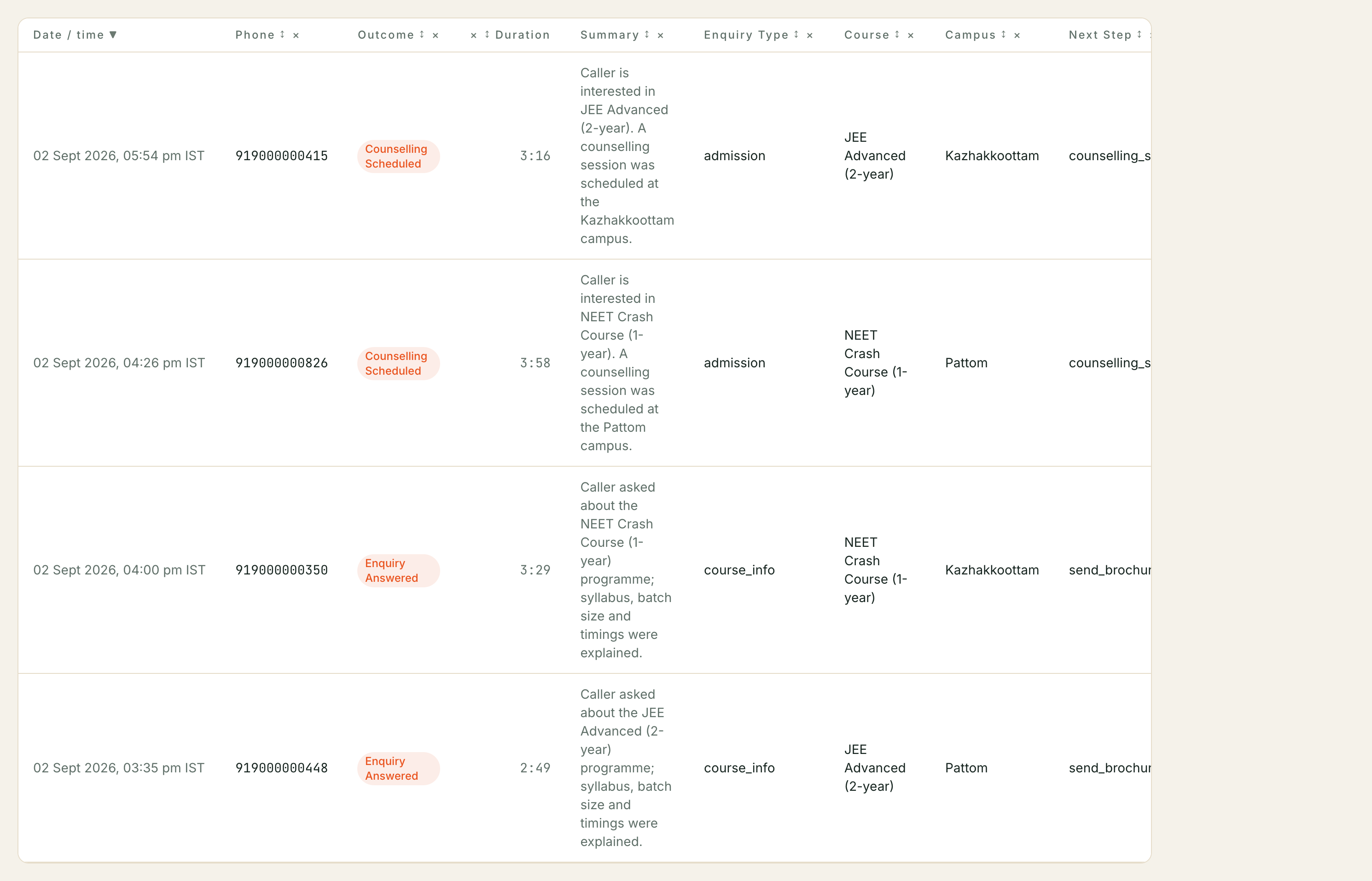
After every phone call your assistant writes a short summary: how the call ended, what language it was in, what the caller wanted, and whatever else you asked it to record. Reading those one call at a time works for ten calls and falls apart at four hundred.
Reports puts them all in one table. You choose the columns, narrow the rows until only the calls you care about are left, and take the whole filtered set away as a spreadsheet. Nothing is set up in advance and nothing is saved — you build the view you want, and the address bar remembers it, so a report you have built can be bookmarked or pasted to a colleague and it opens exactly as you left it.
Two things to know before you start:
- It covers phone calls only. WhatsApp and website chat threads are not in this table. For those, use Inbox.
- It needs admin access. The report will not load for a team member without it.
Where to find it: open Reports in your dashboard. The heading reads “Build a multi-call report from your call summaries — pick columns, filter, and export.”
The five-minute version
- Set the date range with the 7d / 30d / 90d pills in the bar at the top.
- Type a word into Search — a phone number, an outcome, anything a summary might mention.
- Open Columns and tick what you want to see.
- Click Export CSV.
That is the whole product for most people. Everything below is for when the straightforward version stops being enough.
Where the columns come from
There are three sources, and they behave differently. This is the part worth understanding, because it is the difference between a generic call log and a report shaped like your business.
| Source | Where it is set up | Lives for |
|---|---|---|
| Generic call columns | Nothing to set up — every account has them | Always |
| Your summary fields | Config → Report fields | Until you change them |
| One-off columns | The Add a one-off column box on this page | This view only |
1. The generic call columns
Nine columns every account has, in the Columns panel:
| Column | On by default | What it holds |
|---|---|---|
| Date / time | Yes | When the call started |
| Phone | Yes | The other party’s number |
| Direction | No | Inbound or outbound |
| Outcome | Yes | Your assistant’s own word for how the call ended |
| Language | No | The language the call was conducted in |
| Sentiment | No | How the caller came across |
| Duration | Yes | Minutes and seconds |
| Cost (INR) | No | What that call cost you |
| Summary | Yes | The written summary, in full |
Untick anything you do not want. Hiding a column hides it from the CSV too — the export contains exactly the columns you can see, in the order you can see them.
The first visible column carries the link to the call, so it has no × on its header. Every other column can be dismissed straight from the table.
2. Your summary fields — the columns only you have
Under the generic ones, the Columns panel has a Summary fields section. It is empty until someone fills it in, and the panel says so: “No summary fields configured yet. Add a one-off column below, or save reusable ones under Config → Report fields.”
Every call summary is stored as a small structured record — a set of named values
your assistant filled in. Which names exist is decided by your business, not by
Kooday. A coaching institute records something like course_interest; a workshop
records vehicle_model; a clinic records appointment_type. There is no fixed
list, which is why these columns cannot appear until someone points at them.
Pointing at them is done once, under Config → Report fields, and it takes two boxes per column:
- Summary key path — the name your assistant records, for example
intent. A value nested inside another is written with a dot:order.id. The box autocompletes from the names your own calls actually carry over the last year, so in practice you pick rather than type. - Column label — what the column is called on screen and in the CSV, for example Order ID.
Save report fields confirms with “Report fields saved.” From then on those columns are on by default for everyone in your account, in the order you listed them. A row missing either box is skipped quietly — the screen warns first: “Rows missing a path or a label are skipped on save.”
The full walkthrough of that screen is in Settings and configuration.
3. One-off columns
Sometimes you want to see a value once and never again. The Add a one-off column box at the bottom of Columns pulls any summary value into the table immediately, without saving anything to your configuration.
- Type or pick a name and click Add column.
- Add all (N) adds every name discovered in your recent calls in one click.
- Clear all removes the lot.
The suggestion list comes from the names found in your 2,000 most recent calls
inside the current date range — so a name your assistant stopped recording six
months ago will not be offered on a 7-day range. Only top-level names are
discovered; a nested one like order.id still works, you just have to type it.
Twenty one-off columns is the ceiling. Ask for more and the page tells you rather than dropping them silently: “Showing the first 20 of 25 columns (the maximum). Remove some to add others.”
Searching
The Search box (“Search calls…”) matches across the whole date range, not just the page in front of you, and it looks in six places: the phone number, the outcome, the language, the sentiment, the written summary, and the entire structured summary record. That last one is the useful part — a value you never turned into a column is still findable by typing it.
It matches anywhere inside a value, ignores capitals, and updates a moment after you stop typing.
Narrowing the rows
The three quick dropdowns
Outcome, Language and Direction sit next to the search box. Each offers the values found on the page in front of you, and each filters the whole date range once picked.
Column filters — the precise ones
Column filters opens a panel where you build conditions against any column, generic or your own. Each row reads column → operator → value:
| Column type | Operators offered |
|---|---|
| Text — Phone, Direction, Outcome, Language, Sentiment, and every summary field | contains, is, is not |
| Number — Duration, Cost (INR) | ≥, ≤, is, is not |
Add rows with + Add filter and drop one with Remove. With two or more filters a Match selector appears above them — all (AND) or any (OR) — and it applies to the whole set, not to individual pairs.
⚠️ A filter with an empty value is ignored, not held. It stays on screen looking configured while the table quietly shows everything. If a filter appears to be doing nothing, check it actually has a value in it.
Summary fields are always compared as text, even when they hold something that
looks like a number — so ≥ is not offered on them. Text comparison ignores
capitals, and is means the whole value, not part of it.
If the panel says “Add a column first to filter on it.”, add a column and the filter list fills up.
Grouping
Group by outcome splits the table into one block per outcome, each with its own count.
⚠️ Grouping only rearranges the page you are looking at, which is 25 calls. The counts beside each heading are counts within that page, not across your whole range. To count outcomes properly, filter to one outcome and read the total, or export and count in a spreadsheet.
Sorting, and the same trap
Click a header to sort. Sorting a generic column re-sorts your entire filtered set on the server and starts again from the first row. Sorting a summary field or a one-off column reorders only the 25 rows already loaded — the rows below are untouched.
Both look identical. If you are sorting to find the largest or the earliest of something, sort on a generic column, or export and sort in your spreadsheet.
Exporting
Export CSV takes the whole filtered set, not the page — every row matching
your date range, search, dropdowns and column filters, fetched a hundred at a time
until they run out. The file arrives as
calls-report_2026-07-18_to_2026-08-16.csv.
Two things carry over from the screen exactly: the columns you have visible,
and their order. Two things deliberately differ: cost exports as a plain number
(12.5, so spreadsheets can add it up) rather than ₹12.5, and grouping is
ignored — a CSV is one flat table.
The button is disabled while a range has no calls in it. If something fails mid-export you get “Couldn’t export. Try again.” and no file; nothing is half-written.
The usage numbers, and filtering them
Reports answers “what happened on these calls”. The Overview screen answers “how much did we use, and what did it cost” — and it has three filters Reports does not.
Where to find it: Overview, the first item in your dashboard. It reads “Activity for the selected date range.” and carries six figures: Total calls, Completed, Billable, Talk minutes, Unique contacts and Billable cost, plus a Calls per day chart and a Usage by bot table when you run more than one assistant.
Custom date range
The 7d / 30d / 90d pills cover most questions. Custom reveals two date boxes for an exact window — a calendar month for reconciling against an invoice, say. The window can be up to 366 days; ask for more and the control says “Range too wide — max 366 days.” and leaves your dates alone.
The same pills sit on Reports, Calls and Contacts, and each screen keeps its own window.
Origin — real calls versus your own testing
Origin is a row of four toggles: Phone, Tester, Widget, Demo. None pressed means everything is counted. Press one or more and every figure on the screen counts only those.
Origin records where a call came in, and it is set by Kooday at the moment the call starts — it is not something a caller or a setting can influence:
| Origin | What it is |
|---|---|
| Phone | A real telephony call, over your phone number |
| Tester | You trying your assistant from the Bots screen in the dashboard |
| Widget | Someone using a voice widget embedded on your website |
| Demo | The voice demo on a public web page — a real person, but not a phone call |
This matters most in the first weeks, when a good share of your call count is your own team testing. Press Phone on its own and you see what customers actually did.
Two honest limits:
- Origin does not change your bill. A tester call is billable exactly like any other. Filtering by origin filters the report; it does not refund anything, and the total on your invoice is the unfiltered one.
- Older calls all read as Phone. Calls logged before this field existed were left reading as phone calls rather than guessed at, because that is what nearly all of them were.
Per-bot
The Bot dropdown — All bots by default — narrows every figure to one assistant. Calls that belong to no assistant (outbound work, for instance) group together under their own row in Usage by bot.
⚠️ The two cards at the bottom of Overview — Recent calls by language and Recent calls by sentiment — do not always honour these filters. When you have selected more than one origin, or any single bot, those two cards say “(not filtered by origin/bot)” under the heading. They are describing a different population from the figures above them. Believe the caption.
Origin is not on the Reports screen
There is no origin control and no origin column in the report builder. To see the origin of an individual call, open Calls — it has an Origin column and every call’s detail page shows it. To count by origin, use Overview.
Two numbers you will look for and not find
Kooday shows no delivery-failure rate and no resolution rate — not here, not on Overview, not on Impact. This is deliberate and worth stating plainly, because their absence looks like an oversight.
Neither is measured yet. Nothing in Kooday currently marks a message as having failed to deliver, and nothing currently marks a conversation as resolved. A “delivery failure rate” would therefore be 0% on every account, every day, and a “resolution rate” the same — a fixed number wearing the clothes of a measurement.
Showing them would be worse than omitting them, so they are omitted. They will appear when there is something real behind them.
Related but different: WhatsApp broadcast campaigns do report delivered and read counts, because Meta sends those receipts back. That is a separate screen with its own caveats.
Troubleshooting
The report is empty
The screen tells you which kind of empty it is. “No calls in this range” means your dates are the problem — widen them. “No calls match these filters” means a filter is; take them off one at a time, starting with Column filters, which is collapsed once you have none and easy to forget.
A summary field column is all dashes
Every cell showing — means the calls in this range do not carry that value. Usually the key path is slightly wrong. Check the exact spelling under Config → Report fields, or add the same name as a one-off column first — the suggestion list there only offers names your calls really carry, so if it is not in the list, your calls are not recording it.
Also possible: your assistant only records that value on certain kinds of call, and none of them happened in this window.
A summary field is missing from the Columns panel
It is only there once someone saves it under Config → Report fields. Until then it is available as a one-off column, which does the same job for this view.
The Columns panel offers nothing under “Add a one-off column”
Names are discovered from your 2,000 most recent calls in the current range. Widen the range. If the list is still empty, your calls have no structured summary values yet — you can still type any name into the box by hand.
Sorting did something strange
You probably sorted a summary field, which only sorts the 25 rows already loaded. See Sorting, and the same trap.
The export has fewer columns than I expected
The CSV carries the columns that are visible, so anything unticked in Columns — or dismissed with the × on its header — is not in the file. Tick it back on and export again.
Reports won’t load for someone on my team
The report builder is admin-only. Team members without admin access can use Calls instead, one call at a time.
Where to go next
- Billing and invoices — what the usage figures turn into at the end of the month.
- Your impact numbers — the outcome view: how much was handled without anyone from your team.
- Settings and configuration — where Report fields is set up.
Still stuck? We answer support mail the same working day.
Email support