Connect your Plivo account
How to bring your own Plivo phone line so your assistant can answer and place calls on your own number — the credential form, the per-bot Answer URL, assigning the number to an assistant, and what to watch for.
Kooday can also place and answer calls through Plivo, alongside Exotel. The account and the per-minute telephony charges stay yours — Kooday does not resell them — and you connect it yourself, from Configuration.
What it actually is
Every assistant already has a voice agent: the part that listens, thinks and speaks. What it did not have, until you connect one, is a phone line — a real number a customer can call, or that your assistant can call out on. Voice in the browser (your website’s “Talk to us” button) works with no phone line at all; only real telephone calls need one.
Connecting your own Plivo account gives every assistant on your account a phone line to be assigned a number from. You do the Plivo side — creating the account, buying a number, generating an Auth ID and Auth Token, and pointing a Plivo application at Kooday’s URLs — and Kooday does the rest: answering the calls that arrive on it, and dialling out from it when an assistant places one.
Plivo and Exotel are two independent credentials — you can connect one, the other, or both. Each configured provider gets its own row on the Phone & voice card, and each assistant’s phone number is checked against whichever credential it belongs to.
A five-minute setup
- Get a Plivo account and a number, if you do not already have one. The account is yours; sign up directly with Plivo. Note that Plivo has no toll-free numbers in India — you will be assigning a regular local number.
- Open Phone & voice in Kooday, under Settings in the left-hand menu.
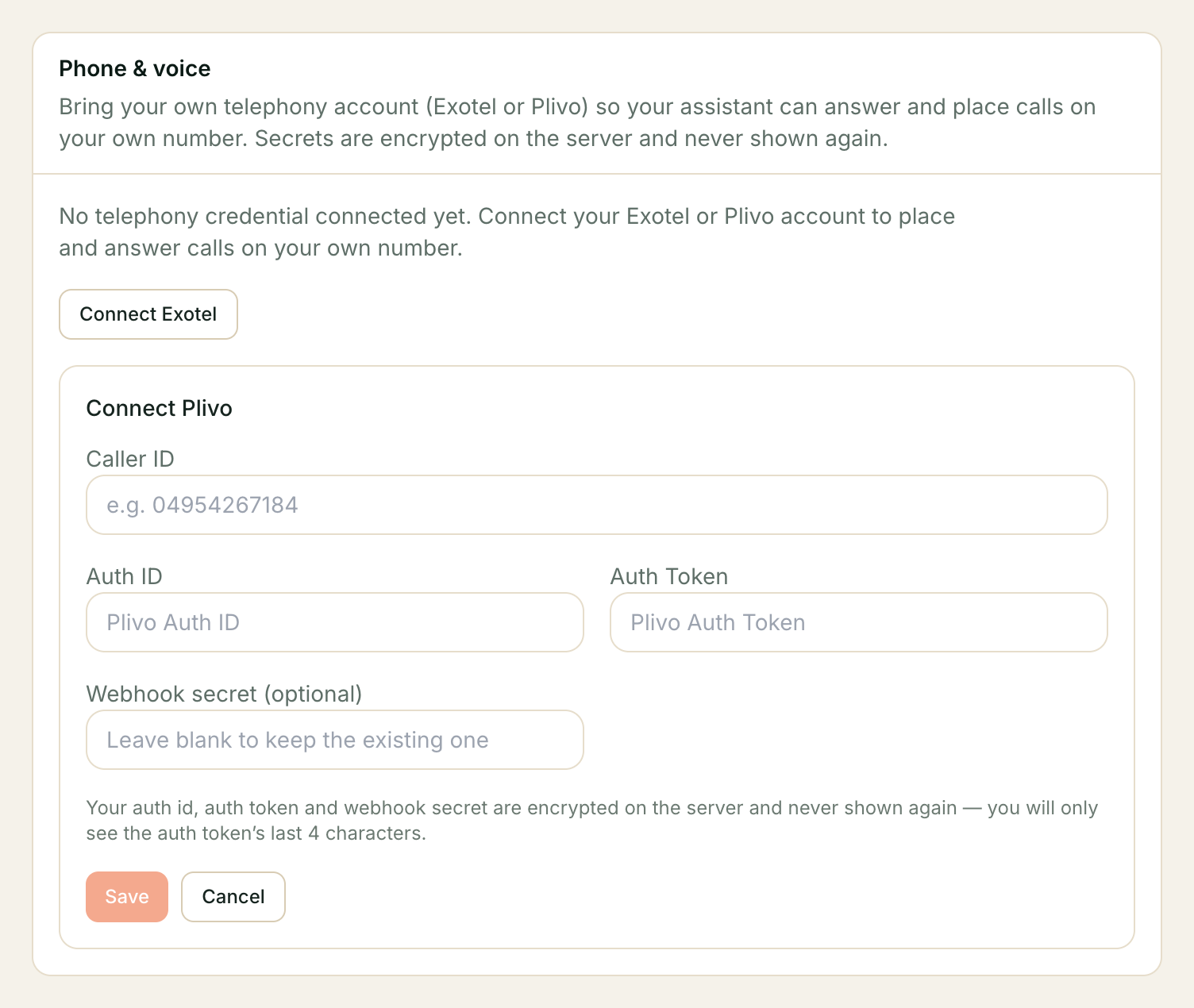
- Click Add Plivo credential and fill in:
- Caller ID — the Plivo number itself, in the same format Plivo shows it to you.
- Auth ID and Auth Token — from your Plivo account’s API settings (Plivo console → Account → Auth ID / Auth Token). Plivo does not issue a separate “API key”; Auth ID plays that role and doubles as the non-secret Auth ID field shown back to you after saving. Both are encrypted the moment you save; nobody, including Kooday staff, can read the Auth Token back afterwards.
- Webhook secret — optional. Plivo’s own signature (not this secret) is what Kooday verifies StatusCallback and Answer requests against, so you can leave this blank for Plivo.
- Click Save. The row now shows your caller ID and the Auth ID — that
confirmation is the only place the Auth Token surfaces again, and only as
a
…last4hint. - Ask us to switch that assistant’s phone line to Plivo. Contact support once your credential is connected and tell us which assistant should use it; it is a quick change on our side. This step is deliberately not self-serve — which carrier carries your calls affects routing and billing, so we make the change and confirm it rather than leaving a switch that can silently take a working number off the air. Until we do, the assistant’s Bots page will keep saying “This bot isn’t set to use Plivo yet” and calls to the number will fail.
- Once we confirm the switch, open the assistant on its Bots page and
copy its Plivo Answer URL (see below). In your Plivo console, create
(or edit) a Voice Application and set:
- Answer URL — paste the per-bot Plivo Answer URL you just copied.
- Hangup URL — paste the Plivo Hangup URL, shown directly beneath the Answer URL on the same panel, with its own copy button. It is Plivo-specific and different from Exotel’s status URL, and it is the same for every assistant in your account. Copy it rather than typing it: it is how we learn how each call ended, and a URL that is even slightly wrong is accepted by Plivo and then silently rejected by us, so calls would connect normally while their outcomes never reached your call history.
- Assign the Plivo number to that Voice Application in the Plivo console,
and set the assistant’s own Phone number field (its Configuration
tab) to the same number in E.164 format (e.g.
+919876543210).
The assistant is now reachable at that number.
The per-bot Answer URL — do not use the raw stream URL
Unlike Exotel, which is pointed at a single raw /stream WebSocket URL,
Plivo needs an HTTP Answer URL, not that WebSocket URL — and the Answer
URL is specific to one assistant, not one credential.
⚠️ Pasting the Exotel connection URL (or any raw
/streamURL) into Plivo’s Answer URL field will not work correctly. Plivo’s Answer URL is what tells Kooday which bot is answering the call; a Plivo call routed around it connects with no bot identity attached — a silent, unhelpful call rather than a clear error.
Where to find it: open the assistant on the Bots page and look for its Plivo Answer URL, next to the existing Exotel connection URL. It has its own Copy button. The URL is served by Kooday’s API (not built in your browser), so what you copy is guaranteed to work regardless of how your dashboard happens to be deployed.
If the assistant is not yet set up to use Plivo, the Bots page tells you that instead of showing a URL. Today that means we have not yet switched this assistant’s phone line to Plivo on our side — see step 5 above.
The credential row, in detail
Where to find it: Settings → Phone & voice.
Plivo and Exotel each get their own row once configured. Before you connect Plivo, there is no row yet — just an Add Plivo credential button, which opens the same form described above. Rotating an existing Plivo credential uses the same form again, opened from that row’s Rotate credential button instead — this is also how you update a caller ID or Auth ID that changed on Plivo’s side.
The plaintext Auth ID, Auth Token and webhook secret are never shown
again after you save them, in the dashboard or anywhere else. If you need
to confirm what you entered, the caller ID and Auth ID are non-secret and
always shown; the Auth Token shows only as a …last4 hint.
Removing a credential takes it away from every assistant that was dialling through it — click Remove credential and confirm. Numbers already assigned to a bot are not cleared automatically; the bot simply stops being reachable until you connect a credential again or clear the number yourself.
Assigning a number to an assistant
Each assistant’s own Phone number field lives on its Configuration tab, next to its name and language. A few rules the field enforces:
- Format is E.164 — a leading
+, country code, no spaces (+919876543210, not09876543210or+91 98765 43210). - One number per assistant, and numbers cannot be shared between two of your assistants — assigning a number already in use on another bot is refused.
- The number must be one your connected credentials can dial from — the comparison is normalised (last 10 digits) and checked against every provider you have configured, so it does not matter which one — Plivo or Exotel — actually owns the number. Assigning a genuinely different number is refused with an explanation.
- If you have not connected any credential yet, the field accepts any correctly-shaped number — there is nothing yet to check it against. Connect a credential as soon as you have one; an unverified number is recorded, but it will not actually ring until Plivo (or Exotel) is pointed at it.
Worked example
| Field | What Plivo calls it | Example |
|---|---|---|
| Caller ID | Your Plivo number | +919876500000 |
| Auth ID | Auth ID | MAXXXXXXXXXXXXXXXXXX |
| Auth Token | Auth Token | (paste once, never shown again) |
| Webhook secret (optional) | Not used by Plivo — leave blank | — |
On the assistant’s Configuration tab, Phone number becomes
+919876500000 — the same number, in E.164.
In your Plivo console, the Voice Application for this number needs:
| Plivo application field | Value |
|---|---|
| Answer URL | The assistant’s own Plivo Answer URL, copied from its Bots page |
| Hangup URL | https://<your-deployment>/telephony/plivo/<your-tenant-slug>/status |
Troubleshooting
The Bots page says “This bot isn’t set to use Plivo yet”
Your credential can be connected and correct, and you can still see this — the assistant’s phone line has not been switched to Plivo on our side yet (step 5 above). Contact support with the assistant’s name and we will do it.
Calls connect but the bot never speaks, or answers as the wrong assistant
The Plivo Answer URL you pasted into the console belongs to a different
assistant than you intended, or you pasted the raw /stream URL instead of
the Answer URL. Re-copy the Answer URL from the correct assistant’s Bots page
and update the Voice Application.
The dashboard says “not a number your telephony credential can dial from”
The number you typed on the assistant’s Configuration tab is not the same
number as the Caller ID on any of your connected credentials — the comparison
ignores formatting (spaces, a leading +, the country code), so this means
the DIGITS genuinely differ. Copy the Caller ID from the Phone & voice
screen and compare the last 10 digits, then try again.
Calls fail with “No telephony number is connected, or the provider is unavailable”
This is what a customer-facing caller sees when the assistant they reached has no working phone line. Check, in order: is a Plivo credential connected on Phone & voice; does the assistant’s Phone number field match the credential’s Caller ID; and on the Plivo side, is the Voice Application’s Answer URL pointed at this assistant’s Plivo Answer URL (not the Exotel connection URL).
I rotated my Auth Token and now calls fail
A rotation only takes effect for calls placed after you save — nothing is retried against the old token. If Plivo issued you a brand-new Auth ID rather than regenerating the existing one, make sure you update the credential’s Caller ID too if the assigned number changed.
Where to go next
- Connecting a channel — how phone fits beside WhatsApp, Instagram, Messenger and your website.
- Connect your Exotel account — the other supported telephony provider, and what changes if you run both.
- Creating your assistant — the Configuration tab this page’s Phone number field lives on.
- Calls, transcripts and recordings — what you see after a call on this number ends.
Still stuck? We answer support mail the same working day.
Email support