Changing your plan
How to move up or down a plan from your dashboard, exactly what a downgrade takes away, and why nothing you have created is ever deleted.
You can change your own plan. There is no form to fill in and nobody to email — open Billing in your dashboard and every plan is listed at the top of the page, with the one you are on marked Current.
The important part is what happens before you confirm. Picking a plan does not change anything; it asks us what that change would do to your account, and we show you the answer first. If moving down would stop your assistant answering on a channel you use, you find that out on this screen — not a week later when somebody messages you on Instagram and nobody replies.
Where to find it: Billing in your dashboard. The plan cards are at the top, above your usage figures and your invoices.
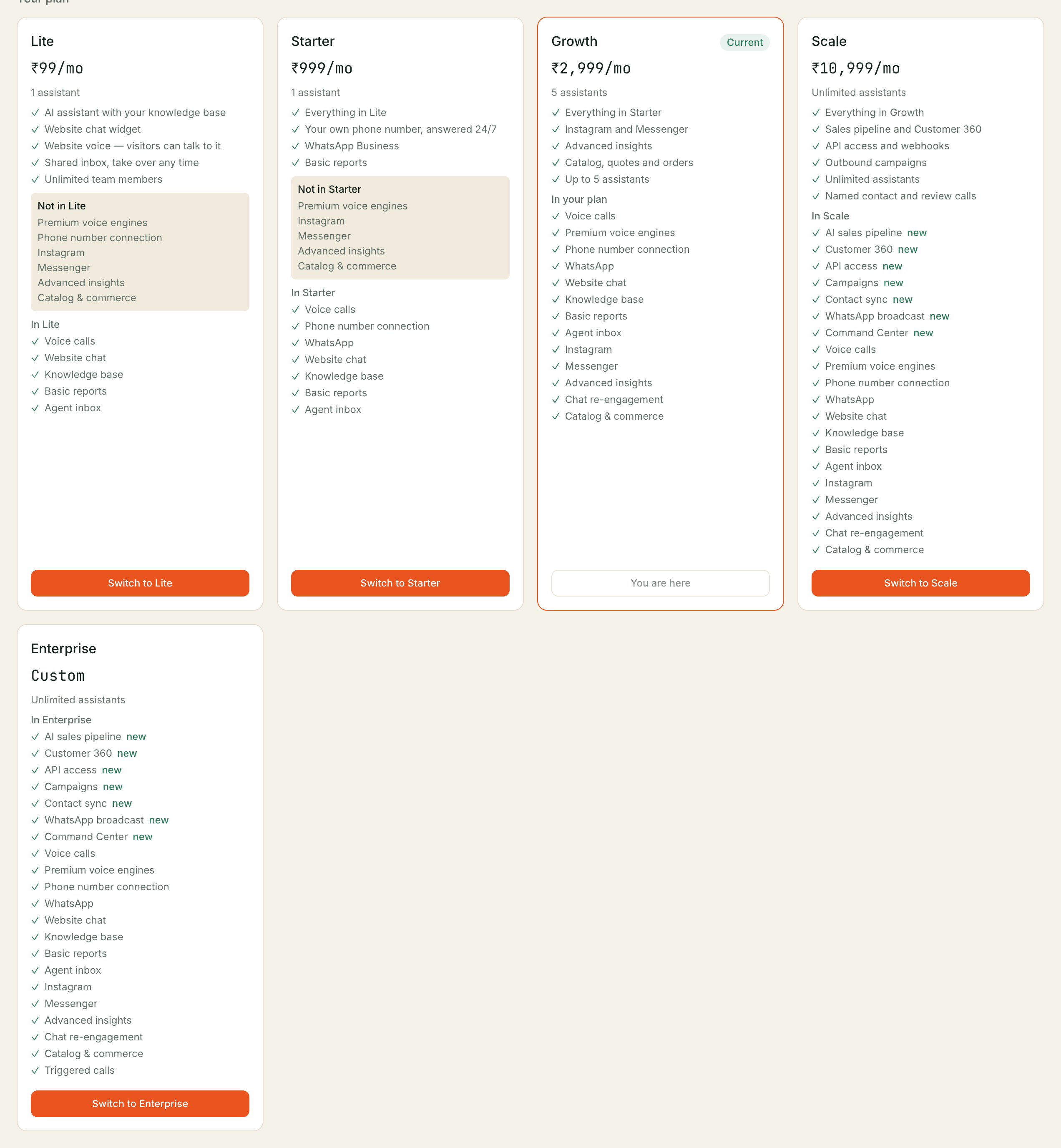
Moving up a plan
Choose the plan you want and select Switch to …. We will show you what it adds and exactly what it costs before there is anything to confirm.
Moving up charges your wallet and switches you immediately. The button says what pressing it will do — “Pay ₹X and switch” — with the prorated cost for the rest of your current billing month. Confirm it and the new plan is active straight away; nothing is left outstanding.
If your wallet does not hold enough, we say so and how much is short — top up on the same page and try again. Nothing is charged and nothing changes until it goes through.
Enterprise pricing is negotiated, so there is no fixed number to charge automatically: choosing it still records a request, and we get in touch to arrange pricing. A note appears at the top of the Billing page while that is outstanding, and you can withdraw it at any time with Cancel this change.
Moving down a plan
Choose the smaller plan and select Switch to …. Before there is anything to confirm, we list every feature you would stop having access to — by name, one by one, never as a count.
Read that list. It is the whole point of the screen.
If you are happy with it, select Confirm downgrade. The change is scheduled rather than applied on the spot: you keep what you have paid for until the end of your current billing period, and the new plan takes effect at the boundary. The Billing page tells you the date, and says plainly that nothing changes until then. You can cancel any time before it lands.
Nothing is deleted
This is worth being explicit about, because it is the thing people worry about most.
A downgrade removes access to features. It does not remove anything you have created. Your conversations, contacts, knowledge base, catalogue and assistants all stay exactly as they are. If you move back up later, you get access to the same records — nothing has to be rebuilt or re-imported.
An assistant beyond your new plan’s limit stops answering. It is not deleted, and switching back up brings it straight back.
When a downgrade is refused
Some moves down cannot go ahead until you change something first, and we say so instead of doing something surprising.
The one you are most likely to meet is assistants. If you are running four assistants and the plan you have picked allows one, we will not pick which three stop answering — there is no right answer to that, and guessing would take a working assistant off a real customer’s channel. So the screen says how many you have, how many the new plan allows, and how many to deactivate:
You have 4 active assistants and lite allows 1. Deactivate 3 first — we will not choose which ones stop answering.
Deactivate the ones you do not need (see Creating your assistant), come back, and the change goes through.
Sitting exactly at the new limit is fine. Four assistants moving to a plan that allows four needs nothing done.
Things worth knowing
A plan change is per account, not per assistant. Everything under your account moves together.
Only an admin can change the plan. Anyone on your team can see which plan you are on — that is not a secret, and hiding it only means they ask someone — but changing it needs an admin.
One change at a time. If you ask for a second change while one is still outstanding, the newer one replaces it. Changing your mind is not an error.
Add-ons you bought separately are not affected. A downgrade only ends the things your plan was providing. Anything bought on its own carries on.
Coming back after a break. If a plan ends and you take it up again later, the features it covered are not switched back on for you. That is deliberate: we would rather ask than have your assistant quietly start working again after a gap. Nothing is lost while it waits.
Where you turn one back on depends on the feature. Most live under Config → Features. The pipeline is the exception — its switch travels with your intake rules, so it is on the Pipeline screen itself. Either way the page will tell you which one to open when you get there.
Troubleshooting
The Billing page shows a plan I did not ask for. Check the note at the top of the page — a scheduled change may have landed at your period boundary. The date it was due was shown there before it happened.
I cancelled a change but it still shows. Reload the page. Cancelling takes effect immediately; the card is only ever a view of what we have recorded.
I confirmed a downgrade and nothing changed. That is expected. A downgrade is scheduled to your billing-period boundary so you keep what you paid for. The banner shows the date.
I took my plan up again and my pipeline says it is switched off. Nothing is lost — your deals, columns and rules are exactly as you left them. Master switches are turned off when a plan ends and are not turned back on automatically. Open Pipeline and press Set up the pipeline — that opens the settings panel, where you tick Turn the pipeline on and save. The Suggestions tab on your Teaching page comes back on its own once the pipeline is on; the rest of Teaching never went anywhere.
My prepaid minutes disappeared from the Billing page. They are shown only while you hold a minute pack. They are not part of a plan, so a plan change never adds or removes them — see Billing and invoices.
Related: Billing and invoices · Creating your account · Why isn’t my assistant live?
Still stuck? We answer support mail the same working day.
Email support