Connect your Exotel account
How to bring your own Exotel phone line so your assistant can answer and place calls on your own number — the credential form, assigning the number to an assistant, and what happens if you never connect one.
Kooday places and answers calls through Exotel. The account and the per-minute telephony charges stay yours — Kooday does not resell them — and you connect it yourself, from Configuration.
What it actually is
Every assistant already has a voice agent: the part that listens, thinks and speaks. What it did not have, until you connect one, is a phone line — a real number a customer can call, or that your assistant can call out on. Voice in the browser (your website’s “Talk to us” button) works with no phone line at all; only real telephone calls need one.
Connecting your own Exotel account gives every assistant on your account a phone line to be assigned a number from. You do the Exotel side — creating the account, buying a number, generating an API key — and Kooday does the rest: answering the calls that arrive on it, and dialling out from it when an assistant places one.
A five-minute setup
- Get an Exotel account and a number, if you do not already have one. The account is yours; sign up directly with Exotel.
- Open Phone & voice in Kooday, under Settings in the left-hand menu.
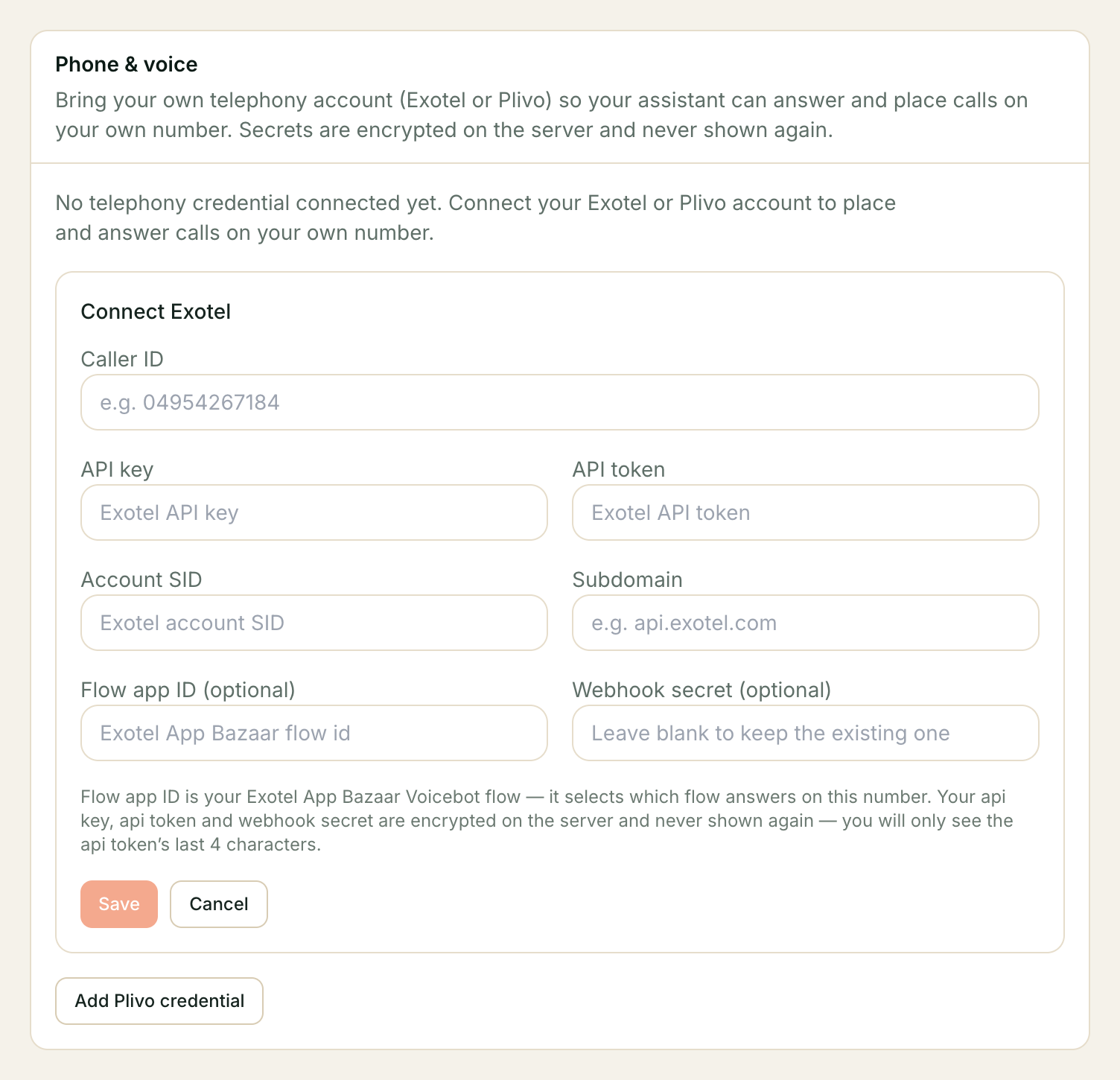
- Click Connect Exotel and fill in:
- Caller ID — the Exotel number itself (the ExoPhone), e.g.
04954267184. - API key and API token — from your Exotel account’s API settings. Both are encrypted the moment you save; nobody, including Kooday staff, can read them back afterwards. You will only ever see the token’s last four characters.
- Account SID and Subdomain — also from Exotel’s API settings
(subdomain is usually
api.exotel.com). - Flow app ID — the Exotel App Bazaar Voicebot flow that should answer this number. Optional here, and it is your account default; if you run several assistants, see “Using a different assistant per flow” below.
- Webhook secret — optional. If you set one, Kooday uses it to verify that a StatusCallback really came from Exotel before acting on it. Leave it blank to skip that check.
- Caller ID — the Exotel number itself (the ExoPhone), e.g.
- Click Save. The card now shows your caller ID and the token’s last four characters — that confirmation is the only place the secrets ever surface again.
- Open the assistant you want to answer this number, go to its
Configuration tab, and set Phone number to the ExoPhone number in
E.164 format (e.g.
+919876543210).
That is the whole connection. The assistant is now reachable at that number.
The credential card, in detail
Where to find it: Settings → Phone & voice.
Before you connect anything, the card says Not configured and offers Connect Exotel. Rotating an existing credential uses the same form, headed Rotate credential instead — this is also how you update a caller ID or API key that changed on Exotel’s side.
⚠️ The form only accepts one credential at a time. Saving a new one replaces the old — there is no “add a second Exotel account” today.
The plaintext API key, API token and webhook secret are never shown again
after you save them, in the dashboard or anywhere else. If you need to confirm
what you entered, the visible fields (caller ID, account SID, subdomain, flow
app ID) are non-secret and always shown; the key and token show only as a
…last4 hint.
Removing a credential takes it away from every assistant that was dialling through it — click Remove credential and confirm. Numbers already assigned to a bot are not cleared automatically; the bot simply stops being reachable until you connect a credential again or clear the number yourself.
Assigning a number to an assistant
Each assistant’s own Phone number field lives on its Configuration tab, next to its name and language. A few rules the field enforces:
- Format is E.164 — a leading
+, country code, no spaces (+919876543210, not09876543210or+91 98765 43210). - One number per assistant, and numbers cannot be shared between two of your assistants — assigning a number already in use on another bot is refused.
- If you have a credential connected, the number must be the one it can dial
from — today that means it has to match the Caller ID you entered above.
The comparison is normalised (last 10 digits), so it does not matter
whether one side is written with a leading
+91and the other without —04954267184and+9104954267184are recognised as the same number. Assigning a genuinely different number is refused with an explanation. - If you have not connected a credential yet, the field accepts any correctly-shaped number — there is nothing yet to check it against. Connect a credential as soon as you have one; an unverified number is recorded, but it will not actually ring until Exotel is pointed at it.
Using a different assistant per flow
The Flow app ID on the credential card is your account’s default: unless an assistant says otherwise, that is the App Bazaar Voicebot applet Kooday dials through.
If you want different assistants for different flows — a sales assistant and a support assistant on the same Exotel account, say — create one Voicebot applet per assistant in App Bazaar. Each assistant can then carry its own Flow app ID, which overrides the account default for calls attributed to it; assistants without one keep using the default.
Setting the per-assistant Flow app ID is not in the dashboard yet. The platform supports it, but there is no input for it on the Configuration tab today — ask us and we will set it for your assistants. The account-level Flow app ID on the credential card is editable, and is all a single- assistant account needs.
That is worth knowing because Exotel works differently from Plivo here. With Plivo, Kooday builds the answer address for each call itself and names the assistant in it, so no provider-side setup is needed per assistant. Exotel dials a flow, and the flow is configured in App Bazaar — so the flow is where “which assistant” is decided, and one applet per assistant is how you say it.
You do not need this if you run a single assistant — the account-level Flow app ID covers it.
Worked example
| Field | What Exotel calls it | Example |
|---|---|---|
| Caller ID | ExoPhone | 04954267184 |
| API key | API Key | abcd1234efgh5678 |
| API token | API Token | (paste once, never shown again) |
| Account SID | Account SID | acme-tours |
| Subdomain | API subdomain | api.exotel.com |
| Flow app ID (optional) | App Bazaar → Voicebot applet → App ID | 1234567 |
| Webhook secret (optional) | Your own choice, shared with Exotel’s StatusCallback config | (paste once, never shown again) |
On the assistant’s Configuration tab, Phone number becomes +9104954267184
— the same ExoPhone, in E.164.
Troubleshooting
The dashboard says “not a number your telephony credential can dial from”
The number you typed on the assistant’s Configuration tab is not the same
number as the Caller ID on your connected credential — the comparison ignores
formatting (spaces, a leading +, the country code), so this means the
DIGITS genuinely differ. Copy the Caller ID from the Phone & voice
screen and compare the last 10 digits, then try again.
Calls fail with “No telephony number is connected, or the provider is
unavailable”
This is what a customer-facing caller sees when the assistant they reached has no working phone line. Check, in order: is a credential connected on Phone & voice; does the assistant’s Phone number field match the credential’s Caller ID; and on the Exotel side, is the Voicebot flow pointed at this assistant’s connection URL (see Connecting a channel).
I connected Exotel but Phone & voice still says “not part of your plan”
Bringing your own number needs the telephony capability, which is included from Starter upward — it is not on the free trial or the entry-level Lite plan (those cover website chat and the in-browser voice widget only). Check your current plan on Changing your plan, or talk to us about moving up.
I rotated my API key and now calls fail
A rotation only takes effect for calls placed after you save — nothing is retried against the old key. If Exotel issued you a brand-new key rather than regenerating the existing one, make sure you also update the Account SID and Subdomain if those changed too.
Where to go next
- Connecting a channel — how phone fits beside WhatsApp, Instagram, Messenger and your website.
- Creating your assistant — the Configuration tab this page’s Phone number field lives on.
- Calls, transcripts and recordings — what you see after a call on this number ends.
Still stuck? We answer support mail the same working day.
Email support