Your business profile
The facts, rules, and offers every assistant you have shares — one document, structured fields on the left and the compiled prompt on the right, with its own draft/publish/history.
Business profile (under Assistants in the left-hand menu) is where you tell Kooday what your business is — once, for every assistant you have, rather than repeating it per assistant. It used to be a section on the Config screen; it has its own page now because a draft/publish editor buried in a settings page was easy to miss.
Where to find it: Business profile, under Assistants. Structured fields on the left, the compiled prompt on the right — so the effect of a structured edit is visible right next to it, no page jump.
About your business
The card on the left has the facts every assistant shares. These are typed in as fields rather than written into the prompt by hand, because a rule buried in a paragraph stops reading like a rule long before anyone notices.
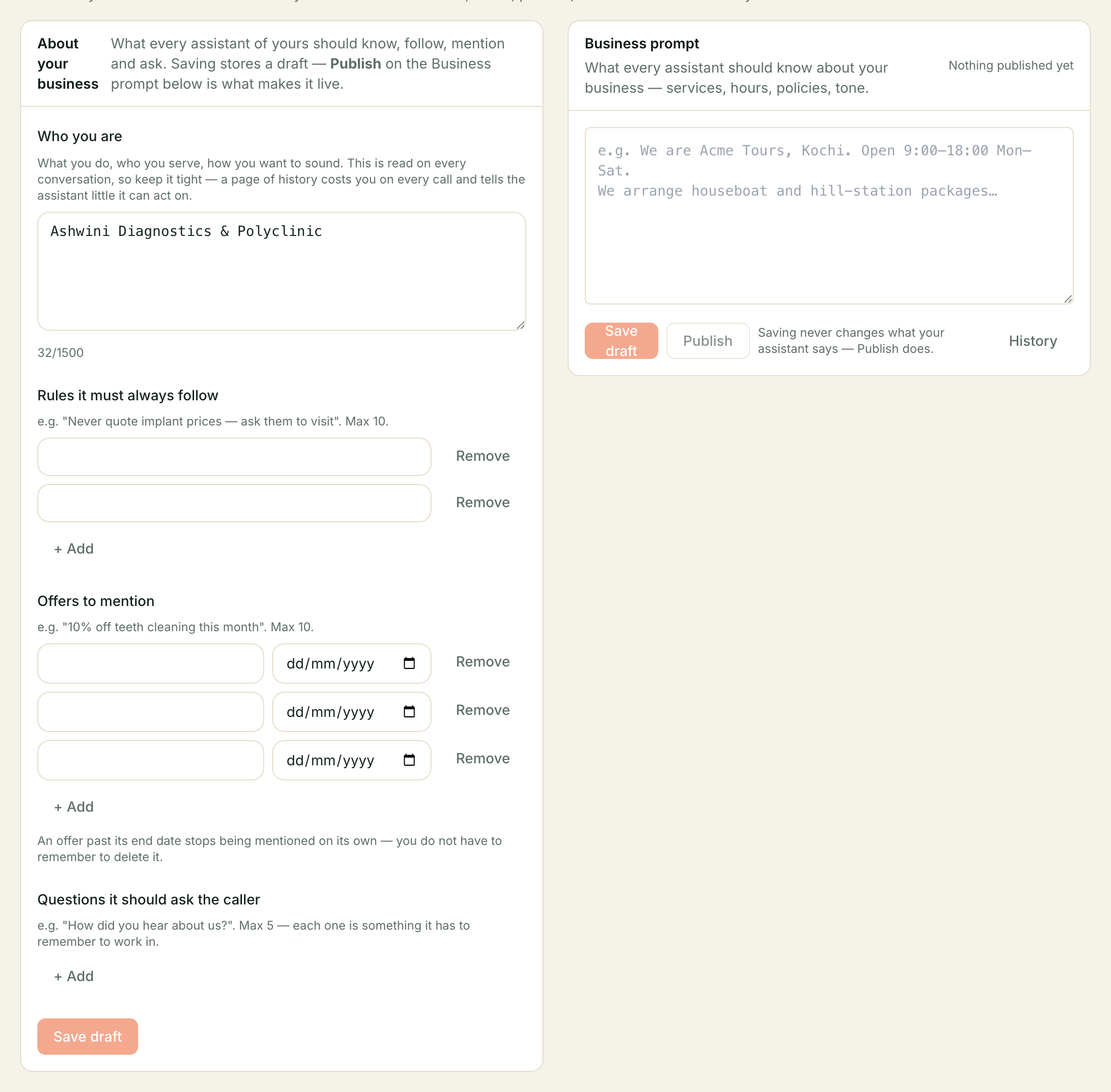
- About your business — what the business does and who it serves. Each assistant’s name, voice and job are set on its own Instructions tab. Read on every conversation, so keep it tight; a page of company history costs you on every call and tells the assistant little it can act on.
- Rules it must always follow — things the assistant must never do: “Never quote implant prices — ask them to visit.” Up to ten.
- Current offers — promotions that exist, as facts: “10% off teeth cleaning this month”, each with an optional end date. Up to ten. Whether an assistant volunteers one is part of that assistant’s own sales playbook, not of this shared page.
- Questions and how an assistant sells live on that assistant’s Instructions tab in Prompt Studio, not here. Two assistants on the same business do not have to ask the same things or sell the same way.
The lists are capped on purpose. Every line here is read on every call your assistants take, so a long list costs you on every conversation, not once.
An offer past its end date stops being mentioned on its own. You do not have to remember to delete it, and the assistant will not keep promising something you have stopped honouring.
How an assistant sells
The six things a selling assistant needs on every turn used to sit on this page. They now sit on that assistant, under How it sells on its Instructions tab, and only for an assistant whose persona sells (or one you have already given a playbook). The shared page keeps the facts every assistant should know. The six are:
- Who this is for — one or two sentences.
- Not a fit when — up to five. Two or more of these and it says so kindly and stops selling; a fast, clean no is a good outcome.
- Proof it may cite, and nothing beyond it — the customers or results it may name, exactly as you write them. It will not name anyone else.
- The next step it is closing for — a booked demo, a callback, a visit.
- Concession authority — what it may say about discounts, for example “None”, or “Mention that the annual plan saves two months; nothing else.” Actual discounts are Promotions on What you sell; this box only tells the assistant what it is allowed to mention.
- Hand off to a person when — up to five.
Each is capped because every line is read on every call. Prices never go here; the assistant reads them from your catalogue at the moment it needs them. If you leave a box empty the assistant is told nothing about it, and Validate setup on the assistant will point out which of the six a Sales assistant is still missing.
How this fits with the Business prompt on the right
They are two views of one document, not two documents. Your lists are compiled into the Business prompt automatically, and:
- Everything you wrote yourself is left exactly as it was. The compiled part lives in its own block; your prose is never touched.
- The editor on the right shows only your prose, not the compiled block — because the block is rebuilt from your lists every time you save, so anything typed into it would disappear.
- To change the compiled part, change the list. There is no way to edit it by hand, and that is deliberate: two people editing one paragraph is how a rule quietly stops matching what you actually told us.
Saving is a draft, exactly like every other edit here. It reaches customers when you Publish the Business prompt on the right. If you save a list you have not actually changed, you will see “Nothing changed” — no new version is created, and there is nothing to publish.
Topics your assistant can look up
The compiled block also lists the topics in your knowledge base — the names only, never the content.
This is what makes the knowledge base usable at all. Without it the assistant has no reason to think an answer exists, so it says it will check rather than searching. Add a document and its topic appears; delete the last document on a topic and it disappears, so the assistant never advertises something it can no longer answer.
You do not maintain this list. It follows your knowledge base, and each change saves as a draft for you to publish along with everything else.
Two things that stop a publish:
- Someone else saved first. If a colleague published while you had the page open you get “Someone else saved first”. Reload and redo your edit; nothing of theirs is lost.
- A token that nothing will fill. Write something that looks like a fill-in slot we do not recognise and the save warns “Draft saved, but publish will refuse it” and names the offending tokens. Fix the typo, or ask us to set that token up.
Business prompt
What every assistant should know about your business — “services, hours, policies, tone.” One assistant’s own instructions sit on its Prompt Studio Instructions pane; this is the layer underneath, shared by all of them.
It works exactly like the per-assistant editor: Save draft stores your text and changes nothing, Publish makes it live. The line beside the buttons says it: “Saving never changes what your assistant says — Publish does.” On a successful publish you get “Prompt published — live within a minute.”
History lists every version with who saved it and when. Restore brings an older published version back. Unpublish takes the whole layer out of use — “Your assistant stops using it immediately; drafts are kept and you can publish again later.”
Every assistant’s Prompt Studio preview shows whether this layer is actually applying, and links straight back here when it isn’t.
Everything else stayed on Config
Config still has the tenant-wide settings that are not “about the business” — Custom context, Timezone, Slots reserved, the webhook boxes, Features, and Report fields. See The Config screen.
Still stuck? We answer support mail the same working day.
Email support