Your first 30 minutes
The order to do things in when your account is new — what to set up first, what each step unlocks, and what is safe to leave until next week.
You have a dashboard with about twenty screens in it. The welcome page you land on gets you started; this page is the order to do everything else in.
Getting the account itself is not on this page and is not self-serve yet — talk to us and we create it with you. Everything below starts from the moment you are signed in.
In half an hour you can have an assistant that knows your business, answers correctly, and is talking to real customers on one channel. Everything else — the pipeline, campaigns, reports, contacts — is genuinely better done in week two, once you have watched a few real conversations.
The order matters. Each step makes the next one worth doing, and doing them in the wrong order is how people end up switching a channel on for an assistant that does not yet know what the business sells.
The path
| Step | What it unlocks | |
|---|---|---|
| 5 min | Look around | You stop hunting for screens |
| 5 min | Tell it about your business | Every assistant, on every channel, stops guessing |
| 10 min | Give it something to answer from | It answers with your facts instead of plausible ones |
| 5 min | Make sure you have an assistant, and publish its instructions | It comes live |
| 5 min | Test it yourself | You find the embarrassing answers before a customer does |
| — | Put it on one channel | Real customers |
You need admin access for most of this. If a screen refuses to load or a button does nothing, that is usually why.
Minutes 0–5 — Look around
On a brand-new account, you land on a welcome page, not on Overview. Until you have an assistant, the first item in the left-hand menu reads Welcome, and the page explains what Kooday will do for you instead of showing empty charts.
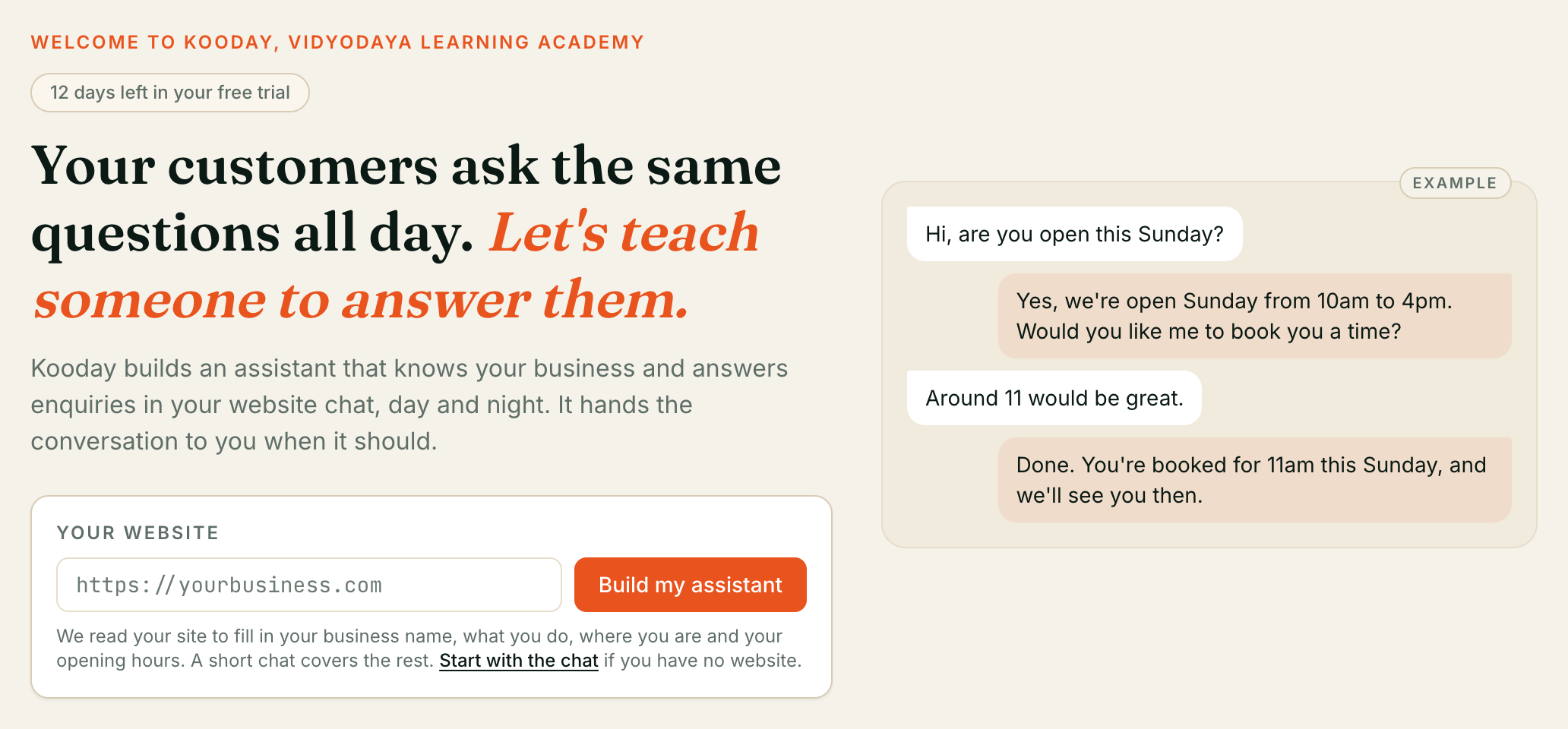
Its Build my assistant box is the quickest way to start: type your website and press the button, and Set up by chat opens with your website attached and starts by reading it. No website? Use Start with the chat instead. If you started one earlier, the box says Your setup chat is waiting and takes you back to it.
As soon as you have an assistant, even one that is still a draft, the item goes back to Overview. Only an admin sees the box; anyone else on your team sees Your admin hasn’t set up an assistant yet.
The left-hand menu is in four groups, and knowing which is which saves a lot of clicking:
- Monitor — what is happening. Overview, Calls, Inbox, Pipeline, Reports, Impact.
- Assistants — your assistants and the business facts they all share. Bots, Business profile.
- Manage — the things you set up and maintain. Customer 360, Contacts, Opted out, Campaigns, What you sell, Knowledge base.
- Settings — plumbing. Integrations, Widgets, Config, Team, Billing, Get help.
Not every item is there for everyone. Screens for features that are not on your plan either show an explanation when you open them or do not appear at all. An absent menu item is not a fault.
Everything in the next 25 minutes is on four of those screens: Business profile, Knowledge base, Bots, and one of Integrations or Widgets.
Minutes 5–10 — Tell it about your business
Open Business profile (under Assistants) and find the Business prompt on the right. This is what every assistant you ever have knows about you: “services, hours, policies.” Write it once and it applies everywhere — phone, WhatsApp, your website.
A useful first version is about a page, and covers:
- Who you are and where — the name a customer would recognise, the city, the branches.
- What you actually do, in the words your customers use rather than your website’s.
- Opening hours, and what happens outside them.
- The two or three policies that come up constantly — deposits, cancellations, delivery areas.
- How to talk. Formal or friendly, which languages, whether to use the customer’s name.
Save draft stores it. Publish is what makes it real — the note beside the buttons says “Saving never changes what your assistant says — Publish does.” Nothing you write matters until you publish it.
Timezone and Custom context live on the separate Config screen — set them while you are thinking about this (Timezone’s placeholder shows the form: Asia/Kolkata; Custom context is for short standing facts rather than prose). The rest of Config can wait — see The Config screen and Your business profile.
Resist writing your price list here. Prices change, this does not get read as often as you think, and there is a better place for them two steps down.
Minutes 10–20 — Give it something to answer from
An assistant with a good business prompt and nothing else will answer confidently and sometimes wrongly. This step is the fix, and it is the highest-value twenty minutes in your first month.
Your knowledge base
Knowledge base is where you put the documents it answers from — your service list, your FAQ, your terms, the internal note that explains what to do about refunds. Upload what you already have; you do not need to rewrite anything first.
Content has to finish indexing before it can be found, and the screen tells you when. Full walkthrough: Your knowledge base.
What you sell
If you sell specific things at specific prices, What you sell is the better home for them than a document. Entered there, your assistant quotes real prices, can show products as cards on WhatsApp and website chat, and can link straight to your site. See Selling from your catalogue.
Skip this one if you are a service business without a fixed list — the knowledge base covers you.
Start narrow
Load the ten questions you are asked every day. Not everything you have. A small, accurate knowledge base beats a large one you have not read, and you will add to it every week for months.
Minutes 20–25 — Your assistant
Open Bots (under Assistants).
If an assistant is already there — Kooday built one with you during onboarding — click Open studio and read its Instructions pane. That pane is its own personality, on top of the business prompt you just wrote: who it is, how it greets people, what it must never promise. Adjust, Save draft, Publish. See Prompt Studio.
If the list is empty, it says “No assistants yet”. Click Create assistant, pick what kind it is, name it, and write its instructions. It is created as a draft and publishing the instructions is what brings it live — there is no separate activate button. Step by step: Creating your assistant. Or click Set up by chat beside it and answer questions about the business instead — it drafts the whole assistant from the conversation: Setting up your assistant by chat.
Then, back on Bots, open the Readiness tab and click Validate setup. You want ”✓ Setup looks good — no problems found.” If you get errors, they are almost always wiring on our side rather than anything you typed — send us the wording.
Minutes 25–30 — Test it before anyone else does
The Live test tab lets you have the conversation yourself. Depending on which channels are on, you get Test this bot — a real voice call from your browser, microphone and all — or Test the chat bot, which types at the same brain that answers WhatsApp and your website.
Ask it the five things you are asked most. Then ask it two things you would rather it did not answer: what your cheapest option is, whether you can do something you cannot. What it says to those tells you what to add to the instructions.
⚠️ In the chat tester, leave “Run this bot’s real tools” switched off. Ticked, it “fires the bot’s real webhooks, bookings, and CRM writes against your live systems” — a test booking becomes a booking.
Go back, fix the instructions, publish, test again. Two or three rounds of this is normal and it is the whole job.
Then — one channel, not five
Now put it somewhere real. Pick one channel and only one, and pick the one where a bad answer costs you least.
- Your website chat is usually the right first choice: entirely self-serve from the Widgets screen, and visitors there have low expectations of who they are talking to.
- WhatsApp, Instagram or Messenger connect through one popup on Integrations.
- Phone needs us — there is no screen for it.
All three are covered in Connecting a channel.
Connecting the account is only half of it. The other half is the Channels card on the assistant, where you switch that channel on. A brand-new assistant has every channel switched off, deliberately.
Then watch. Calls and Inbox show you real conversations, and the first week of those will teach you more about your instructions than another hour of writing them.
What to leave until week two
None of this is urgent, and all of it is easier once you have real conversations to look at:
| Later | Why wait |
|---|---|
| Pipeline | It fills itself from conversation outcomes — and you cannot pick sensible outcomes until you have seen a week of them. Setting up your sales pipeline |
| Contacts | Importing customers matters for reaching out, not for answering. |
| Reports | Nothing to report on yet. |
| Campaigns | Reaching out to people is a bigger commitment than answering them. Get answering right first. |
| Integrations | Wiring Kooday to your other systems is a project, not a step. |
Your first-30-minutes checklist
☑ Business prompt written and PUBLISHED       (Business profile)
☑ Timezone set                                 (Config)
☑ Ten common questions in the knowledge base   (Knowledge base)
☑ Prices entered, if you have a fixed list     (What you sell)
☑ Assistant instructions written and PUBLISHED (Bots → Open studio → Instructions)
☑ Validate setup → no errors                   (Bots → Readiness)
☑ Tested it yourself, twice                    (Bots → Live test)
☑ ONE channel connected and switched on
If every line is ticked, you have a working assistant answering real customers, and the rest of Kooday can wait until you want it.
Where to go next
Still stuck? We answer support mail the same working day.
Email support