Setting up your sales pipeline
A step-by-step walkthrough of the Stages & intake panel — which enquiries become deals, what your columns mean, and how automatic follow-ups work.
Your assistant already talks to customers — on the phone, on WhatsApp, on your website chat. Most of those conversations are not worth chasing. A few are.
The pipeline is a board that fills itself with the few that are. When a call ends in a way you have said counts as a lead, a card appears on the board with the customer’s name, what they wanted, and where it should start. Nobody types it in. From there your assistant can keep chasing it — sending a WhatsApp message after a quiet week, calling after two — or hand it to you when it needs a person.
It is off until you turn it on. The master switch is off for every new account, and a new account’s board starts with a few intake rules already filled in — the outcomes your assistant’s starter vocabulary produces, mapped to sensible columns — so flipping the switch on works immediately instead of doing nothing. Nothing is created before you turn it on, and every one of those starting rules is ordinary, editable data: change or delete them the moment you look at the panel if they are not right for you.
Where to find it: open Pipeline in your dashboard, then the Stages & intake button at the top right. If the pipeline has never been switched on you will see a short explainer and a Set up the pipeline button instead of an empty board — that opens the same panel.
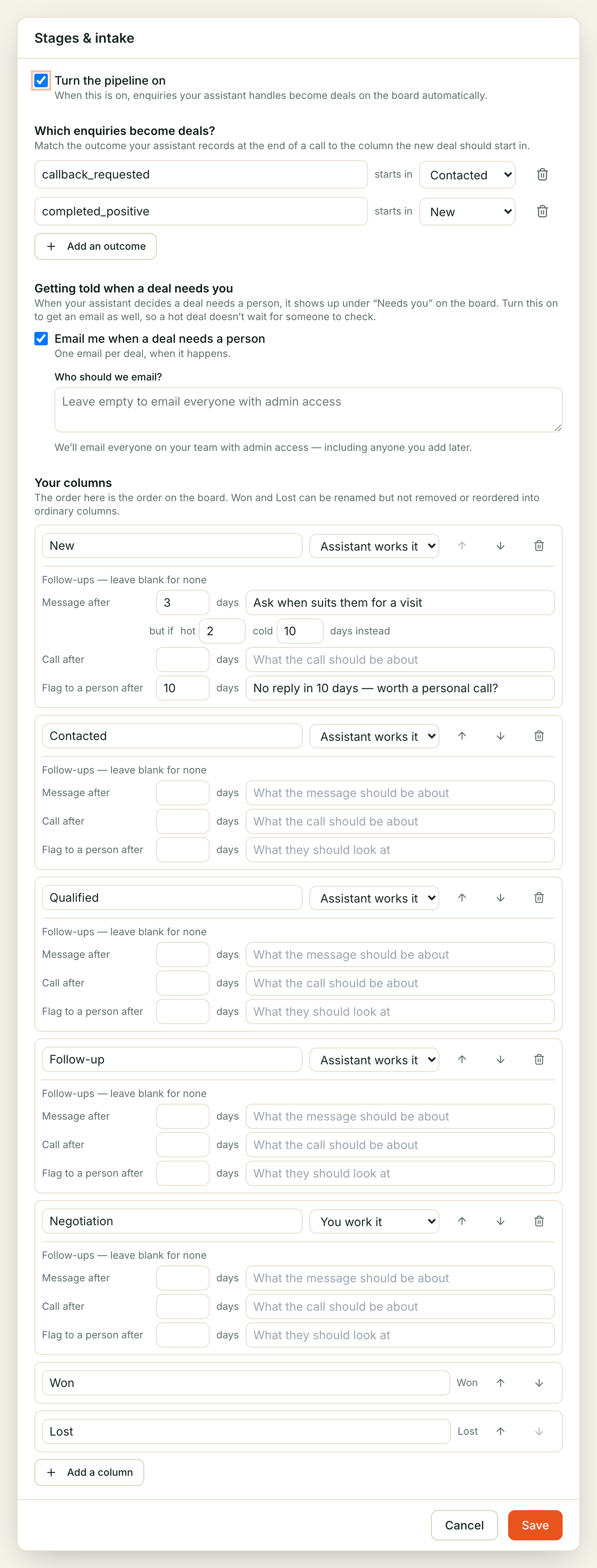
Only team members with admin access can open and save this panel.
The five-minute setup
If you want the short version, do these three things and stop:
- Tick Turn the pipeline on.
- Tick Email me when a deal needs a person. Leave the address box empty.
- Save.
The intake rows already list a handful of outcomes your assistant’s starter vocabulary produces, mapped to a column — you do not have to write the first one yourself. If your assistant uses its own vocabulary instead (many bots do), Step 2 below explains how to add or replace a rule.
You now have a working board with the seven default columns, no automatic chasing, and an email if something needs you. That is a perfectly good place to live for a few weeks. Follow-ups can wait until you have seen real deals arrive.
Step 1 — Turn the pipeline on

This is the master switch. While it is off nothing is created, no follow-up is ever sent, and the board shows “Your pipeline is switched off”.
Turning it off later does not delete anything. Existing deals stay exactly as they are; the board simply stops adding to them and stops chasing. Tick it back on and everything resumes.
This switch also goes off if your plan ends, and it stays off if you take the plan up again — see Changing your plan. Come back to this step to turn it on again; nothing is lost in the meantime.
Step 2 — Which enquiries become deals?
This is the part people most often get wrong, so it is worth two minutes.
What an “outcome” is
At the end of every conversation your assistant writes a short summary, and one
field in that summary is the outcome — its own words for how the conversation
ended. Something like callback_requested or price_requested.
That vocabulary is yours, not ours. It was set up along with your assistant, and if you run more than one assistant, each can have its own.
Picking an outcome
Start typing in the left box and your assistant’s own outcomes show up as suggestions — no need to memorise the exact spelling or go check the Calls page first. If you run several assistants, each one’s outcomes are offered, so a rule you write says at a glance which assistant it came from.
Eight outcomes are never offered here, on any assistant — no_response,
wrong_party, unintelligible, out_of_scope, spam_or_automated,
abusive, opt_out and system_error. These are built into every
assistant (see Editing your assistant’s wording and
outcomes)
and can never mean a lead, so they can never open a deal — mapping one would
do nothing, which is why the picker never suggests it.
⚠️ You can still type a value the picker doesn’t suggest — a “No assistant currently declares this exact outcome” note appears under the row so you know the rule will do nothing until an assistant actually emits that word. This is expected right after you change an assistant’s own outcome list (see that same wording-and-outcomes page) and save this panel first — nothing here refuses the save.
Filling in a rule
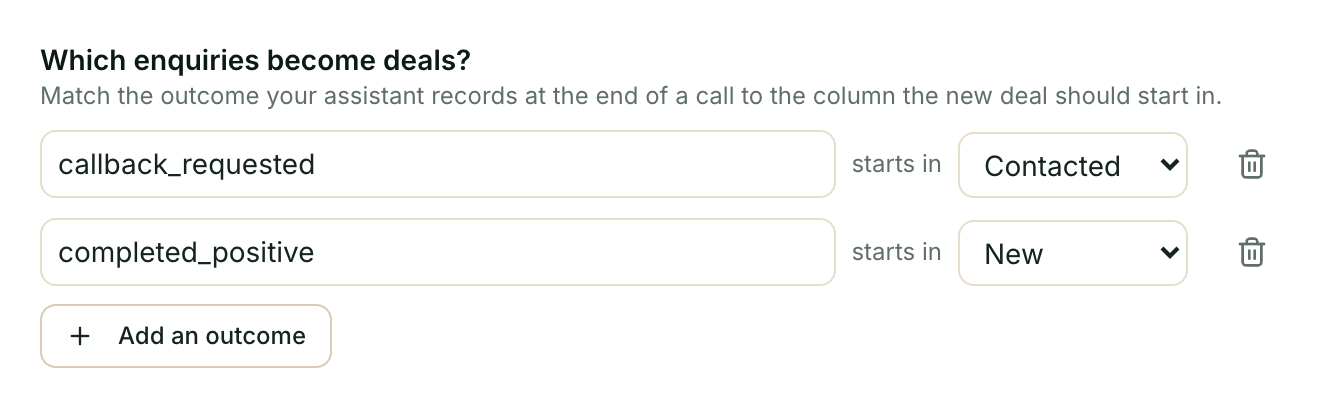
Each row reads as a sentence:
callback_requestedstarts inNew
The left box is the outcome. The right dropdown is the column a new card lands in. That dropdown only offers your ordinary columns — a lead cannot arrive already Won or Lost. Click Add an outcome for another row, or the bin icon to remove one.
The starter rules
A new account’s board comes with these rules already filled in. They match the starter outcomes a new assistant records, so they work as soon as you turn the pipeline on. Change or delete any of them.
| Outcome | Starts in | Why |
|---|---|---|
info_requested | New | They asked what you offer and got an answer |
price_requested | Qualified | Asking the price means they are weighing it up |
appointment_booked | Qualified | They committed time to a meeting, visit or demo |
appointment_rescheduled | Follow-up | An existing booking moved; keep it moving |
purchase_intent | Negotiation | They said they want to go ahead; a person takes over |
callback_requested | Follow-up | They asked a person to call them back |
If your assistant uses its own words instead (many do), replace the left-hand values — start typing and pick from what it actually offers.
Deliberately not mapped: no_response, wrong_party, unintelligible,
out_of_scope, spam_or_automated, abusive, opt_out and system_error.
Kooday adds these to every assistant’s outcomes, so you do not declare them
yourself. They are the majority of calls and none of them is a lead. An outcome
you have not mapped simply creates nothing — silently, and that is correct
behaviour rather than an error.
Start small
Keep only the rules that are obviously lead-shaped for your business and delete the rest. Watch the board for a week. Add more once you can see what is arriving and what is missing.
A board that fills with junk on day one gets abandoned. A board that gains three real deals a week gets used.
What ends up on the card
The card title is built as who — outcome, for example “Priya Sharma — callback_requested”. Another reason to keep outcome names readable: your team reads them all day.
A callback number on the card
When a website visitor types a number you already hold for another customer, Kooday keeps it as an unverified callback contact on the visitor’s own record rather than as a confirmed number (see Customer 360). If the deal has no confirmed number of its own, the card shows that callback number as its contact, marked as a callback. In the deal drawer, the Customer block lists the confirmed numbers first (on file) and then the callback (callback, unverified) with the time it was typed. Owners and admins also see a hint when the number matches an existing customer, with that customer’s upcoming bookings. Nothing is merged, and the callback number is never used for broadcasts or automatic follow-ups.
If you leave this empty
The panel will tell you: “With nothing listed here, no deals will be created.” This still matters even though the panel starts with a few rows filled in for you: if you delete every one of them — or your assistant’s declared vocabulary doesn’t include the starter outcomes they were built from — you are back to this state, and the master switch on its own does nothing.
Chats and WhatsApp work differently
Phone calls use your assistant’s exact vocabulary. WhatsApp and website chat threads have no clean “end of call” moment, so their outcome is a short phrase written freely — it will not reliably match a rule you wrote for a phone-call outcome. Treat calls as the dependable intake source; chat intake is best effort.
A website chat that continues on WhatsApp becomes one deal, not two. When a visitor taps Continue on WhatsApp (see Continue on WhatsApp), the website conversation waits rather than being turned into its own deal — the WhatsApp conversation it continues in is intaken instead, once, carrying the website’s messages along with it. The lead you see on your board is a WhatsApp lead.
Step 3 — Getting told when a deal needs you
Some deals reach a point where your assistant should stop and let a person take over. When that happens the deal is marked Needs you and appears under the board’s Needs you filter.
That filter is somewhere to look. This setting is how it reaches you.
Tick Email me when a deal needs a person and you get an email the moment something needs a human, as it happens.
One tick, three kinds of email. They read differently because they are asking for different things:
| The email | What happened | Where it sends you |
|---|---|---|
| … needs you | A deal on the board is waiting for a person | The deal, on your board |
| … needs a human now | Your assistant stopped mid-conversation and asked for a person | Straight into that thread in your Inbox |
| A customer asked to book — confirm it | Someone asked for a slot, and confirming it is yours to do | The deal, on your board |
The middle one is the one to know about, because it is not a deal at all. It fires when your assistant decides, in a live chat or call, that it should not be the one answering — and most threads it fires on have no deal on the board. It is the most time-critical mail Kooday sends, which is why it links to the conversation rather than to the board, and why it quotes nothing the customer said: the thread has the words, under your own access controls.
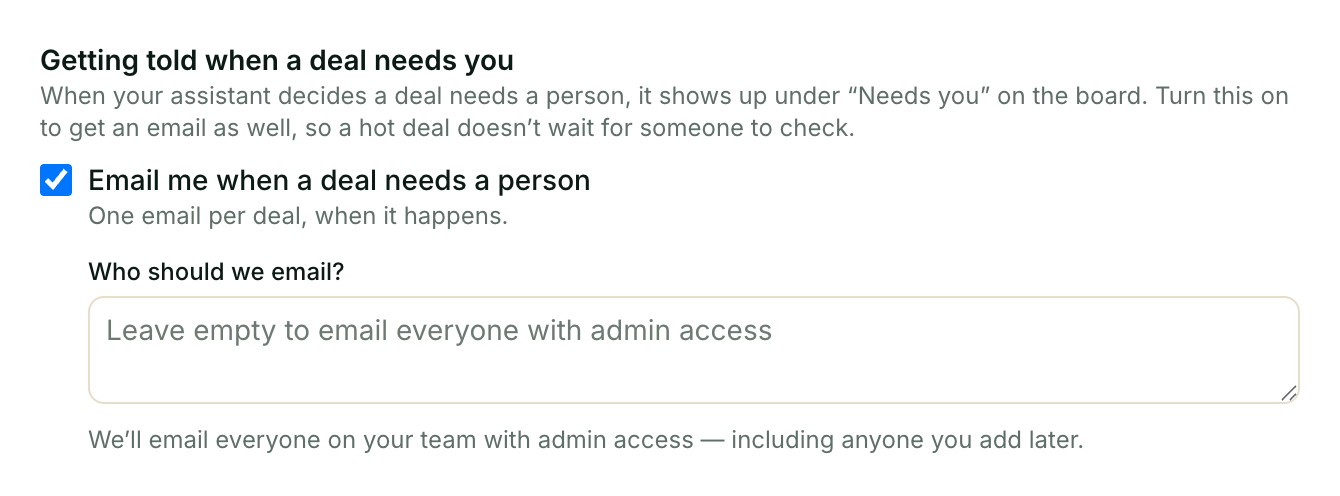
Who should we email?
| What you type | Who gets it |
|---|---|
| (leave it empty) | Everyone on your team with admin access — including anyone you add later. Recommended. |
sales@yourcompany.com | Just that address |
priya@example.com, ravi@example.com | Both. Commas, semicolons, spaces and new lines all separate addresses. |
Empty is the recommended setting, not a missing value. The list of admins is worked out at the moment the email is sent, so a new manager you add next month is covered without anyone remembering to edit this box. A typed list goes stale the day someone leaves.
You can list up to 20 addresses, and they do not need to be Kooday users — the email is just an email.
Getting it on WhatsApp as well
Tick Message me on WhatsApp too and type the number to reach. The same
alert, on WhatsApp, using the kooday_handoff_alert template.
Two things worth knowing before you rely on it:
- It is one number, not a team. Unlike the email list, which resolves to every admin, the WhatsApp alert goes to exactly the number you type here.
- The template has to be approved. WhatsApp only lets a business start a
conversation with an approved template. Until
kooday_handoff_alertis approved on your account, the WhatsApp leg is skipped — and the email still goes out, so nothing is missed while you wait. Ask us to set it up.
The two channels are independent: you can have both, either, or neither.
What the emails look like
A deal that needs a person:
Subject:  [Kooday.Tech] Priya Sharma — callback_requested — Priya Sharma needs you

Priya Sharma — callback_requested — Priya Sharma needs a human.
Stage: Qualified

Customer asked about bulk pricing for 12 vehicles — needs a quote from you.

Open the deal: https://app.kooday.tech/pipeline?deal=…
The middle paragraph is the brief — either what your assistant worked out from the conversation, or the wording you set on the column.
A conversation that needs a person now:
Subject:  [Kooday.Tech] Priya Sharma needs a human now

Your assistant asked for a human on its conversation with Priya Sharma.
Channel: whatsapp

Reason: the assistant asked for a human on this conversation

Take over in your inbox: https://app.kooday.tech/inbox?thread=…
A booking waiting on you:
Subject:  [Kooday.Tech] A customer asked to book — confirm it

A customer asked to book, and the request is waiting on your confirmation.
Requested slot: 2026-08-26T11:00:00+05:30

Open the deal: https://app.kooday.tech/pipeline?deal=…
What counts as “needs a person”
For the deal email, two things and only these two:
- The Flag to a person after N days rule fired on a quiet deal.
- Your assistant tried a follow-up and it genuinely failed.
Deliberately not flagged: follow-ups your assistant chose to skip (a customer on your do-not-call list, or a deal you snoozed), deals you have already taken over yourself, and closed deals — once something is Won or Lost, any outstanding work on it is moot.
The conversation email is not about the board at all. Your assistant sends it when it decides mid-thread that it should not be the one replying — it goes quiet, the conversation flips to you, and the mail arrives. There may be no deal, and none of the deal rules above apply. A thread you hand back and that escalates again alerts again, because that is a new handoff.
The booking email goes out once per booking, at the moment a request parks the deal in a column you work. A customer moving their request to a different slot does not send a second one — by then a person is already in the loop.
Turning the email off between something being flagged and the email going out stops it. The setting is checked at the moment of sending.
None of these fire when a lead simply arrives — they are all “something is stuck”. If you want to hear about every new enquiry as well, that is the next step.
Step 3b — Telling you about every new lead
Everything in Step 3 fires when something is stuck. This one fires when something went right: a new enquiry became a deal on your board and there is someone to follow up.
It is off by default, and it has its own two ticks rather than riding the ones above. That is deliberate. A handoff is a handful a week; leads can be hundreds in a busy hour, and a tenant who wanted a WhatsApp ping when a deal needs a person has not thereby asked for one message per enquiry.
| Tick | What you get |
|---|---|
| Email me about every new lead | One email per lead, as it happens |
| WhatsApp me about every new lead | The same, on WhatsApp — see the template note below |
Each tick is greyed out until the matching alert in Step 3 is on, because the channel is where the message goes: there is nowhere to send a lead alert by email if email alerts are off. Turn the one above on first.
They go to the same places as the alerts above — the same address list, the same single WhatsApp number. There is no separate recipient list for leads.
What the email looks like
Subject:  [Kooday.Tech] New lead: Priya Sharma

Priya Sharma just came in and is on your board.
Enquiry: callback requested
Came in via: whatsapp

Open the deal: https://app.kooday.tech/pipeline?deal=…
“Enquiry” is your own outcome word, the same one you mapped to a column in Step 2 — so it reads however your assistant’s end-of-call summary spells it, with underscores turned into spaces. If it looks odd here, it is the same word doing the mapping.
⚠️ The email never quotes what the customer said. It names them, says which outcome your assistant recorded and which channel they arrived on, and links to the deal. The conversation itself stays in your inbox under your own access controls — the same rule the alerts in Step 3 follow.
When a lot of leads arrive at once
A campaign or a busy morning can produce more leads in an hour than anyone wants messages about. So there is a ceiling of 20 alerts per hour (the default; ask us if it is wrong for you), counted in your own timezone.
Past the ceiling nothing is dropped — it is combined. You get one further message for that hour instead:
Subject:  [Kooday.Tech] 14 more new leads in the last hour

14 more leads came in during the last hour.

You are getting one message for all of them because they went past your
per-hour alert limit — the leads themselves are all on your board, and
none has been dropped.
Hour: 2026-09-05T14 (your local time)

Open your board: https://app.kooday.tech/pipeline
It arrives after the hour ends, not when the ceiling is hit — a count of an hour is only right once the hour is over. So the combined message for your 2pm leads reaches you just after 3pm, while the first 20 arrived as they happened. The Hour line names the hour the leads came in, not the hour it was sent.
The count is the leads beyond the first 20, not the total. The hour resets on your local clock, and every lead is on the board either way.
The WhatsApp tick needs a template first
WhatsApp does not let a business start a conversation without a template Meta has approved, and that approval is per business account — yours. Nothing on our side can hurry it.
So when you tick WhatsApp me about every new lead, a small panel appears with two buttons:
- Submit it for review — creates
kooday_lead_alerton your WhatsApp account and sends it to Meta. It comes back pending; review takes days. - Check status — asks Meta where it got to.
⚠️ Until it is approved, lead alerts arrive by email only, and nothing is lost. That is the designed behaviour, not a fault: the two channels are separate messages, so a template sitting in Meta’s queue can never stop the email going out. The moment approval lands, the WhatsApp leg starts working on its own — there is nothing further to switch on.
If you never tick the WhatsApp box, you never need the template.
Turning it off
Unticking either box stops that channel at the moment of sending, the same as the alerts above — including the combined hourly message. Turning off the Step 3 alert turns off its lead tick with it, because the channel it needs is gone.
Step 4 — Your columns
The order here is the order on the board. Move a column with the ↑ and ↓ arrows.
What you start with
| Column | Worked by |
|---|---|
| New | Assistant |
| Contacted | Assistant |
| Qualified | Assistant |
| Follow-up | Assistant |
| Negotiation | You |
| Won | — |
| Lost | — |
None of them has any follow-up cadence. A fresh board sends nothing, even with the pipeline switched on. Chasing is something you switch on deliberately, per column, in the next step.
Rename any of these to your own vocabulary — Enquiry, Site visit booked, Quote sent, Awaiting deposit. Add more with Add a column; new ones appear before Won and Lost, since nothing comes after Won.
Who works it
Each ordinary column has a dropdown with two choices:
- Assistant works it — your assistant may move deals onward from here and send the follow-ups you configure below.
- You work it — a holding pen. Your assistant never chases from here and never moves a deal on by itself. Deals sit until a person acts.
A common shape is the assistant working the early columns and a human working the last one before Won. That is exactly what the defaults do with Negotiation.
Moving a deal yourself
Dragging a card to a different column is a judgement your assistant will not second-guess. The moment you move one, that deal shows a line in its detail panel — “You moved this — the assistant won’t” — and from then on your assistant will not move that deal’s stage again, even in a column set to Assistant works it.
This is narrower than it sounds: it holds only the stage. Everything else about the deal carries on as normal — your assistant still judges hot, warm or cold, still snoozes it if the customer names a date, and still follows your configured cadence unless the column itself is You work it. Moving a card is not the same as taking it over.
The hold lifts itself, automatically, the moment the customer’s next conversation comes in — a call, a chat reply, anything with a new message from them. There is nothing to switch back on: your judgement holds for exactly as long as there is no new evidence to weigh it against, and the deal’s timeline records the moment it lifts as “The assistant may advance this deal again.” An outbound message you or your assistant sends does not count — the hold clears on the customer’s next word, not yours.
Won and Lost
You can rename these — Booked, No longer interested — but you cannot delete them, and you cannot mix them in among ordinary columns. There must be exactly one of each.
They also cannot carry follow-ups: every deal in them is closed, so a cadence there would never fire.
Deleting a column
The bin icon appears on ordinary columns only, and it can refuse for two reasons:
- “‘Qualified’ still has 4 deals. Move them to another stage before removing it.” — drag those deals elsewhere first.
- “‘Qualified’ can’t be removed: deals have moved through it, and deleting it would erase that history from your funnel. Rename it instead.”
The second is permanent. Once a deal has ever passed through a column, that column can only be renamed, never deleted — removing it would silently rewrite your funnel history. Renaming is almost always what you actually wanted.
Step 5 — Automatic follow-ups
This section is the controls. For when a follow-up actually fires, which channels it can reach, and everything that stops one — including the customer’s own opt-out — see When does your assistant follow up?.
Each ordinary column can carry up to three rules, each measured in quiet days:
| Rule | What actually happens |
|---|---|
| Message after N days | Your assistant sends a WhatsApp message |
| Call after N days | Your assistant places a phone call |
| Flag to a person after N days | A to-do appears for you — nothing goes to the customer |
The third one changes nothing about the deal and sends the customer nothing. It raises a to-do, marks the deal Needs you, and — if you enabled it in step 3 — emails you.
What “quiet” means
Quiet means nothing has happened on the deal: no call, no message, no stage move, no note. The count runs from the last real activity.
A deal you moved this morning is not quiet. Neither is one your assistant called yesterday. Scheduling a follow-up is not itself activity — which is what lets a 2-day message and a 5-day call both fire on a deal that stays silent.
Rules stack. A deal quiet for six days in a column with a 2-day message and a 5-day call gets both. It is not “the most urgent one wins”.
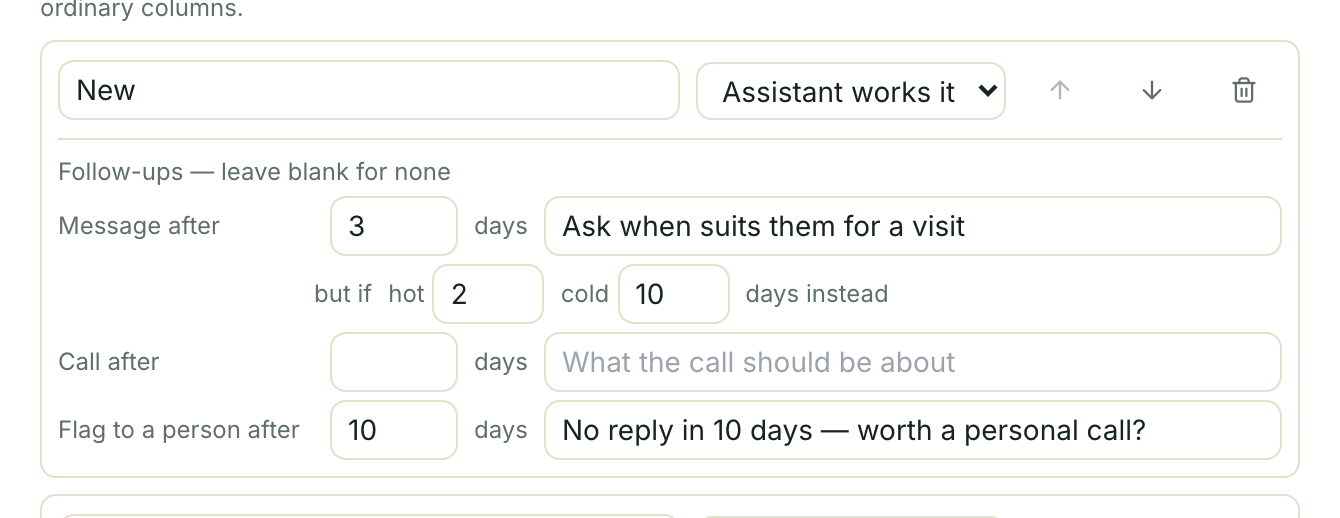
Every rule needs wording
Beside each day count is a box for what that follow-up should be about. You cannot save one without the other — the panel will ask for the missing half.
A rule with no wording is one your assistant would decline to carry out, silently. Blocking the save is kinder than letting it look configured while doing nothing.
Your wording is the fallback, not the script
Usually your assistant writes its own. When it has just spoken to the customer it already knows what the next contact should be about, and the follow-up carries that rather than a generic nudge.
Your wording covers the deals it has no suggestion for: imported ones, ones you created by hand, calls that suggested nothing.
Write it as a brief, not a script — your assistant phrases the actual message.
- Good: “Check whether they still need the quote, and offer a site visit.”
- Weak: “Hi, just following up!”
A worked example
New — assistant works it
| Rule | Days | Wording |
|---|---|---|
| Message after | 2 | Check they got the details and ask when suits them for a visit |
| Call after | 5 | Ask what’s holding them up and offer a slot this week |
| Flag to a person after | 10 | No response to two attempts — worth a personal call? |
Qualified — assistant works it
| Rule | Days | Wording |
|---|---|---|
| Message after | 3 | Ask if they’ve had a chance to review the quote |
| Flag to a person after | 7 | Quote sent, no reply for a week — discount or drop? |
Negotiation — you work it, so no rules at all. A human is on it, and automated chasing would cut across them.
A reasonable starting shape: one message rule in your first column, and one flag-to-a-person rule further along. Add calls once you trust the messages.
Hot and cold
Once a base cadence exists, a second line appears beneath it:
but if hot
2cold14days instead
Your assistant judges each deal as hot, warm or cold from how the conversation went, and you can override that yourself on the deal card. Hot deals are chased on the shorter clock, cold ones on the longer.
Two things are worth knowing:
- This changes when, never whether. No base rule means no follow-up, however hot the deal is. That is why these boxes only appear once you have set the base number.
- Warm and not-yet-judged deals use the base number. A deal your assistant has not formed a view on is not treated as cold.
For example, on New: message after 4 days, but 2 if hot and 10 if cold.
Limits
- Days must be between 1 and 365. Zero is not allowed — a 0-day rule would fire against a deal seconds after it was created.
- The same kind of follow-up will not repeat within 24 hours on the same deal, whatever the rules say.
- Follow-ups run on a regular sweep, so a rule fires shortly after it comes due rather than to the second.
The most your assistant may discount
This box sets the ceiling your assistant must stay under when it drafts a closing discount for a stalled deal. Enter a whole number between 1 and 99.
Leaving it empty is a real setting, and it is the default. An empty box means your assistant never drafts an offer at all — nothing will ever appear under What you sell → Suggestions. Nobody’s assistant starts proposing discounts against their margin because of a software update.
Clearing the box and saving is how you turn suggestions back off.
Nothing your assistant drafts reaches a customer on its own: every suggestion waits for your approval. The full picture is in Offers and discounts.
Saving your changes
Save writes your columns, then your intake rules, then your email settings, then the discount ceiling — in that order.
- Incomplete intake rows are dropped, and the panel tells you so. A row needs both an outcome and a column.
- If something fails, the panel stays open with your work intact, and tells you whether nothing was saved or only part of it — so you know whether to redo everything or just fix one thing.
- Cancel discards everything, including the parts that would have saved fine.
Troubleshooting
No deals are appearing
Work down this list in order:
- Is Turn the pipeline on ticked?
- Is there at least one intake rule with both an outcome and a column?
- Open the Calls page — does the outcome you typed actually match what your assistant recorded? This is the usual culprit. Copy the value character for character.
- Have any calls happened since you saved? Intake is not retrospective: it runs on new conversations, not on your history.
Deals appear for things that aren’t leads
Remove that outcome’s row. Nothing already created disappears — drag those cards to Lost.
No follow-ups are going out
Check that the column has a cadence and wording, that it is set to Assistant works it, that the deal has not been taken over by a person (a manual deal is never chased), that it is not snoozed, and that it has genuinely been quiet — any activity resets the clock.
Follow-ups feel too aggressive
Raise the day counts, or set a longer cold override rather than removing the rule outright.
I’m not getting the emails
Check the tick box in step 3. If the address box is empty, confirm you actually
have admin access. Then check your spam folder for [Kooday.Tech].
I can’t delete a column
See Deleting a column — if deals have ever passed through it, rename it instead.
A sensible first configuration
☑ Turn the pipeline on

Which enquiries become deals?
  info_requested            starts in   New
  price_requested           starts in   Qualified
  appointment_booked        starts in   Qualified
  appointment_rescheduled   starts in   Follow-up
  purchase_intent           starts in   Negotiation
  callback_requested        starts in   Follow-up

☑ Email me when a deal needs a person
  Who should we email?   (empty — everyone with admin access)

Your columns
  New          Assistant works it
                 Message after 3 days
                   "Check they got the details and ask when suits them"
                 Flag to a person after 10 days
                   "No reply in 10 days — worth a personal call?"
  Contacted    Assistant works it     (no follow-ups yet)
  Qualified    Assistant works it     (no follow-ups yet)
  Follow-up    Assistant works it     (no follow-ups yet)
  Negotiation  You work it
  Won
  Lost
Two intake rules, one column doing the chasing, a human on the last column, and an email when something needs you. Expand from there once you have watched real deals move across the board.
Still stuck? We answer support mail the same working day.
Email support