Calls, transcripts and recordings
Every call your assistant handled, what the summary of one actually contains, why recording is off until you turn it on, and how to tell your own test calls apart from real customers.
Every call and chat conversation your assistant handles writes exactly one row on the Conversations page: who reached out, through which channel, how long it lasted, what they wanted, how it ended, and what it cost you.
That row is the thing most businesses actually buy. You cannot listen to two hundred calls a month or read every chat transcript, but you can read two hundred summaries in twenty minutes and know what your customers are asking for — which is where the outcome vocabulary comes from that your pipeline matches against, and where you find out that half your callers wanted something you do not offer yet.
This page is about reading that log: the list, one call in detail, and the three things people consistently expect to find and do not.
Where to find it: open Calls (or Conversations) in the sidebar, under Monitor. It is always there — no plan hides it.
The list
The header says it plainly: “Every conversation in the selected range, newest first.”
The range is the last 30 days until you change it. The pills at the top offer 7d, 30d, 90d and Custom; a custom range can span at most 366 days. A call outside the range is not missing — widen the range.
Twenty-five items to a page. Sort by clicking a column header.
| Column | What it holds |
|---|---|
| Date / time | When the conversation or call started |
| Channel | Voice, WhatsApp, Webchat, or Instagram |
| Phone | The caller’s number, or — for browser chats/calls |
| Direction | Inbound or outbound |
| Origin | Where the lead came from — see Real calls and your own testing |
| Outcome | Your assistant’s own word for how it ended |
| Language | What was spoken or written |
| Sentiment | How the customer sounded or felt |
| Duration | Length in minutes and seconds, or — for single-turn chats |
| Billable | Whether this interaction is charged |
| Cost | What it cost, in rupees |
| Rec | A microphone icon if a voice recording exists |
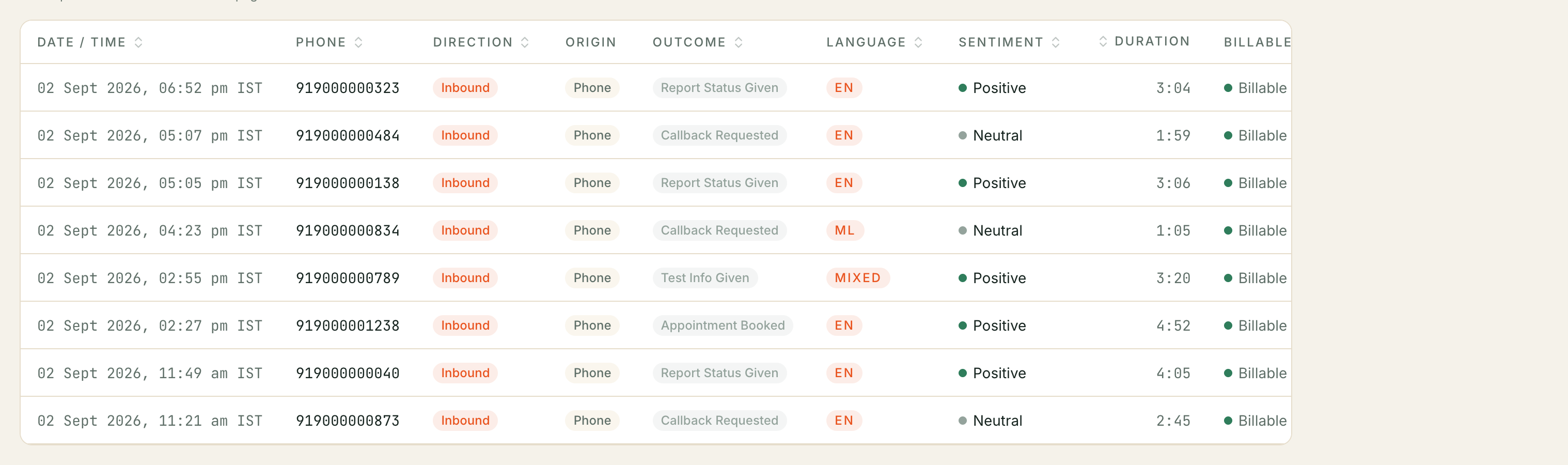
Outcome, Language and Sentiment are your assistant’s words, not ours. Kooday never interprets them — it stores and shows whatever your assistant recorded. That is exactly why the Calls page is where you go to find the outcome values to type into your pipeline’s intake rules: copy them from here, character for character.
Searching and filtering
The search box says Phone, summary… and you have to press Enter — it does not filter as you type. It matches the phone number, the outcome, the language, the sentiment, the written summary, and every value your assistant recorded in the structured summary.
⚠️ Search does not read the transcript. Searching for a word the customer said out loud will not find the call unless that word also appears in the summary. This is deliberate — the transcript is raw customer speech and is kept off search, off exports and out of anything that leaves Kooday. If you need to find calls by topic, the summary is what you search.
Five dropdowns — Channel, Outcome, Language, Direction and Origin — narrow the list further, and a Clear filters link appears once any of them is set.
The dropdowns only offer values that appear on the page you are looking at.
The screen says so: “Filter options reflect the conversations on this page.” If
callback_requested happens not to be on page 1, it is not in the Outcome
dropdown — even though such calls exist elsewhere in your range. Widen the date
range or sort differently and the option appears. An option missing is not
evidence that no such call happened.
There is no export button here. Building a spreadsheet of calls — with your own chosen columns — is what the Reports screen is for.
Real calls and your own testing
Every call is tagged with where it arrived from, shown as the Origin chip:
| Chip | What it was |
|---|---|
| Phone | A real telephony call. This is the normal one, and it is deliberately styled quietly so the others stand out. |
| A real customer calling your assistant from WhatsApp. Styled quietly like Phone, because that is what it is: a real call, billed the same way. | |
| Tester | Somebody on your team testing the bot from the dashboard. |
| Widget | A real member of the public, calling through the voice widget on your website. |
| Demo | A call through the public voice demo in a browser. |
This exists because the browser routes look identical otherwise — none of them has a phone number — so without the tag your own QA calls would sit in your figures pretending to be customers.
Two things about it that people get wrong, and both cost money to get wrong:
⚠️ The list shows everything by default. Your test calls are in it, and in its Cost column. Nothing is filtered out until you pick an Origin. If you are reading these numbers as “what my customers did this month”, set Origin to Phone — and check WhatsApp separately, since the filter takes one origin at a time.
⚠️ Widget and WhatsApp calls are real calls and they are billed. They are tagged separately because they did not come in over the phone network, not because they are tests. Only Tester and Demo calls are left off your invoice. So the Cost column on this page and the total on your invoice will not agree whenever your range contains testing — the page is showing you what every call cost, and the invoice is showing you what you are charged for.
One call in detail
Click any row, or its View → link. The top of the page repeats the number, the time and the chips, and adds one the list does not have: how the summary was produced.
| Badge | Meaning |
|---|---|
| Bot summary | Your assistant finished the call and wrote this summary itself. The normal case. |
| Reconstructed | The caller hung up before your assistant could finish. The summary was rebuilt afterwards from what was actually said. |
| No summary | Nothing to summarise — the call dropped before anyone spoke. |
Then three sections, in order.
What the customer said
One readable paragraph: what the caller wanted, in plain language. This is the section to read; everything below it is supporting detail.
If your assistant recorded no readable summary, it says “No summary captured.”
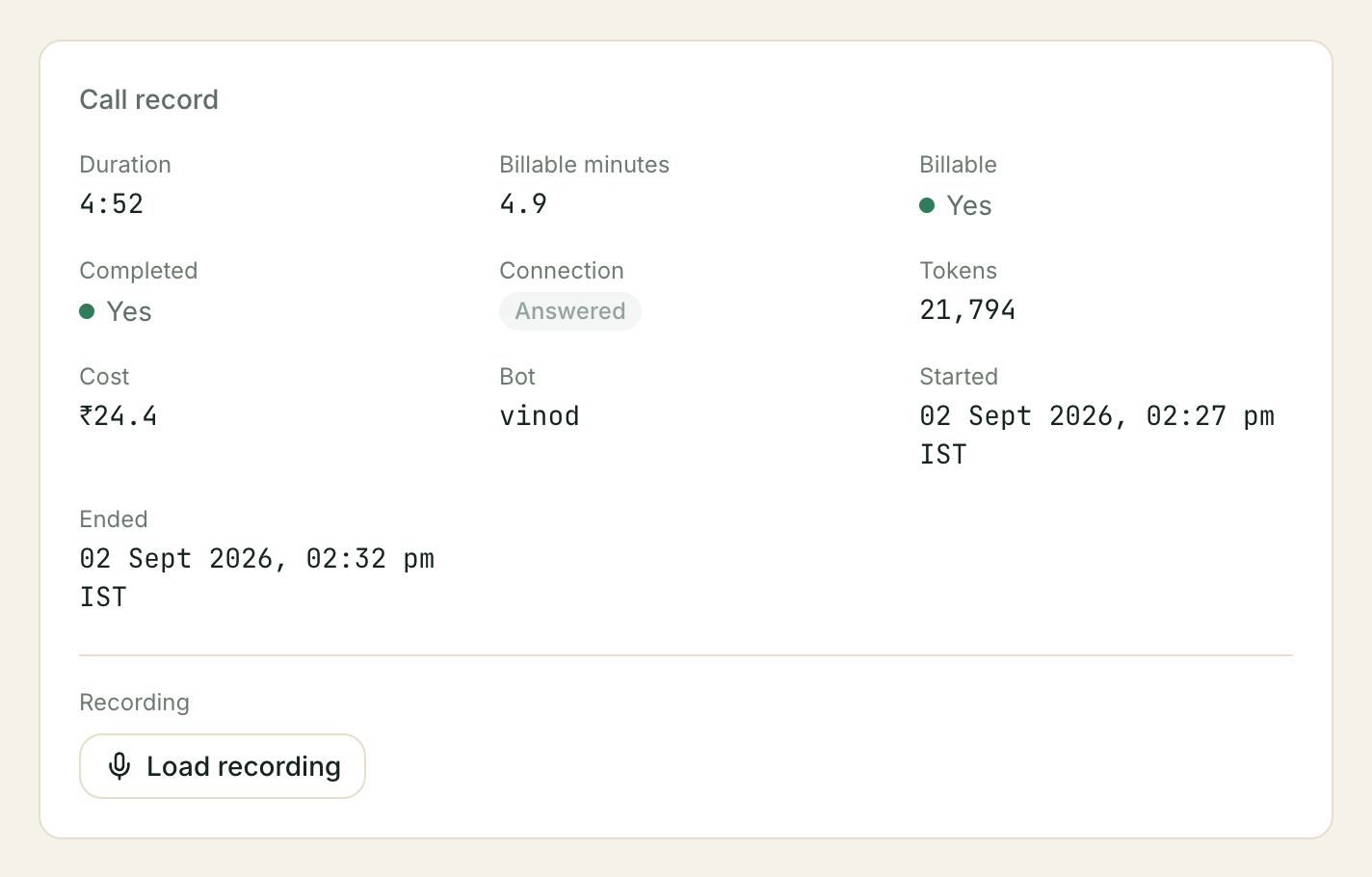
Call record
The facts of the call: Duration, Billable minutes, Billable, Completed, Connection, Tokens, Model cost (USD), Cost, Bot, Started, Ended, and the recording.
Two of these need a sentence each.
Billable is not the same as Completed. A call is billable when it genuinely connected — either your assistant logged a clean finish, or the caller spoke and got an answer back. A ring-out where nobody said anything is logged, costs us something, and is not charged to you. Billable minutes starts at a one-minute minimum and then counts by the second, which is why a 13-second call shows as 1.0.
Model cost (USD) is the raw AI spend on that call, shown to four decimal places. Cost is what you pay, in rupees. They are different numbers measuring different things and the second is the one on your invoice.
Transcript
The conversation as it was spoken, one line per turn, labelled Bot: and
Caller:. It scrolls inside its own box.
There are no timestamps and no speaker names — it is a plain record of who said what, in order. On a call where the caller hung up, a line beside the heading says so:
Caller hung up before the bot could close the call — the summary above was rebuilt from this transcript.
If there is no transcript, the whole section is absent rather than showing an empty box. That normally means nothing was said — a call that dropped at the ring.
Summary
The last section is everything your assistant recorded as structured data, shown as an expandable tree.
The fields in here are yours. Kooday’s own vocabulary is short — an outcome, a sentiment, a written summary, the language, whether a callback was asked for, the caller’s name and number. Everything else in this section was defined when your assistant was set up, for your business: a class a parent asked about, a model of vehicle, a delivery pincode, whatever your calls are actually about.
That is why this section is a tree of whatever arrived rather than a fixed form. Adding a new field to it is a change to your assistant’s own configuration, not a Kooday release — and once your assistant is recording a field, it is available as a column on the Reports screen.
If a call recorded nothing structured, the section reads “Nothing recorded.”
Recording is off until you turn it on
Every bot starts with recording disabled. No audio is captured, and the
Rec column shows — on every call. This is the default deliberately:
recording a customer’s voice is a decision about their privacy that belongs to
you, not to us, and most businesses do not need it — the transcript already gives
you the words.
You can turn it on yourself. Open Bots, pick the bot, and find Recording in its Configuration card. There are two switches there, and you need both:
| Switch | What it does |
|---|---|
| Recording | Whether this bot captures audio at all. |
| Tell callers the call is recorded | Whether your assistant says so out loud at the start of every call. |
Only someone with admin access can change them; everyone else sees the current state and no control. The switches appear only on a bot that can take calls.
⚠️ Recording does not start until callers are told. From 31 August 2026, a bot with Recording on and the spoken notice off records nothing — on phone calls, website calls, test calls and WhatsApp calls alike. That is not a warning about a future change: if you had recording on before that date, it stopped on that date and stays stopped until you switch the notice on.
You will see this on the screen rather than having to remember it. A bot in that state reads Not recording — callers aren’t told instead of Enabled, and the switch shows a line saying calls are not being recorded.
The change is deliberate. Recording a customer’s voice without telling them rests entirely on consent you gathered somewhere else, which Kooday cannot see and cannot vouch for. Making the notice the thing that starts recording means the two can never come apart.
Turning it on affects calls from that moment on. It does not go back and recover audio for calls that already happened — that audio was never captured.
What your callers hear
One short sentence, before your assistant’s greeting:
Just so you know, this call is recorded to help us serve you better.
It plays at the head of every call, so nobody is recorded before being told, and it is part of the recording itself — that is the point, it is your evidence that notice was given.
You can change the wording. With the notice switched on, a What callers are told box appears under the switches; type your own sentence and it replaces the default from the next call onwards. Leave it empty to go back to the default.
Two things to know before you write one:
- Keep it to one sentence. It is on the front of every single call, and a long notice costs your caller’s patience without telling them anything more.
- ⚠️ It is not translated. Whatever you type is spoken exactly as written, and the default sentence is English regardless of the language your assistant answers in. If your assistant answers in Hindi or Malayalam, write the notice in that language yourself — otherwise your callers get an English notice they may not follow, which is not much of a notice.
The exact wording is your call, not ours. If you are unsure what your obligations are, the sentence your own legal advisor gives you is the one to paste in here.
Playing one back
On a call that has a recording, the detail page shows a Load recording button. Nothing is fetched until you press it: opening a call does not quietly pull down somebody’s voice.
Press it and you get an ordinary audio player, plus a Download button that
saves a .wav file named after the number and the time. The player’s link is
short-lived by design — it expires about five minutes after you load it, so a
link copied out of the page is useless to anyone else. If it goes stale while the
page is open, load it again.
You will see No recording on any call recorded before you switched the setting on, and Recording unavailable if the audio has since been deleted.
How long recordings are kept
By default, indefinitely — nothing deletes them.
An automatic deletion window can be set for your account, after which the audio is removed and the call flips back to showing No recording. There is no control for this in the dashboard, deliberately: switching a business from “kept forever” to “deleted after 90 days” starts destroying recordings that already exist, and that is not a decision to make by mis-clicking a dropdown. Ask us, and be specific about the window you want.
Deleting the audio removes only the audio. The call row, its summary and its transcript survive, so your history and your reporting do not develop holes.
You can also erase one specific call’s recording on request.
What happens when a caller hangs up
This is the case people assume is lost, so it is worth being clear: it is not.
If somebody rings, asks a real question, gets an answer and then hangs up abruptly, your assistant never gets to write its closing summary. So Kooday writes one afterwards instead: it takes the transcript that was captured during the call, re-reads it, and produces a proper summary of what the caller wanted. The call is badged Reconstructed, and the line above the transcript explains where the summary came from.
It is also correctly marked as not a missed call, which matters — a real conversation that ended rudely should never be filed alongside numbers that never answered.
Two honest limits:
- A call that dropped before anyone spoke gets nothing, and should. There is no conversation to summarise. It is badged No summary.
- The rebuild is best effort and it is time-boxed. Reconstruction happens while the call is being torn down and cannot be allowed to hold that up, so if it does not finish in time you get a call with a full transcript, a No summary badge and no written paragraph. Read the transcript in that case — the words are all there.
Troubleshooting
A call I definitely received isn’t in the list
Work down in order:
- Check the date range. The default only covers the last 30 days.
- Check your filters. Any of the four dropdowns can be hiding it; press Clear filters.
- Give it a minute. The row is written as the call ends, and if the write is delayed it is retried rather than dropped. A call from thirty seconds ago may not be there yet; a call from yesterday should be.
A call ended part-way through, and nobody hung up
The most likely cause is the network on the caller’s side. The one cause that is ours, and worth stating plainly: when we ship an update to Kooday, calls that are in progress at that moment end. The caller has to ring back to finish. In most cases the part of the conversation that already happened is still logged, with its transcript, exactly as an abrupt hangup would be.
Updates are infrequent and the window in which a call can be caught is short, so this is rare. It is not something you have done, and there is no setting on your side that changes it.
The Outcome I want isn’t in the dropdown
The dropdowns only offer values present on the page in front of you. Widen the date range, or search for the outcome value directly in the search box instead.
A call shows no summary
Look at the badge. No summary on a very short call means nothing was said. No summary on a call that has a transcript means the reconstruction did not finish in time — the transcript is the record in that case.
There’s no Transcript section on this call
Nothing was captured, which almost always means nothing was said. A call that rang out has no transcript, and Kooday leaves the section out rather than showing an empty box.
The Rec column is empty on every call
Two causes, and the second is the one people miss:
- Recording is switched off for that bot.
- Recording is on, but the spoken notice is off — so nothing is captured. Open the bot and look at Recording: if it reads Not recording — callers aren’t told, this is you. Switch Tell callers the call is recorded on.
See Recording is off until you turn it on. Either way, switching it on now does not retrieve audio for past calls.
My WhatsApp calls have no recording, but my phone calls do
They should behave identically — there is one setting per bot and it covers every kind of call it takes. Check that the calls really are on the same bot: a number connected to a different assistant carries that assistant’s settings, not the one you were looking at.
Before 31 August 2026, WhatsApp calls were never recorded whatever the setting said. That is no longer true — a WhatsApp call now records on exactly the same terms as a phone call, which is to say once your callers are told.
I clicked the microphone icon in the list and nothing happened
It is an indicator, not a button — it tells you a recording exists. Open the call with View → and press Load recording there.
The Cost column doesn’t match my invoice
Most often because your range includes Tester or Demo calls, which are logged with their real cost but left off your invoice. Everything else — Phone, WhatsApp and Widget — is what you are charged for.
”Call not found”
The link is wrong, or the call belongs to a different account. Kooday gives the same answer to both so a guessed link can never confirm that somebody else’s call exists.
Where to go from here
- The outcome values you find on this page are what you type into your pipeline’s intake rules — Setting up your sales pipeline.
- Chat conversations are not here. They live in your Inbox.
- What your assistant carries from one call to the next is a separate matter — How your assistant remembers.
Still stuck? We answer support mail the same working day.
Email support