Your knowledge base
How to give your assistant the documents it answers from — what to upload, how content is split into entries, and why an entry has to finish indexing before it can be found.
Your knowledge base is everything your assistant knows about your business that is not written into its instructions: your price list, your FAQ, your refund policy, your class timetable, the paragraph explaining what is included in the premium package.
There are two ways in, and the first is usually the better one.
Questions customers ask
At the top of the Knowledge base screen is a pair of boxes: a question and an answer. Fill them in the way a customer would ask and the way you would reply, out loud.
This is the same store as an upload — each pair becomes one entry, searched by the same assistant — it just asks for what you already have. Most people know exactly what callers ring up and ask; almost nobody knows how to write a document that retrieves well.
- Edit changes that entry in place rather than leaving a second copy behind.
- Remove deletes it.
- There is no publish step. Unlike your rules and offers, these are live as soon as you save — the assistant searches whatever is there at the time of the call.
- Keep answers to a couple of sentences. Long answers get split across entries, and half an answer is worse than a short one.
If nothing is there, your assistant does not guess. It says it will check and come back, which is the right behaviour — but it is also why an empty knowledge base makes an assistant sound evasive.
Uploading documents
For anything longer — a price list, a policy, a brochure — upload a file or paste text. Kooday splits it into short entries, indexes each one by meaning, and from then on your assistant can search them mid-conversation. It searches by meaning rather than by keyword, so a customer asking “can I get my money back if I change my mind?” finds the refund paragraph even though neither word appears in it.
From 10 August 2026, every assistant searches your knowledge base. It used to be arranged per assistant when yours was set up. It is no longer a setting anywhere — what you put here is what your assistant can say.
Where to find it: open Knowledge base in your dashboard.
The five-minute setup
- Knowledge base → Upload file, choose a
.pdf,.txt,.mdor.csvfile, and give it a Doc type such asfaq. - Upload. The new content appears in the table as pending.
- Wait a moment and refresh. When the row reads ready, your assistant can find it.
Three or four accurate documents beat a folder of everything you have ever written. Your assistant reads what you give it, including the parts that are out of date.
Step 1 — Adding content
Add to knowledge base has two tabs, and both end up in the same place.
| Tab | Use it for |
|---|---|
| Upload file | A document you already have — PDF, TXT, MD or CSV |
| Paste text | A few paragraphs you are writing now: a policy, an answer you keep repeating |
Two optional fields sit under both:
- Title — a display label. It travels with the content to your assistant, so writing it as the question the entry answers (“What is included in a deep clean?”) is more useful than a filename.
- Doc type — your own category label, free text:
faq,pricing,policies,timetable. It is how the table groups your content, and how you later delete or re-index a whole category in one action. Leave it empty and the content lands in a single Untyped group.
Starting from an industry pack
If your business is one of the kinds Kooday is built for (detailing, clinics, salons, schools, hotels, real estate, home services, lead reactivation, hiring screening, events and venues, payment reminders, bus booking), you do not have to start from a blank knowledge base. Start from a pack, under the add box, imports a reviewed starter set for your industry: the objections customers in that trade actually raise with a shape for the reply, the questions they ask, two or three policy templates, and one entry that tells the assistant what its day-to-day job in your kind of business is and what it must not decide.
Every entry is written from your side of the counter with placeholders in square brackets, such as [your cancellation policy] or [a price from your catalogue], for the things only you know. Read through them and edit; an entry you leave with a placeholder in it is an entry the assistant will read out with the placeholder in it. Importing the same pack twice adds nothing new, and an entry you have edited is left alone. The pack carries no prices: those come from your catalogue.
Adding knowledge from WhatsApp
If you use the command centre, you can teach your assistant something without opening the dashboard. Send remember: followed by the fact:
remember: delivery is free on orders above 2,000 rupees
Your assistant reads it back and waits for a yes before saving anything.
What you send does not go live straight away. It waits for a manager to approve it, and until then your assistant will not use it when answering customers. This is deliberate: a note only your team sees can be corrected quietly, but a wrong fact in your knowledge base is repeated confidently to every customer who asks.
A manager sees what is waiting by sending pending, and releases an entry by tapping it or sending approve with the reference shown in the list. discard throws one away instead. Both need a yes as well — approving is the moment your customers start hearing it.
Anyone on your roster can add. Only a manager can approve, so that a second person has seen the fact before a customer does. If you are the only manager, you can approve your own.
⚠️ Nothing you add answers a customer until someone approves it. If your team has been adding facts and the assistant still does not know them, open the approval queue first — the entries are almost certainly waiting there.
You can also clear the queue from the dashboard, which is worth knowing when your manager is away.
Files must be under 5 MB, and the size is the whole file — a large document is better split into a few smaller, topic-shaped ones anyway.
A PDF also has to be readable in reasonable time. A small PDF can hold a startling amount of text, so a second limit applies to what comes out rather than what goes in: a PDF that takes too long to read, runs past 5,000 pages, or yields more text than one upload can hold is stopped and refused, and nothing is stored. In practice only two kinds of file hit this — a scanned document, and a whole document library exported as one file. Both want splitting regardless.
A CSV becomes one line of text per row, with the cells run together and no column headings interpreted. That works well for a two-column question-and-answer export and badly for a wide spreadsheet, which arrives as unreadable runs of values.
⚠️ A scanned PDF has no text to read. Kooday reads the text layer of a PDF — the words a PDF reader lets you select and copy. A PDF that is really a photograph of a page (anything scanned, or exported from a phone camera) has no such layer, so it is refused with No extractable text and nothing is stored. Open it and try to select a sentence: if you cannot, retype the part that matters and paste it instead.
offering is not available as a doc type. Your catalogue writes into your
knowledge base under that label and owns it, so the box refuses it with doc_type
‘offering’ is reserved. Prices belong in
your catalogue, where they are structured and can be
looked up rather than recalled.
Step 2 — What happens to what you uploaded
Your content is split at blank lines into entries of roughly 800 characters, with a little overlap so a sentence spanning a break is not lost. Each entry is then indexed on its own. That is why the table counts entries rather than files, and why one uploaded document usually becomes several rows.
Two consequences worth designing your documents around:
- One idea per paragraph, separated by a blank line. The split follows your blank lines, so a well-broken document produces entries that each answer something.
- Only the three closest entries come back on each search. A single entry that answers the question outright beats the same answer spread over a page.
Identical text is stored once. Re-uploading the same file does not duplicate anything; it refreshes the labels on the entries that are already there.
The three states an entry can be in
| Status | What it means |
|---|---|
| pending | Stored, not yet indexed — your assistant cannot find it yet |
| embedding | Part of the category is indexed, the rest is still going |
| ready | Every entry in the category is indexed and searchable |
Indexing runs in the background, straight after the upload, and takes seconds for a small document. It is not shown live: refresh the page to see the status move.
Step 3 — Living with it
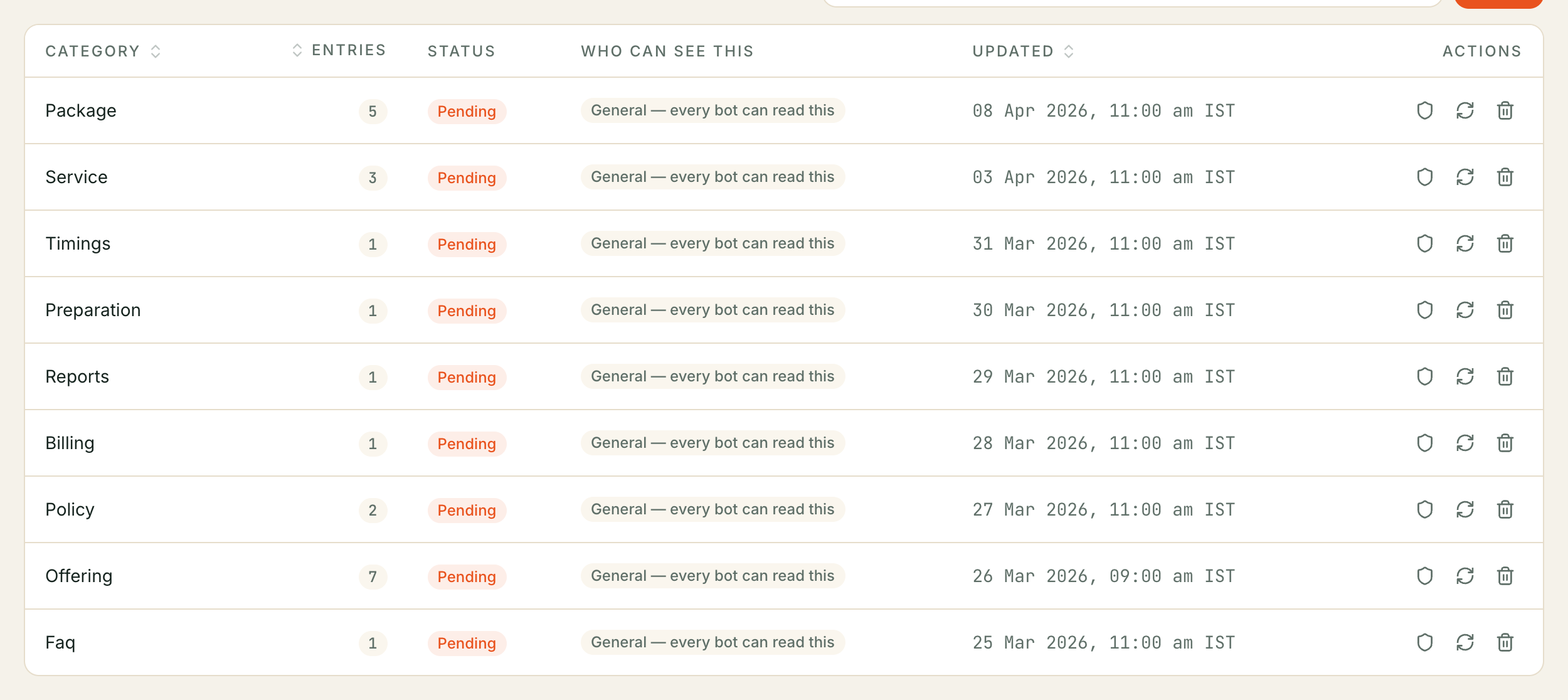
The table lists one row per category (your doc type), with the number of entries in it. Open a row to read the individual entries, search within them, and edit, delete or add one by hand.
The search box on this screen is yours, not your assistant’s. It is a plain text search over your categories, titles, sources and content, so you can find what you wrote. Your assistant’s search is the meaning-based one described above, and the two can give different results for the same words.
Editing an entry re-indexes it. The edited text goes back to pending until that finishes, so an entry you have just corrected is briefly unfindable — this is expected, and it resolves itself.
Removing content is how you correct a stale answer. While a document sits in your knowledge base, it is something your assistant can read and quote, however old it is. Updating your catalogue does not silence a price written in a brochure.
⚠️ Deleting a row deletes the whole category. The confirmation names the category and the number of entries going with it, and it cannot be undone. To remove one entry, open the category and delete it from inside.
The circular-arrows button on a row re-indexes anything in that category still waiting — useful when a row has been sitting at pending longer than it should.
What to put in, and what not to
| Put it in the knowledge base | Put it somewhere else |
|---|---|
| Policies, procedures, FAQs, what is included in what | Prices and stock — your catalogue, where they are read at the moment of answering |
| Descriptions of how you work, timetables, locations | Anything about one customer — one knowledge base serves every conversation |
| The answers you find yourself repeating | Anything you would not want quoted back to a customer word for word |
Troubleshooting
My assistant does not know something I uploaded
In the order worth checking:
- The category’s status is ready. A pending entry is stored but not yet searchable. Refresh; if it has not moved, use the re-index button on the row.
- The wording is in the entry. The search matches meaning, not just words, but it can only match against what is written — an answer implied by a table of figures is not an answer.
- The answer is buried. Only the three closest entries reach your assistant. If the point is one line inside a long uploaded page, add it again as its own short entry with a title that reads like the question.
If the search itself is having trouble, your assistant behaves exactly as if nothing was found — it carries on from its instructions rather than reporting an error. So an answer that has quietly stopped mentioning your documents is worth raising with your account manager rather than assuming the content is wrong.
My assistant quotes something old
It is reading an entry you have forgotten about. Search this screen for the old wording, open the category, and delete or edit that entry. Nothing expires on its own.
For prices specifically, see Selling from your catalogue — a price kept as an offering is read at the moment your assistant answers, which is what stops this happening again.
My upload was refused
The message under the box names the reason:
| Message | What to do |
|---|---|
| File too large | The file is over 5 MB — split it |
| Unsupported file type … | Save it as PDF, TXT, MD or CSV |
| File content could not be decoded as text | The file is not really text; re-export it as UTF-8 |
| No extractable text | There was nothing readable in it — a scanned or image-only document has no text to read |
| This PDF took too long to read and was stopped | Usually a scanned or unusually complex PDF. Split it, or upload the text instead |
| This PDF contains more text than one upload can hold | Split it into smaller documents and upload them separately |
| This PDF has more than 5,000 pages | Split it — one upload is one document, not a library |
| doc_type ‘offering’ is reserved | Choose another label; that one belongs to your catalogue |
I edited an entry and got “already exists in another document”
The text you saved is identical to an entry in a different category. Kooday stores one copy of any given text, and moving it silently between categories would take it out of the one you are not looking at. Delete whichever copy you do not want, or vary the wording.
A sensible first knowledge base
faq          your ten most-asked questions, one per paragraph
policies     refunds, cancellations, guarantees — as you would say them aloud
services     what each thing includes and who it is for (no prices)
Prices go in What you sell instead, and everything above stays true for longer because of it. Add a category when you notice yourself answering the same new question twice.
Still stuck? We answer support mail the same working day.
Email support