Files you send
Keep your brochures, price lists and offer creatives in one place, so the same file can go out on a campaign without being uploaded again.
Most businesses have a handful of files they send over and over: the price list, the brochure, the terms, a few before-and-after photos. Until now Kooday had nowhere to keep them. If you wanted the same PDF on the header of three campaigns, you uploaded it three times — and each of those uploads quietly expired about a month later, so the fourth campaign needed a fourth upload of a file that had never changed.
Files you send is where they live instead. Upload something once, give it a title, and use it on as many campaigns as you like without ever uploading it again.
Where these files get used: your assistant sends them in a WhatsApp conversation, and you can put one at the top of a WhatsApp campaign. On website chat, Instagram and Messenger your assistant will not offer a file at all — those channels cannot carry one, and it is better that it never promises one than that it promises and fails.
This is for things you are happy to send to customers. It is outbound collateral — brochures, price lists, offer images. It is not a document store, and nothing about one particular customer belongs in it. There is no filled contract, no ID scan, no signed quote in a library like this.
This is the OUTBOUND direction only. Files here go out to customers. If you want your assistant to read a file — forward a price list so it can answer questions from it — that is the other direction and a different place: send the PDF to your business number from a number on the Command Center roster. See Commands you can send from WhatsApp. A file you forward that way goes into your knowledge base after a manager approves it; it never becomes something your assistant sends out.
Where to find it: open Files you send in your dashboard, under Manage.
The five-minute setup
- Files you send → Add a file.
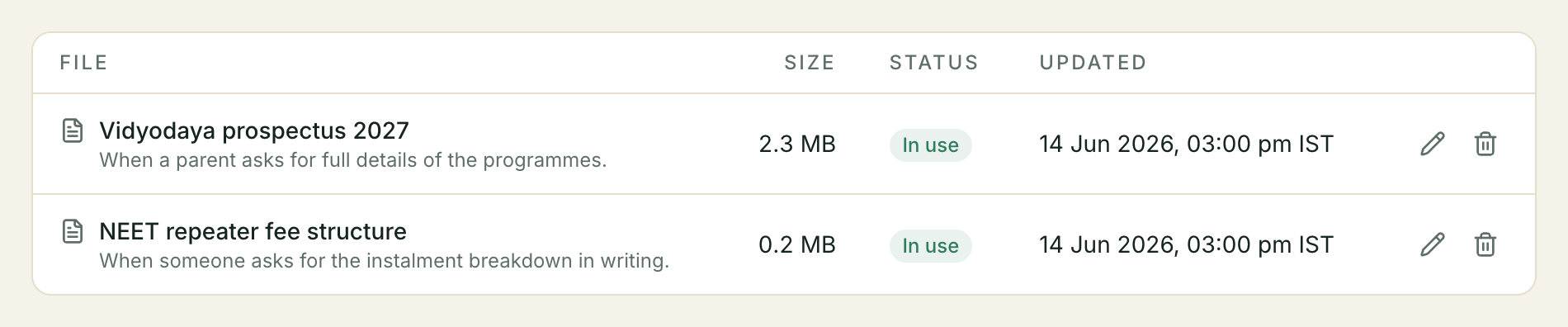
- Choose the file, tidy up the title, and write one line under When to send this.
- Add.
Three or four files is a perfectly good library. Ten is plenty. The rest of this page is for when you want to change one, retire one, or work out why a file is not being offered.
What you can upload
Kooday takes what WhatsApp will carry in a message header, and nothing else — so a file the library accepts is a file that can actually be delivered.
| Kind | Formats | Largest |
|---|---|---|
| Image | JPEG, PNG | 5MB |
| Video | MP4, 3GPP | 16MB |
| Document | PDF, Word, Excel, PowerPoint, plain text | 25MB |
Anything else is refused when you choose it, with a message naming what to upload instead. The document limit is deliberately lower than WhatsApp’s own — the upload has to finish inside one request, and a 90MB PDF does not.
Your library space
Every account gets 50 files and 500MB, on every plan, with nothing metered and nothing to buy. The bar under the list shows how full you are, and it counts whichever of the two you are closer to.
When you reach a limit the upload is refused and the message names the number — your library is full (50 of 50 files) — delete something you no longer send to make room. Archiving a file does not free space: the file is still stored, so archiving everything would be a way around the limit rather than a use of it. Delete it to get the space back.
When to send this
This is the one field that decides whether the library works for you, and it is worth thirty seconds of thought per file.
Your assistant chooses a file by reading this line, and nothing else. Not the
filename, and not the title. That is deliberate: a real library is
brochure_v3_FINAL.pdf, WhatsApp Image 2026-08-14.jpg and ceramic.pdf, and a
filename is not an intention.
⚠️ A file with this line empty will never be sent. Not “rarely” — it is not offered at all. The library flags every active file that is missing one.
Write it as the moment, in the customer’s words rather than yours:
| File | When to send this |
|---|---|
| Ceramic vs graphene comparison | when someone asks how ceramic compares to graphene |
| Full terms and conditions | when a customer asks for the full terms before paying |
| August price list | when someone asks what our prices are, or for a written quote |
| Before-and-after gallery | when someone is unsure whether the result is worth it |
Two habits that make these work:
- One moment per file. “for pricing and terms and general questions” matches everything, which is the same as matching nothing useful.
- Say the trigger, not the contents. “our brochure” describes the file. “when someone asks what we do before booking” describes when to send it.
The Notes field beside it is for your team. Your assistant never reads it.
The language of a file
Every file has a Language, and it starts as Any language — which is the right answer for most of them. A price list, a spec sheet, a photo of a finished job: those carry no language, and your assistant will offer them to everyone.
Set it only when the file itself is written in one — an English brochure, a Malayalam price card.
⚠️ Naming a language NARROWS who can be sent the file. A file marked Malayalam is only ever sent to customers your assistant knows speak Malayalam; a file marked English is only sent to the rest. That is deliberate — an English brochure attached to a Malayalam follow-up is worse than no attachment — but it does mean a file labelled by mistake quietly stops being offered to most of your customers.
If in doubt, leave it as Any language. A file everyone can receive is more useful than a file labelled precisely and sent to nobody.
The label is about the file, not about the message. Your assistant decides which language to write in from the customer, and separately decides which file to attach — so a Malayalam follow-up can perfectly well carry an “Any language” price list.
You can change it any time from Edit, including back to Any language.
Checking what a file actually is
Click a file’s name to open it. A picture or a video plays right there; a document opens in a new tab, because whether a PDF is shown or saved is your browser’s decision rather than ours. Download saves it under the same name a customer would see it under.
This is worth doing before a file goes anywhere. The title is what you call it;
the file underneath is whatever was uploaded, and brochure_v3_FINAL.pdf and
brochure_v3_FINAL (2).pdf look identical in a list. It is also the way to check
a Replace the file actually swapped what you meant.
The link that opens the file is short-lived and personal to you — it stops working after a few minutes, so it is not something to paste to a colleague. Send them the file itself, or the dashboard.
Changing a file
Open a file with the pencil icon. The title and the “when to send” line are editable at any time and take effect immediately.
To swap the file itself — a corrected price, a new photo — use Replace the file at the bottom of the same box. This is separate from saving the text on purpose:
- the title and the “when to send” line survive, so anything already pointing at this file keeps working;
- every campaign that has used it picks up the new version. Without this step a corrected price list would keep going out as the old one for about a month.
If you pick the file you already have, Kooday says that is the same file you already had, so nothing changed and does nothing — which is the right answer, and stops a repeated click from costing you anything.
Archiving and deleting
Archive takes a file out of use — it stops appearing in the campaign picker, and it will be skipped by anything else that sends files — while keeping it. Put it back in use whenever you want. It still counts towards your library space.
Remove deletes the file and frees the space. Anything still pointing at it stops working immediately. There is no undo.
Archive is the right answer for last season’s offer creative. Remove is the right answer for something you will never send again.
Using a file on a campaign
When a campaign’s approved template has a picture, video or document at the top, the message step offers Or pick from your library beside the usual upload box and link field.
Picking from the library is the same result with less work: the file is sent to WhatsApp once and then reused, so the same brochure on ten campaigns is one upload rather than ten. The upload box is still there — a one-off image for one campaign does not need to be filed in a library first.
Only files that match the template’s format are offered. Meta fixes that format when it approves the template, so a PDF cannot go on a template approved with a picture at the top, and the picker does not pretend otherwise. Archived files are not offered either.
See Sending a WhatsApp campaign for the rest of that screen, and Writing a “when to send” line for the field above.
Troubleshooting
My assistant never sends a file to some customers
Check the file’s Language. If it is set to English or Malayalam rather than Any language, it is only offered to customers your assistant knows speak that language — which looks exactly like “it sometimes works”. Setting it back to Any language makes it available to everyone again.
My assistant never sends a file I have uploaded
- Check the when to send line. A file without one is not offered at all, and the list flags it.
- Check the channel. Only WhatsApp carries a file today — on website chat, Instagram and Messenger your assistant never offers one, because those channels cannot carry one.
- Check the status. An Archived file is offered nowhere.
- Read the line as a customer would: does it describe a moment that actually comes up in your conversations, or does it just describe the file?
- Check the timing. WhatsApp only allows a file inside the 24-hour window after the customer’s last message — outside it, your assistant’s actual reply does not go out at all, file or no file: the customer gets a fixed “we replied — tap to continue” nudge instead. Their tap reopens the window, and your assistant can offer the file on the next message.
”your library is full”
You are at 50 files or 500MB. Delete something you no longer send — archiving does not free the space. The message names which of the two limits you hit.
”those bytes are already in your library as …”
You have uploaded this exact file before under a different name. Kooday keeps one copy rather than two: if the existing entry is what you want, edit its title. If you meant to replace a different file, open that one and use Replace the file instead.
Uploading a file you had archived is a restore, not a duplicate — it comes back in use and Kooday says so.
”this file was removed by Kooday”
Kooday has taken this file down. It cannot be opened, edited, replaced, deleted or uploaded again, and it is never sent to anyone. This happens when a file would put your WhatsApp number — and ours — at risk. Get in touch if you think it is wrong.
The campaign picker does not list my file
Three things it checks, in this order: the file must match the template’s format, it must be in use rather than archived, and it must have been uploaded successfully. A document does not appear on a template approved with a picture header, and no setting changes that — the format belongs to the template Meta approved.
A sensible first library
Price list                 →  when someone asks what our prices are
What we do (brochure)      →  when someone asks what we offer, before booking
Terms and conditions       →  when a customer asks for the terms before paying
Before and after           →  when someone is unsure the result is worth it
Four files, four moments, no overlap. Add the fifth when a customer asks you for something these four do not answer — that question is the brief for it.
Still stuck? We answer support mail the same working day.
Email support