The Config screen
A tour of the Configuration page — the background your assistant always keeps in mind, the features you can switch off, the summary values you want as report columns, and the two webhook boxes that point in opposite directions.
Config (under Settings) is the tenant-wide settings page: things that apply across every assistant you have, rather than to one of them. Its subtitle is “Settings for your assistant and the platform webhook it reports to.”
Several sections, top to bottom. You need admin access for all of them.
Assistant settings
Six boxes, one Save settings button. Success is a small “Settings saved.” beside the button — there is no popup, so watch for it.
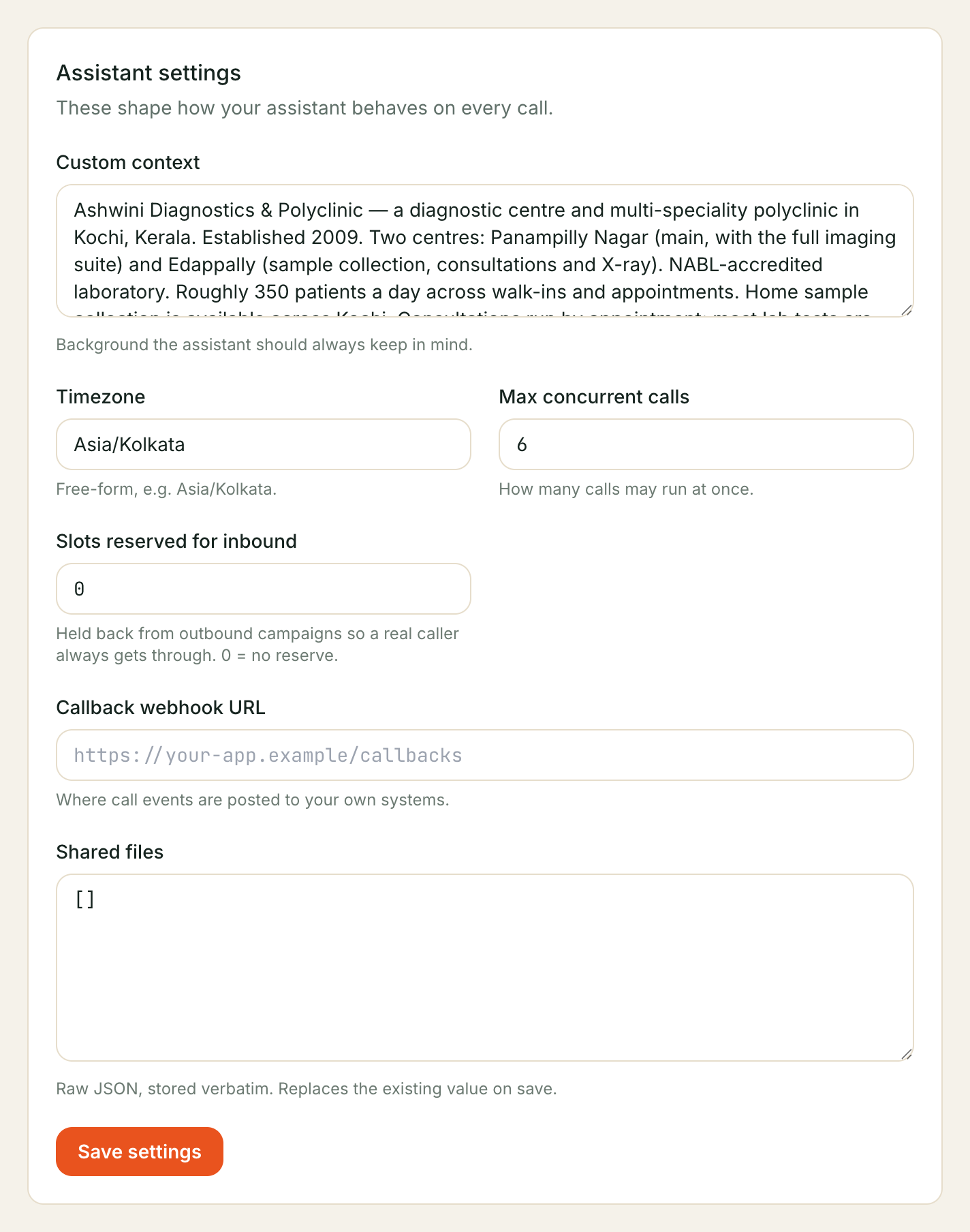
Custom context — “Background the assistant should always keep in mind.” Short, stable facts that colour every conversation: which city you are in, that Sunday is closed, that quotes are always in rupees. Not your price list, and not your policies at length — those belong in your knowledge base and your business profile.
Timezone — “Free-form, e.g. Asia/Kolkata.” It is a text box rather than a dropdown, so it will accept a typo. Copy the exact form above.
Max concurrent calls — “How many calls may run at once.” This is a deliberate ceiling on how much you can spend at any moment, not a performance setting. Callers beyond it are turned away.
The box lets you type
0, but saving0is refused — the minimum is 1. There is also a platform ceiling you cannot exceed; going past it shows the server’s own wording in red.
Slots reserved for inbound — “Held back from outbound campaigns so a real
caller always gets through. 0 = no reserve.” Without this, a campaign and your
incoming customers share one pool, first come first served — so a busy campaign
can hold every line and a customer ringing you gets turned away. Anything above
0 keeps that many lines for incoming calls only; the campaign simply paces
itself around them — it holds back the calls it cannot place yet and rings those
people on a later pass, so nobody is skipped and nobody is rung and met with
silence.
Worked example: max concurrent calls
3, reserved1. A campaign may run two calls at once, and the third line stays free for whoever rings in. Incoming calls are never limited by this — if nobody is dialling out, all three lines are still available to real callers.Setting it equal to (or above) your max concurrent calls means no outbound call ever goes out. That is allowed, but it is almost certainly not what you want.
Shared files — “Raw JSON, stored verbatim. Replaces the existing value on save.” Leave this alone unless we have asked you to change it. Two reasons: it replaces the whole value rather than merging, and clearing the box wipes what was there.
Callback webhook URL — “Where call events are posted to your own systems.”
Paste an https:// address of your own and we post each call’s record to it when
that call ends. Delivery is signed and retried, and anything that never gets
through lands under Failed deliveries on the Integrations screen, where
you can send it again, rather than disappearing. Leave the
box empty and we post nothing; clear it and save to switch it off again.
It is the tenant-wide default, so it covers every assistant — an assistant that has its own address configured uses that one instead.
Call records only. If you want your systems told about other things that happen — a new deal, a message in, a broadcast finishing — add an Event webhook on the Integrations screen, where you choose which events go where.
Your business profile
Two sections that used to live here — About your business (the typed rules/offers/questions fields) and the Business prompt they compile into — moved to their own screen: Your business profile, under Assistants in the left-hand menu. Structured fields on the left, the compiled prompt on the right.
Features
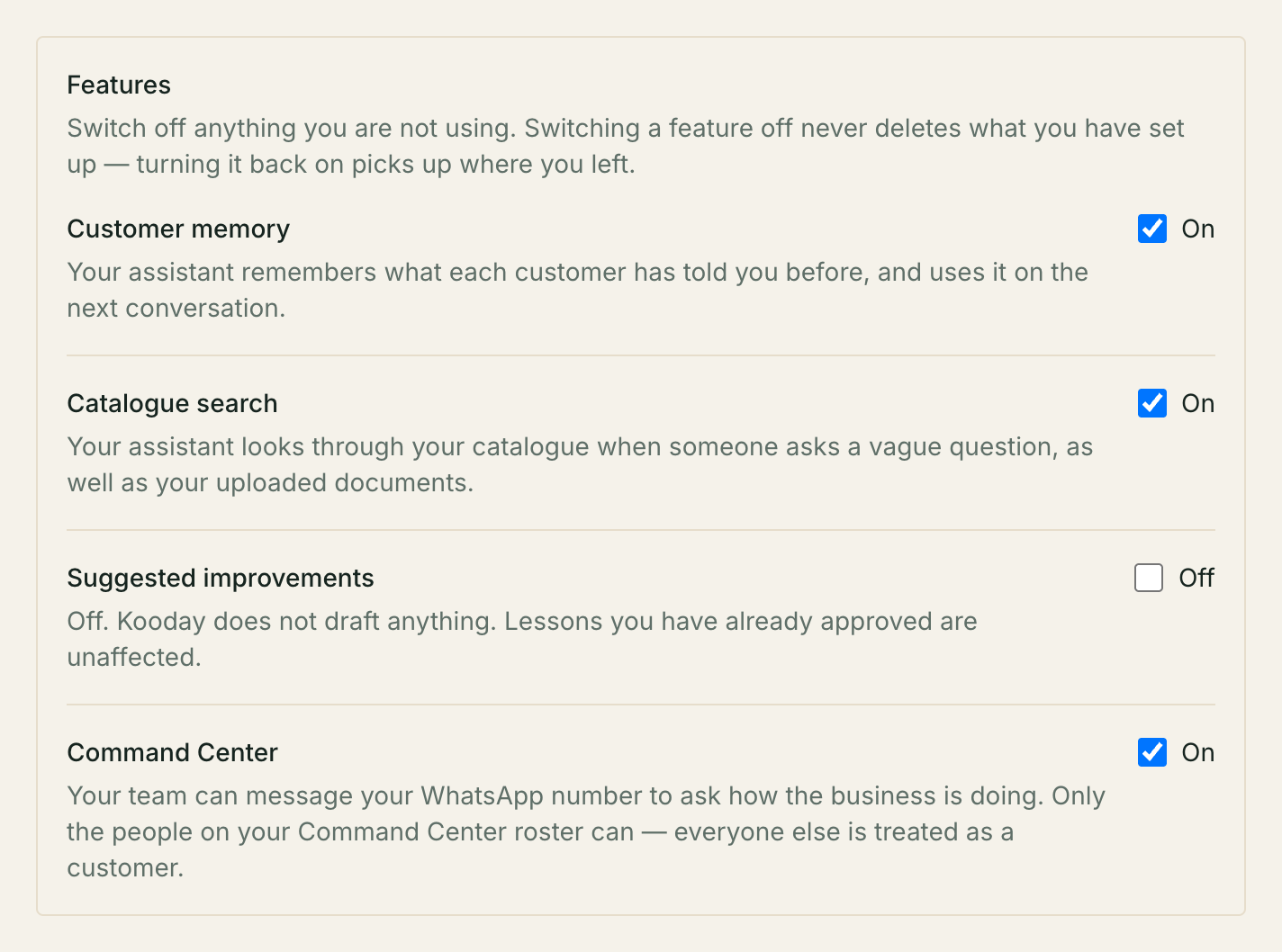
“Switch off anything you are not using. Switching a feature off never deletes what you have set up — turning it back on picks up where you left.”
Four switches, and each saves the moment you click it — no Save button, and no confirmation message. If the tick box does not move, the save did not happen.
| Switch | On | Off |
|---|---|---|
| Customer memory | Your assistant recalls what a customer told you in earlier conversations. | It still follows the conversation it is having; it just will not recall earlier ones. Your uploaded documents are used either way. |
| Catalogue search | It looks through your catalogue on vague questions, as well as your documents. | It only uses catalogue entries when it already knows which one is meant. |
| Suggested improvements | Kooday drafts lesson suggestions from your own numbers for you to review — see Suggested improvements. | Kooday drafts nothing. Lessons you have already approved keep working. |
| Command Center | Your team can message your WhatsApp number to ask how the business is doing. Only people on your roster can. | Every message to your number is treated as a customer’s, including your own team’s. Your roster is kept. |
A switch you do not have on your plan shows a Not in your plan pill instead of a control; one that is temporarily unavailable shows Paused. A feature that is not sold to you at all does not appear on the list.
More on memory in How your assistant remembers.
Report fields
This is the one section with a job you cannot do anywhere else: choosing which values from a conversation become columns you can report on.
After every conversation your assistant writes a structured summary. Most of what is in there is specific to your business — an order id, an intent, a branch name. The report builder does not guess at those; you list the ones you want.
Each row is a pair:
| Box | What goes in it |
|---|---|
| Summary key path | The value’s name, as your assistant records it — intent, order.id. Start typing and it suggests the keys your recent calls actually contain. |
| Column label | What the column is called in reports — Order ID. |
+ Add field adds a row, Remove deletes one, Save report fields writes the lot. Empty state: “No report fields yet. Add one to pull a summary value into reports.”
Once saved, those columns appear in the custom report builder on the Reports screen and in its CSV export.
Four things worth knowing:
- Saving replaces the whole list. Remove a row and save, and it is gone — there is no per-row delete-and-confirm.
- Half-filled rows are dropped silently. The panel warns “Rows missing a path or a label are skipped on save.” A row needs both halves.
- The suggestions are only a starting point. The dropdown offers the
top-level keys seen on recent calls. A nested value like
order.idis perfectly valid and will never be suggested — type it in full. An empty dropdown does not mean your calls record nothing. - Two columns cannot share a label, whatever the capitals.
Maximum 25 fields, and a label is up to 80 characters.
Phone & voice
A pointer, not a form: “Connect your own Exotel or Plivo account, rotate its credentials, and choose which provider places outgoing calls on the Phone & voice page.” Bringing your own telephony account — Exotel, Plivo, or both — moved to its own screen, Phone & voice, under Settings in the left-hand menu. Full walkthroughs: Connect your Exotel account and Connect your Plivo account.
Team
A pointer, not a form: “Invite team members, change roles, and manage who can
sign in to this dashboard from the Team page.” (In practice everyone this
page invites is a tenant_admin — there is no role picker yet, only
deactivate/reactivate and remove.) Everyone who can sign in to your dashboard,
and inviting more of them, moved to its own screen: Managing your
team.
Inbound webhook URL
The second webhook on the page, pointing the opposite way to the first: this one is read-only, generated by us, and yours to copy. “Point your telephony provider at this URL to route calls to your assistant.”
There is nothing to configure — use Copy webhook URL and paste it where your telephony provider asks for it. See Connecting a channel for where that goes.
If it says “Webhook URL not configured”, the inbound route is not set up on your server yet. That is ours to fix; tell us.
Account
At the very bottom, in a section headed Account, is where you close your account or erase it outright.
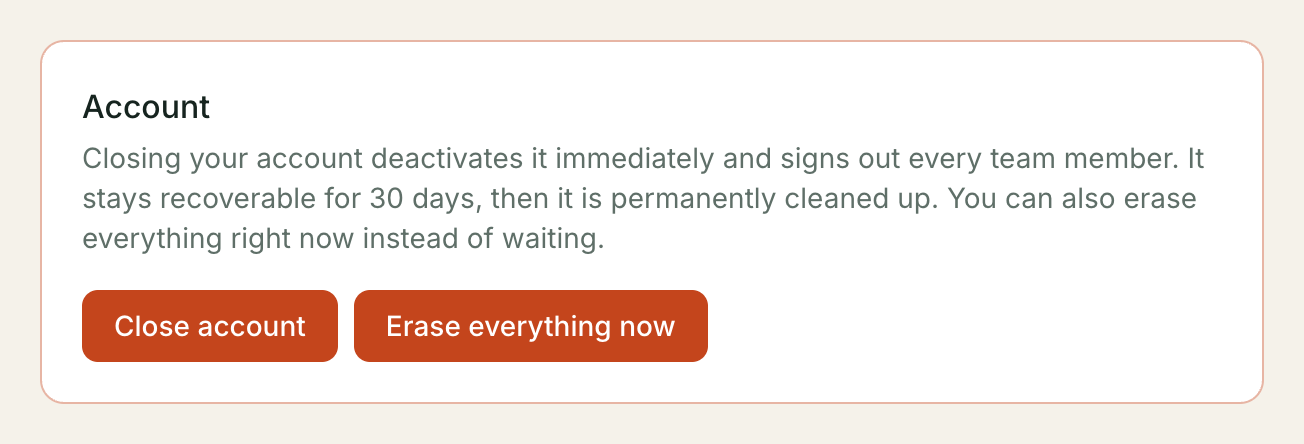
Full walkthrough: Closing your account.
Troubleshooting
I saved and my changes came back
The page reloads its settings whenever anything on it saves, so edits in progress in one section are discarded when you save another. Save one section at a time.
I edited the rules block in the prompt and it came back
That block is rebuilt from your Rules and offers lists every time you save, so hand edits inside it are always replaced. Change the list instead — that is the only thing that decides what the block says.
My offer is still being mentioned
Check its end date. An offer with no end date runs until you remove it. If it has one and has passed, make sure you published after it expired — the list updates the draft, and the draft reaches customers only on publish.
A feature switch snaps back
The save failed — look for the small red line under that row. The tick box is drawn from what the server actually holds, so it never shows a change that did not stick.
My report column is empty for every call
The key path does not match what your assistant records. Open a recent conversation, look at the summary, and copy the name exactly. Matching is literal.
The page says “Couldn’t load your settings”
This screen needs admin access. If you are an admin and still see it, it is a real error — try again, then tell us.
Still stuck? We answer support mail the same working day.
Email support