WhatsApp templates for campaigns
Every campaign message has to be approved by Meta before you can send it — what you can put in one, what the approval states mean, and why a rejected template stops a campaign before it starts.
WhatsApp does not let a business send whatever it likes to someone who is not already talking to it. Outside a 24-hour window after a customer’s last message, every message has to be a template — wording Meta has read and approved in advance, sitting in your own WhatsApp account.
A campaign is always outside that window. So a campaign is always a template, and the template is the campaign: you cannot type a message and send it.
This page is about the templates you write for campaigns. Your assistant’s own six — two for replies and follow-ups, four for reviving stalled enquiries — are fixed, and Kooday owns their wording. See Why your follow-ups need their own template and Reviving stalled enquiries.
⚠️ A template that is not approved stops the campaign at the moment you create it, not at the moment it sends. That is the kinder of the two failures — the other one is several thousand rejections counted against your number.
What a campaign template looks like
A template has a fixed body, and can have blanks in it that you fill in when you send. For example:
Hi! Our Onam offer is on until the 30th — 20% off all service packages
at {{1}}.

Reply to this message and we'll book you a slot.

Reply STOP to stop promotional messages.
Three things about that:
- Everything except
{{1}}is fixed. That is what approval means. Changing a word means a new template and a new review. - The stop line belongs in the template. A marketing message with no visible way out is what gets a number blocked. WhatsApp adds its own Stop promotions button to some marketing messages, sometimes, depending on category and region — it is a bonus, not something to rely on, because it can disappear without any change on your side.
- Write it as one message, not a campaign. Templates are reused. A template that names a specific date is dead the week after.
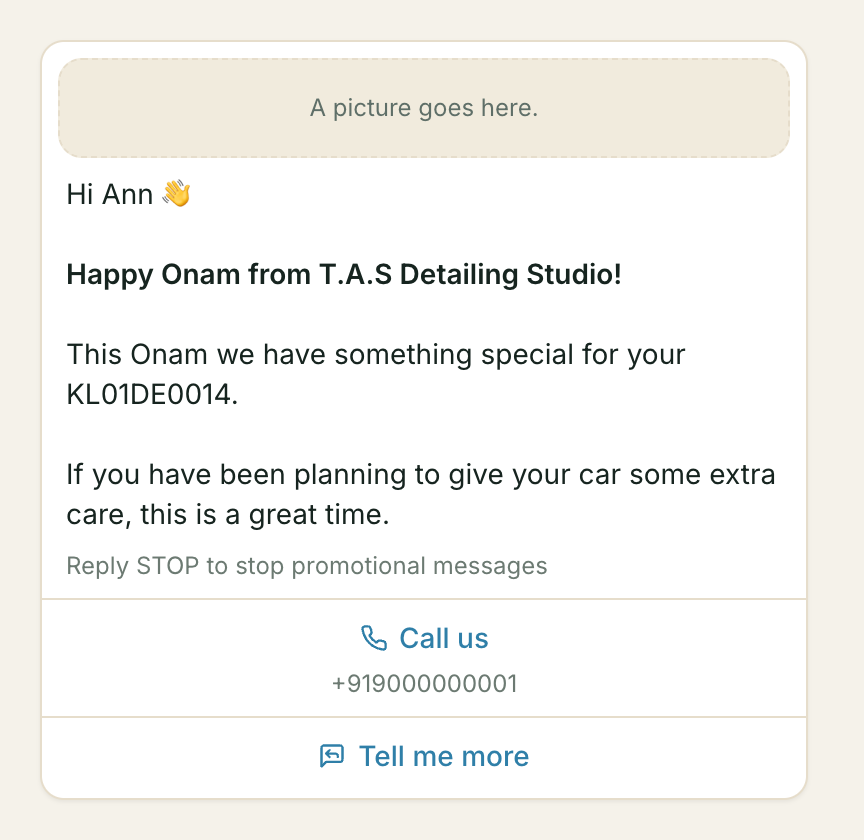
You do not have to picture it. On Broadcasts → Message templates, every template has a Preview link: open it and the message is drawn the way WhatsApp lays it out — picture, text, small grey footer, buttons — with the example values you gave Meta already in the blanks. You can type your own words into the blanks to see how a real message reads. It is the quickest way to tell two similarly named templates apart, because the name is a label only you ever see.
Marketing, not Utility
Meta sorts templates into categories, and a campaign template is Marketing.
It is tempting to submit a promotion as Utility, because Utility is reviewed against a lighter bar and Meta charges less for it. It works, briefly. Then the customers who wanted the promotions to stop keep getting them under a category with no advertised way out, they block you, and the rating drop costs far more than the category ever saved.
A Marketing template is also the only kind a customer’s “stop sending me offers” correctly silences — which is exactly what you want it to do.
What you can and cannot put in one
| Supported | |
|---|---|
| Body text | Yes |
| Blanks in the body | Yes — see below |
| A header at the top | Yes — an image, a video, a document, or text |
| A blank in a text header | Yes — one value, set per campaign |
| Buttons — reply buttons and link buttons | Yes |
| Carousels (2–10 cards to swipe) | Yes |
| A link button that counts clicks | Yes — see below |
| The customer’s name | No |
Filling in the blanks
You set what goes in each blank once, for the whole campaign. A blank is either a fixed piece of text — your business name, this month’s offer — or something from your contact record: their name, their first name, their number, or any field you keep about them.
So “Hi {{1}}” filled with their first name gives you “Hi Priya”.
⚠️ Number your blanks, do not name them. When you create the template, write
{{1}}and{{2}}— not{{first_name}}. WhatsApp allows both, but Kooday can only send the numbered kind, and a named template cannot be picked for a campaign. The template picker will tell you if you have one.
⚠️ A blank filled from a contact record needs a fallback — the words to use for people who have no value for that field. WhatsApp refuses a message with an empty blank, so the fallback is what keeps those people in the campaign instead of dropping them.
Nobody is ever sent a message with a visible {{1}} in it. Where a blank is
filled from a contact record, your fallback covers anyone who has no value for it,
so the campaign still reaches them.
Buttons and carousels
Both are sent. A template Meta approved with reply buttons, link buttons, or as a carousel of cards goes out with all of it intact.
What you supply per campaign is a specification, not a value — the same contract the blanks have, so one campaign serves every recipient. For a button that means which position in the approved template it fills and what goes in it; for a carousel it means the cards, each of which can carry its own image, its own blanks and its own buttons.
Everything is checked against Meta’s copy of the template when the campaign is created, and the refusal names the part that disagrees:
- a reply button aimed at a position Meta approved as a link button, or the reverse;
- a link button whose address takes a changing part you have not supplied — or a fixed address you supplied one for anyway;
- cards on a template that is not a carousel, or a carousel with fewer than 2 or more than 10 cards, which are Meta’s own bounds;
- a card whose image or blanks do not match the card Meta approved.
All of it has a screen. On the campaign’s Message step, an approved template with buttons gets one box per button, labelled with that button’s own text; an approved carousel gets one card per approved card, each with its picture and its values; and the tracked link has its own pair of controls. You cannot add or remove carousel cards there — the count has to match what Meta approved, and a carousel with a card missing is one WhatsApp will not render.
Counting clicks on a link button
One link button per campaign can be pointed at a tracked address. The customer lands where you sent them, and the campaign report counts how many people opened it — each person once, however many times they tapped, because the link travels through forwards and a taps figure is one a stranger could inflate.
Two conditions, and if either is missing the report shows zero clicks rather than an error: the campaign has to name both the destination and which button carries it — one without the other is refused — and Kooday’s tracked-link address has to be configured on the deployment you are on. Read a zero as not measured, not as nobody clicked. See Reading a campaign report.
Writing one
Where to find it: Broadcasts → Message templates → New template (or Write a template, if this number has none yet).
Fill in the form and press Send to Meta for review. The template is created in your own WhatsApp Business account — it is yours, not ours — and Meta reviews it before WhatsApp will carry anything built from it.
You can still write templates directly in Meta’s Business Manager if you prefer, or if you need something this form does not offer. Kooday reads whatever is there either way.
What the form asks for
| Field | What it is |
|---|---|
| Name | Lowercase letters, numbers and underscores. Only you ever see it. |
| Language | Meta approves each language separately. See One name, two languages below — a Malayalam version keeps the same name. |
| What this template is for | Marketing or Utility. See below — this one costs money to get wrong. |
| Header | Optional. A line of text (up to 60 characters, at most one blank), or an image, video or document. |
| Message | The body. Write {{1}}, {{2}} where each message should differ. |
| Footer | Optional small grey text. The same on every message — no blanks. |
| Buttons | Optional. Quick replies, links, a phone number, or a copy-code. |
| Scrollable cards | Optional. Between 2 and 10 cards the customer swipes through, each with its own picture and text. |
Every blank needs an example value — the form asks for one per blank. Meta shows
these to the person reviewing your template, so write what a real message would say
(“Ann”, “A-91”), not {{1}}. A blank with no example is rejected.
If you pick a media header or scrollable cards, you upload the picture here too. That upload is only a sample for the reviewer — every message built from the template can carry a different file.
Beside the form is a preview. It updates as you type and shows the message the
way WhatsApp will lay it out, with your example values in the blanks — so you can
see that *stars* become bold, where the footer sits, and how the buttons appear
under the message. Two things it is not: it is not a check that Meta will approve
your template, and it is not a preview of any real customer’s message. It is the
shape, filled with your own examples.
Worth looking at before you press send, because a template cannot be edited from Kooday. If the wording comes out wrong, the fix is a new template under a new name.
One name, two languages
Meta identifies a template by its name and its language. So a Malayalam
version of a template you already have is not a new template with a longer name —
it is the same name, submitted again with the language set to Malayalam. Do not
write festival_offer_ml; write festival_offer again in Malayalam.
Two reviews, two approval states, one name. They can be in different states at the same time, and in Business Manager they sit together under the one name.
The practical effect on a campaign: a template approved only in English can only be sent in English. There is no translation step at send time — that is not something WhatsApp allows for templates, because the body a reviewer read is the body that goes out.
Your assistant’s own follow-up templates work exactly this way, and it uses the language a customer actually writes to you in to pick between them. That is covered in Why your follow-ups need their own template.
Marketing or Utility — the field that costs money
Meta charges the two at different rates and reviews them against different bars.
- Something the customer expects (Utility) — an order update, an appointment reminder, a receipt. It follows on from something they did.
- Promotional (Marketing) — an offer, a new product, a seasonal note, or bringing a quiet customer back. If it is trying to sell, it is this one, even when it reads like news.
Meta checks your choice and will re-file the template themselves if they disagree, which changes what your sends cost. A promotion filed as Utility is the common mistake.
After you send it
The template goes to Meta as PENDING and appears in the list below the form in that state. Approval usually takes minutes to a few hours. Marketing templates are reviewed harder than Utility ones, so expect the occasional rejection and a rewrite.
Kooday re-reads the list from Meta every six hours, and that copy is what a campaign is checked against — which is why a template approved five minutes ago may not be pickable yet. You do not have to wait: press Check with Meta now, and the list is re-read there and then.
⚠️ If Kooday’s copy disagrees with Meta, Meta is right. Every row says when we last asked, and that age is part of the answer.
Two things people get caught by:
- Templates are per number. A template approved on your transactional number is not available on your marketing number. Write it on the number that will send it.
- A template can be edited after approval — in Business Manager; Kooday does not edit or delete templates. If it is edited, campaigns using it may stop working: a campaign is checked against Meta’s current shape, so an edit that adds or removes a blank makes every campaign built on the old shape refuse.
If Meta says no
You will see Meta’s own words, unchanged. Kooday does not paraphrase a rejection, because the reason is the only useful part and Meta is the one who decided.
Kooday checks a few things before sending — a name with spaces or capitals in it, blanks numbered with a gap, a blank with no example, a footer with a blank in it, a carousel with fewer than two cards. Those appear beside the field they are about, in your form, before anything goes to Meta. Everything else — wording, policy, whether a link looks trustworthy — is Meta’s call and you will hear it from them.
The approval states
| Meta’s state | What a campaign does |
|---|---|
| APPROVED | Sends |
| PENDING | Refused — still under review |
| REJECTED | Refused |
| PAUSED, DISABLED, anything else | Refused |
Only approved sends. Everything else — including a state Meta invents next year that we have never seen — is refused. That is the safe direction: a template we cannot vouch for is not sent, rather than sent and hoped about.
The refusal names the state: “Meta’s status for this template is PENDING, not APPROVED.”
Troubleshooting
”Not in this connector’s template cache”
The template exists at Meta but Kooday’s copy of the list for that number does not have it — usually because it was approved since the last refresh, and the refresh runs every six hours. Press Check with Meta now on the Templates screen and try again.
Two other things produce the same message. The template may be on a different number — templates are per number, and Kooday’s copy is too. Or the number’s connection may be missing the WhatsApp Business account id it needs to read the list at all, in which case the copy is empty and stays empty; tell us and we will check the connection.
The template is approved but the campaign was still refused
The blanks do not match. Meta’s copy of the template has a certain number of blanks, in a certain order, with or without a media header — and what you set on the campaign has to match it exactly. The refusal says which part disagrees.
This most often happens when the template was built by hand in Business Manager after the campaign was set up.
It was approved yesterday and is refused today
Meta can change a template’s status after approval — a pause, a disable, a re-review — and it does not tell you loudly. Kooday picks the change up on its next refresh, within six hours, and campaigns refuse from that moment. Check the template in Business Manager to see what Meta did.
The preview shows no picture
A template with a picture header shows a grey block saying a picture goes there, rather than the picture itself.
That is expected, and your template is fine. The sample image you gave Meta lives on Meta’s servers behind a link that expires after a while, so Kooday often cannot show you their copy of it. Nothing about the template has changed, and it makes no difference to what customers receive: every message built from the template carries the picture the campaign sends, not the sample Meta reviewed.
The same block appears while you are writing a template if you have not picked a file yet.
Can I edit the message after the campaign has started?
No. The message can only be changed while the campaign is still a draft. Once it is scheduled or running, the wording, the template, the blanks and the audience are fixed; the name, the timing and the pace are still yours to change. A campaign that could be rewritten mid-flight would mean two different messages went out under one report.
Still stuck? We answer support mail the same working day.
Email support