Your Inbox, and taking over
Every chat conversation your assistant is handling, in one list — how to take one over and reply yourself, which channels you can actually reply on, and what the 24-hour window does to your words.
Your assistant answers WhatsApp, Instagram, Messenger and your website chat by itself. Most of the time that is the whole point and you never need to look.
Sometimes it is not. A customer asks something only you can answer, or the reply you would give is different from the one it is about to give. The Inbox is where you watch those conversations arrive, and where you step in.
Stepping in is one button. Take over silences your assistant on that conversation — it stops replying immediately — and gives you a box to type in. Hand back to assistant returns it. Nothing is lost either way: the whole thread stays in one place, and when you hand it back your assistant can read what you said and carries on from there rather than contradicting you.
Calls are not here. A phone call is not a conversation you can join halfway. Calls live on the Calls page — see Calls, transcripts and recordings.
Where to find it: open Inbox in the sidebar, under Monitor. If you do not see it, your plan does not include it — ask whoever manages your account.
The one thing to know first: you cannot reply everywhere
This is the fact that catches people out, so it comes before everything else.
| Channel | You can read it | You can reply by hand |
|---|---|---|
| Yes | Yes | |
| Yes | Yes, inside 24 hours only | |
| Messenger | Yes | Yes, inside 24 hours only |
| Web chat | Yes | No |
Website chat is read-only. You can open the thread and read every word, but there is no reply box and no Take over button on it — instead the bottom of the pane says:
Read-only — the assistant handles Web chat conversations. Human replies aren’t available on this channel yet.
That is not a setting you can switch. Website chat is a live connection to a browser tab that is open right now; there is no way to push a message to a visitor who has closed it, so there is nothing for a Take over button to do. If a website conversation needs you, the practical answer is to get their phone number and continue on WhatsApp.
Reading the list
The left-hand list shows one row per conversation, newest customer message first. Each row carries the customer’s name (or their number, or Unknown contact), the last thing said, the channel as a small icon, and the date and time of their last message.
The tabs across the top — All, WhatsApp, Web chat, Instagram, Messenger — filter the same list. Every tab stays visible even for a channel you have not connected; picking one you are not using tells you so rather than showing an empty list:
WhatsApp isn’t enabled — No bot is set up to answer WhatsApp messages, and while the channel is off they aren’t recorded here either. Turn the channel on for a bot in Bots → Channels.
Read that second clause carefully, because it is the one exception to everything else on this page. A number with no assistant, or with an assistant that is merely not active, still hears: the messages arrive, you see them, you answer them yourself. A channel you have switched off does not — it is the switch that means “we are not on this surface”, so nothing is kept. If you want a number to keep receiving while nobody answers automatically, leave the channel on and deactivate the assistant instead.
Website chat is the exception. The widget is the assistant’s own code snippet, so there the assistant is the surface: deactivating it stops the widget serving and nothing new arrives. The paragraph above is about WhatsApp, Instagram and Messenger. See Messages that arrive before you have an assistant.
Two chips can appear on a row, and both matter before you type.
Who is answering. Assistant means your assistant holds the conversation. You means a person does. No assistant means no assistant is attached to this conversation — the message still arrived and you can still answer it, but nothing will answer it for you.
Read that last one as a statement about the conversation, not about your account. It covers a number you have never built an assistant for, and also a conversation that started while an assistant was switched off — in which case other threads on the same number can still show Assistant. Both are explained on their own page: Messages that arrive before you have an assistant.
Whether they have opted out. Opted out of everything or No promotions. Opening the thread spells out what it means for the message you are about to write:
They asked you to stop promotions. Answering them is fine; offers and follow-ups are not.
Answering a question they just asked is always allowed, even at the stricter tier — they wrote to you. Turning that answer into a pitch is the thing the chip is there to stop. See When a customer asks you to stop.
⚠️ The list shows the 50 most recent conversations and has no next page. It also refreshes every 15 seconds and re-sorts. On a busy day a thread you had open can slip off the bottom while you are typing. Kooday will not silently swap another thread in — it says “That conversation is no longer in your list” — but your draft goes with it. On a busy tenant, finish the reply before you go looking at something else.
Taking over
Open a thread and the header tells you who is answering — Assistant is replying or You are replying — next to the button that changes it.
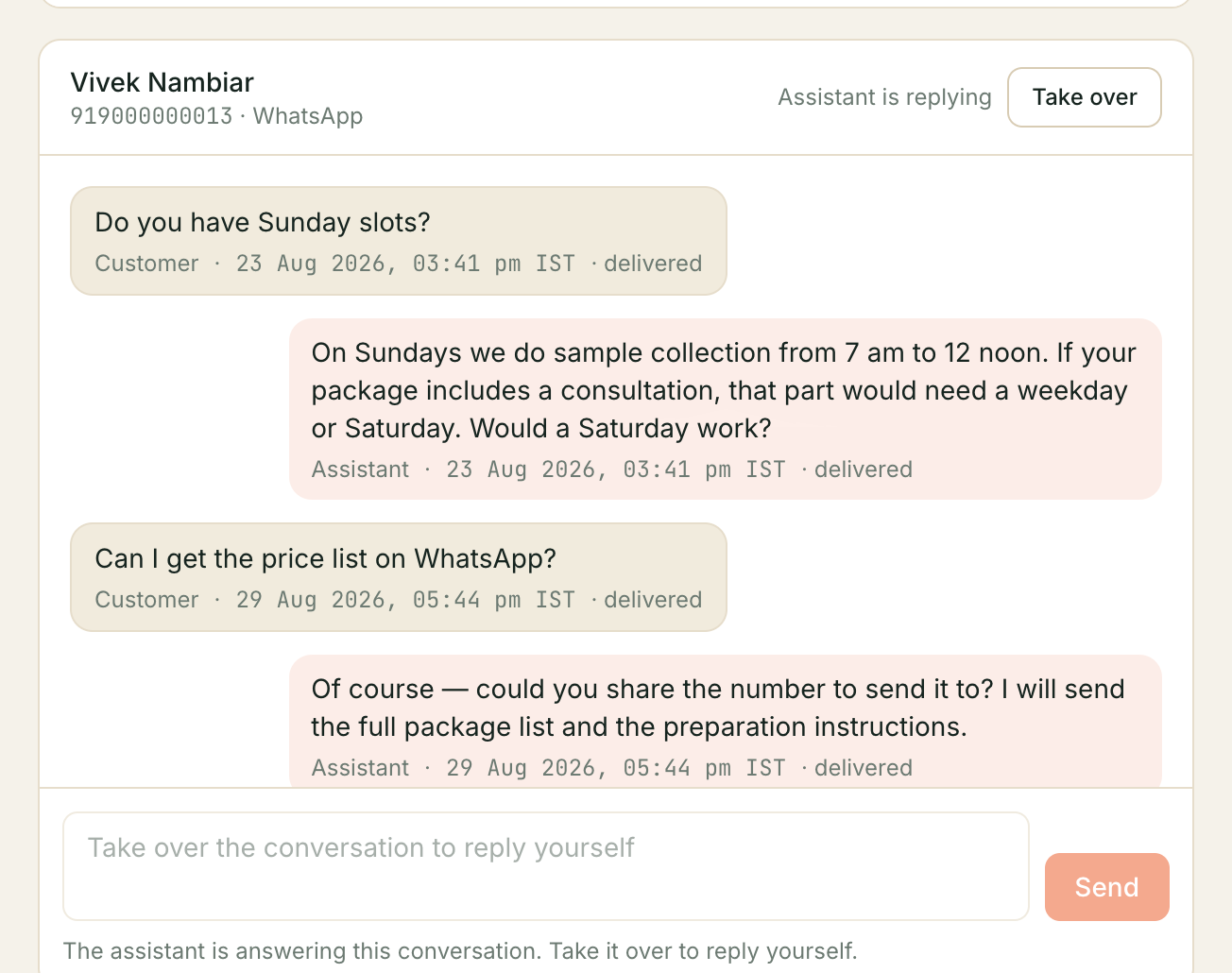
If the header says No assistant — you are replying, this whole section does not apply. There is no Take over button on that conversation because there is nothing to take it over from, and the reply box is live straight away. See Messages that arrive before you have an assistant.
Press Take over. Three things happen at once:
- Your assistant stops replying on this conversation. Not “after the current message” — the check happens at the moment it would send, so a reply it was already writing is thrown away rather than sent.
- The chip flips to You, and a toast confirms “You have taken over this conversation”.
- The reply box becomes usable.
Type, then Send — or Ctrl + Enter (⌘ + Enter on a Mac), since Enter by itself starts a new line.
Press Hand back to assistant when you are done. Your assistant resumes on the customer’s next message.
What happens to messages while you hold it
They keep arriving. The customer sees no difference, gets no “an agent will be with you” notice, and their messages land in the thread exactly as before. The only change is that nothing answers them until you do.
That is the real cost of taking a conversation over and forgetting it. A thread left in You is a thread where a customer is being ignored — by design, because you said you were handling it. Hand it back the moment you are finished.
Your assistant can take a conversation over by itself
If the conversation reaches a point where your assistant judges that it needs a person, it flips the thread to You itself, after answering that turn. So a thread showing You has not necessarily been touched by anyone on your team — it may be one your assistant has handed to you. Those are the ones worth checking first.
Taking over does not claim the conversation
There is no “Priya is replying” indicator, no assignee and no lock. If two of you open the same thread, both of you can send, and neither is warned. Kooday cannot help here yet — sort it out between yourselves the way you would a shared phone.
The 24-hour window, and what it does to your words
WhatsApp only lets a business send free-typed text within 24 hours of the customer’s last message. This applies to you exactly as it applies to your assistant — it is Meta’s rule about the number, not a Kooday setting. There is a fuller explanation in Why your follow-ups need their own template.
Inside 24 hours, your reply goes as you typed it. Nothing to think about.
Outside 24 hours on WhatsApp, your exact words cannot be delivered. Kooday does not refuse quietly — it sends your bot’s approved re-engagement template instead, carrying your business name and a short preview of what you typed, capped at 60 characters, plus an invitation to reply. Then it tells you plainly:
Outside the 24-hour window — your message was NOT sent. We sent this bot’s approved re-engagement template instead, to invite the customer to reply. Your text has been kept in the box: once they reply you can send it.
Your draft is deliberately left in the box. The moment the customer taps through and replies, the window re-opens and you can send the real message.
Two consequences worth carrying:
- The thread will show what was actually sent, not what you typed. The
message row reads
[re-engagement template sent: kooday_reengage]. That is on purpose: a thread that displayed your paragraph would be claiming a delivery that never happened. - If your bot has no approved re-engagement template, nothing goes at all — you get “This conversation is outside WhatsApp’s 24-hour reply window and this bot has no approved re-engagement template, so your message can’t be delivered. Ask the customer to message first, or configure a template.”
Instagram and Messenger have no template at all. Outside 24 hours there, a cold thread cannot be answered by anyone — not by you and not by your assistant. You will see:
This conversation is outside Instagram’s 24-hour reply window. Instagram has no re-engagement template, so no reply can be delivered until the customer messages again.
⚠️ “Sent” means queued, not received. A successful send means the message is durably queued for delivery to Meta. It can still fail afterwards — an expired token, a template revoked at Meta, the window closing in between, or (from 1 October 2026) a number past Meta’s 1,000 free replies for the month with no payment method on file — see Connecting a channel — and nothing removes the message from the thread when it does. Treat a customer’s reply, not the message appearing in the thread, as proof they got it.
If you have more than one number
Kooday lets you connect more than one WhatsApp number, and more than one Instagram account or Facebook Page. The Inbox handles that in a way that is worth knowing before it surprises you.
One customer is one conversation, however many of your numbers they write to. If the same person messages your sales number on Monday and your support number on Tuesday, you see one thread with both exchanges in order, not two threads. Your assistant keeps its memory of them across both, and a conversation you have taken over stays taken over on both.
Three things tell you which number is which:
- A picker beside the channel tabs. Open the WhatsApp tab and a Number dropdown appears (an Account dropdown on Instagram, a Page dropdown on Messenger). Pick one and the list narrows to the customers who are currently talking to that number. All numbers is the whole list, as before.
- The number on each conversation card and in the thread header. The header reads on +91 80 3180 6666 next to the customer’s own number. That is the number your reply will leave from, as long as that number is switched on. If you have paused it on the Integrations page, the header says so and your reply goes out from another of your numbers instead.
- A small via +1 555-397-9204 marker inside the thread, shown above the first message at each point where the conversation moved from one of your numbers to another. A conversation that stayed on one number shows it once at the top.
Your reply leaves from the number the customer wrote to last. This is the same rule your assistant follows, and it is what keeps the 24-hour window honest: the window is per number, so the number they used most recently is the only one where your typed words can be delivered as typed. There is no “reply from” choice, on purpose. The one exception is a number you have paused: Kooday will not send from a switched-off number, so the reply leaves from the number your assistant is set to notify from instead, and the thread shows a via marker above it. If that number is paused too, the Inbox tells you no number is available rather than guessing.
A paused number does not hear either. Messages a customer sends to a switched-off number are not recorded and nobody is told. The Inbox keeps showing that customer on the paused number until they write to one that is switched on.
Two limits to know:
- Messages from before this feature shipped do not carry a number, so an older conversation shows no marker until its next message arrives. The header still says which number the customer is on.
- With a single number connected, none of this appears. The Inbox looks exactly as it always has.
Who “You” means
Every human message in the thread is labelled You — to everyone. Kooday does not yet record which of your team typed it, so a colleague reading the thread tomorrow sees You as well and cannot tell whether it was them or you.
Two other labels appear:
| Label | Who wrote it |
|---|---|
| Assistant | Your assistant |
| Customer | The customer |
| You | Somebody on your team, through this Inbox |
| You (WhatsApp app) | Somebody on your team, typing in your own WhatsApp Business app |
If knowing who said what matters to you, put the name in the message — “Priya here —” — until per-person attribution exists.
Conversation take-over and deal take-over are two different switches
The Pipeline board has a control that looks identical: the same You and Assistant chips, the same Take over and Hand back to assistant buttons, on the deal card instead of the conversation. It is a different switch on a different thing, and mixing them up is the most expensive mistake on this page.
| Inbox take-over | Pipeline take-over | |
|---|---|---|
| What it holds | One conversation on one channel | One deal on the board |
| Stops your assistant replying to messages | Yes | No |
| Stops your assistant chasing and advancing the deal | Yes, for that contact | Yes |
Read that middle row twice. Taking a deal over does not stop your assistant answering that customer’s WhatsApp messages. It stops the chasing and the automatic stage moves; the conversation carries on being answered as normal.
The coupling runs one way only: taking over the conversation also stops the deal’s automatic follow-ups to that customer, because your assistant will not push an automated chase into a thread a person is holding. Handing the conversation back resumes them.
So: if you want to answer this customer yourself, take over in the Inbox. If you want to work this deal yourself, take over on the Pipeline. If you want both, do both.
Reversing a Pipeline take-over
The button that took the deal over is the same button you press to give it back — open the deal’s detail panel and it now reads Hand back to assistant. One click, no confirmation.
Your assistant picks up exactly where the deal was left, not from scratch: nothing about its chase count, its snooze, or its temperature is reset by taking over and handing back. And it does not wait for a fresh cadence to begin — a deal that already qualifies for a follow-up when you hand it back gets picked up on the very next sweep, not after another quiet period starts over.
One asymmetry is worth knowing, though it only shows up if you look at the raw event feed: only taking a deal over is logged as a takeover. Handing it back is recorded on the deal’s own timeline, so you can still see when it happened — it just is not the same kind of event downstream, because the moment worth reacting to is a person stepping in, not a person stepping out.
Troubleshooting
There is no reply box on this conversation
Check the channel. Website chat has no reply box at all and never will in its current form — see the table at the top. On WhatsApp, Instagram and Messenger the box is there but greyed out until you press Take over; the placeholder says “Take over the conversation to reply yourself”. The exception is a conversation showing No assistant — there the box is live immediately and there is no button, because nothing is holding the conversation.
My message says it wasn’t sent
You are outside the 24-hour window. See The 24-hour window. Your text is still in the box — wait for the customer to reply, then send it.
”This conversation is in AUTO mode — the assistant is answering it.”
You lost a race: the thread went back to Assistant between your opening it and your pressing Send, usually because someone else handed it back. Press Take over again and resend.
”This bot has no active WhatsApp connector configured.”
The bot behind this conversation has no working WhatsApp connection to send through. That is a setup problem, not something you can fix from the Inbox — check the bot’s channel setup, or ask whoever set it up.
”This customer asked us to stop messaging them…”
They have opted out of everything, and because you are outside the 24-hour window this would be you starting a new conversation rather than answering one. Only the customer can lift it, by replying START. If they message you first, you can reply normally.
A customer replied to a follow-up and my assistant ignored them
Check whether the thread is in You. A conversation somebody took over and did not hand back is answered by nobody until a person answers it.
I can’t play a voice note
You cannot — but you do not need to. An inbound voice note is shown as its transcript, in the thread, in the customer’s own words. If the transcript could not be produced the bubble says “(no transcript available)”.
The Inbox isn’t in my sidebar
The Inbox is part of your plan rather than something you switch on. If it is missing or shows a lock, ask whoever manages your account.
A working habit that holds up
Morning        Open Inbox on the All tab.
               Scan for chips reading "You" — those are conversations
               your assistant has handed over, or ones someone forgot.

Taking one on  Take over  →  reply  →  Hand back to assistant.
               Never leave a thread in "You" at the end of the day:
               nothing answers a customer while it sits there.

Out of window  If your words won't go, send the nudge and leave the
               draft in the box. When they reply, send the real message.

Website chat   Read it, then move the customer to WhatsApp if it
               needs a person.
The single discipline that matters is handing threads back. Everything else on this page is detail; a conversation stuck in You is a customer waiting.
Still stuck? We answer support mail the same working day.
Email support