Teaching your assistant
Write one sentence and your assistant follows it in every conversation from the next message — what a lesson is, how it differs from your knowledge base, and why you can only have five at a time.
Your knowledge base tells your assistant what is true about your business — what you sell, what it costs, when you are open. It does not tell it how to reply.
A lesson does. It is one sentence you write in your own words, and your assistant follows it in every conversation from its very next message. No approval step, no waiting, nothing to publish. It works the same whether your assistant sells, supports, books, or mentors — the examples below happen to be about selling because that is where most people start.
If someone asks the price before we know what the job involves, ask what they need first.
That is a whole lesson. It changes how your assistant handles a moment you already know how to handle — the thing you would tell a new salesperson in their first week, and would otherwise have no way to tell software.
Where to find it: Teaching in your dashboard, under Assistants. It is on every plan, including the trial. The Suggestions tab beside Lessons is the one part of the page that needs the sales pipeline — see Suggested improvements. On a plan without it the tab is still there and says so when you open it.
A lesson is not a fact
This is the mistake worth avoiding before you write anything.
| Goes in a lesson | Goes in your knowledge base | |
|---|---|---|
| What it is | How your assistant replies | What is true about your business |
| Example | Mention the weekend slot before offering a discount | We open at 7am on Saturdays |
| Example | If they name a competitor, ask what they liked about them | Our AMC covers two services a year |
| Where it lands | The instructions your assistant works from | The material it looks things up in |
A fact typed as a lesson is a fact your assistant will repeat whether or not it is relevant, and one that nothing will ever update when the fact changes. Put facts in your knowledge base.
Writing one
The box is on the Lessons tab, at the top.
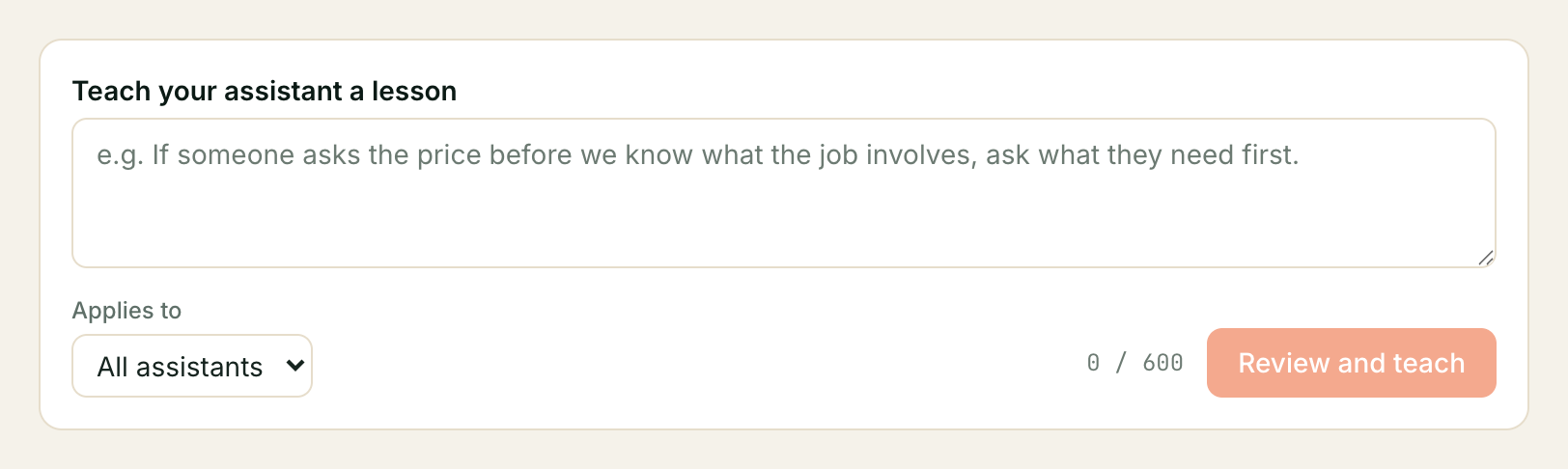
Applies to is the choice that matters. Lessons default to a specific assistant rather than your whole fleet. If you opened Teaching from an assistant’s Studio or from a conversation in your inbox, it defaults to that assistant. On a single-assistant account, it defaults to that assistant. On accounts with multiple assistants and no prior context, there is no default — you must choose which assistant to teach, or select All assistants (N), before the submit button unlocks.
Choosing one assistant refines that one and leaves the others exactly as they were. Choosing All assistants explicitly tells every assistant to follow the instruction. The review step names every assistant that will receive it, so you can see exactly where it lands.
A lesson can run to 600 characters. The counter under the box shows where you are. Ctrl+Enter (⌘+Enter on a Mac) works instead of the mouse.
Before it saves
Review and teach does not save. It shows you the line your assistant will actually be given, and then Yes, teach this saves it.
The extra click is deliberate, and it is not an “are you sure?” — a yes/no catches nothing, because anyone who submitted by accident clicks through it with exactly the same attention. What earns the second read is seeing the sentence itself again, because it is not always character-for-character what you typed (see below). Ctrl+Enter goes through the same two steps.
Kooday may add a plain note beside it — Just so you know — this mentions a discount. That is information and nothing more. It never stops you saving. A half-price clearance offer, an end-of-season push, a decision to move slow stock: those are your commercial calls to make, and a platform that quietly declined to say them would have replaced your judgement with its own.
The one thing that does stop the save is a line with no words in it your assistant can act on — a heading, or punctuation on its own. Edit it and try again.
The same second look is offered when you approve a suggestion. It is never offered when you stop a lesson, for the reason in Stopping a lesson.
What your assistant is actually shown
The panel above the button says Your assistant will be shown:; the one that appears after you save says Your assistant is shown:. Either way the line itself follows. Read it. It is not always character-for-character what you typed:
- a lesson typed across several lines is put on one line;
- curly brackets are changed to square ones.
{{CALLER_NAME}}becomes[[CALLER_NAME]].
That second one is the important one. Double curly brackets are how Kooday fills in things like a caller’s name elsewhere in your assistant’s instructions, so a lesson containing them would be filled in with something you never chose, mid-conversation with a customer. Neutralising them is what stops that — and showing you the result is how you find out before a customer does, rather than after.
Any lesson whose served line differs from what you typed keeps showing both in the list.
Five at a time
⚠️ Each assistant follows at most five lessons. Save a sixth and the oldest one in the same group is stopped automatically to make room. You are told which, and it stays in the list marked Retired.
The cap is not arbitrary: five sentences is roughly what can sit in an assistant’s instructions without crowding out the rest of what it knows.
“In the same group” is doing real work there. A lesson for one assistant is never stopped to make room for an all-assistants lesson, and the other way round — that would silently change what your other assistants say. When there is no room and nothing in the same group can be stopped, the save is refused instead, with a line telling you which group to clear.
Stopping a lesson
Stop using this on any lesson. One click — no confirmation box, and you are not asked why.
It takes effect on the next message. The lesson does not disappear: it stays in the list marked Retired, so the tab doubles as a record of what you changed and when.
Stopping is never blocked, and it never asks a question that could fail. Not while a test is running, not while your plan is changing, not for any other reason. Taking a sentence away can only ever move your assistant back toward what it was already saying — so a business that cannot stop its assistant saying something would be the one failure worth guarding against, and nothing is allowed to stand in the way.
That is also why the question is on the other side. When you add a lesson, Kooday shows you the exact line your assistant will be given and asks you to confirm it (see Before it saves). When you take one away, it just goes.
Stopping one you approved from Suggested improvements
Works the same way, from the same button. A suggestion you approved sits in the list as Approved, waiting to be tested — and if a comparison has been started for it, it is being used in about half of that assistant’s conversations right now. Stopping it takes it out of all of them and ends the comparison. You can also do it from the suggestion itself, with Take it back on the Suggestions tab.
Clicking twice does nothing the second time. It is not an error, and it does not change the record of when you stopped it.
Reading the list
Newest first. Each row shows the lesson, who it applies to (with the assistant’s display name, e.g. Nila, or All assistants), and its state:
| Chip | What it means |
|---|---|
| Active | Being followed right now |
| Approved, waiting to be tested | Approved from Suggested improvements, and queued. Reaching nobody: each assistant compares one thing at a time, so it is waiting its turn. Stop using this works on it |
| Being compared now | The comparison is running. It is used in about half of that assistant’s conversations; the other half get your current approach. Stop using this takes it out of all of them and ends the comparison |
| Retired | Stopped. Kept for the record |
| Turned down | A suggestion you rejected. Never used |
The All / Active / Retired filter and the scope filter (All / Tenant-wide / each assistant) above the list let you focus on what is currently in use or filter by assistant.
Moving a lesson to another assistant (re-scoping)
You can move an active lesson between assistants, or promote it to All assistants, directly from its row in the list using the scope selector.
Re-scoping takes effect immediately in one step — there is no need to retire the lesson and re-type it. If the target assistant already has 5 active lessons (the maximum allowed), the move will be refused until a slot is freed on that assistant.
Things that can go wrong
”Saved — but one assistant will not use it”
That assistant’s instructions were written by hand rather than assembled from your lessons, and Kooday will not overwrite hand-written instructions. The lesson is saved and is being followed by every other assistant; that one is not getting it. Ask us through Support in your dashboard to clear the hand-written block and it will.
The same warning appears when you stop a lesson, and it matters more there: an assistant that never received a lesson also never stops saying it.
”A test is running on that assistant”
A suggestion you approved is being tested, and adding a lesson mid-test would change the wording on both sides of the test — so the result would be measuring two changes at once and would tell you nothing. Wait for it to finish, or stop it, and teach the lesson then. You can still stop existing lessons while a test runs.
”There is no room for another lesson”
Five already, and nothing in the same group can be stopped to make room. Stop one from that group first — an all-assistants lesson if the new one is for all assistants, one of that assistant’s own if it is not.
”N assistants are being told different things”
A quiet line under the composer. It means one assistant’s instructions did not finish updating. Teaching or stopping any lesson brings them back into line. If it instead says an assistant has hand-written instructions, that is the case above and it will not resolve on its own.
The scope box is greyed out
Your list of assistants did not load. The lesson can still be saved, but only to all of them — reload before writing one meant for a single assistant.
Related: Suggested improvements · Your knowledge base · How your assistant sells · Reading your sales report
Still stuck? We answer support mail the same working day.
Email support